Introduction
Thank you for purchasing a WordPress Theme. This documentation consists of several parts and shows you the entire process of setting up and administering a WordPress Website from scratch.
What is WordPress CMS?
WordPress is a free and open source blogging tool and a content management system (CMS) based on PHP and MySQL. It enables you to build Websites and powerful on-line applications and requires almost no technical skills or knowledge to manage. Many aspects, including its ease of use and extensibility, have made WordPress the most popular Web site software available. Learn More
What is a WordPress template
A WordPress template is a skin for a website built with the WordPress CMS platform. In other words, you can easily change your WordPress Web site appearance by installing a new template in a few easy steps. With all its simplicity, a WordPress template is provided with all the necessary source files and you are free to edit or extend it the way you need.
Help and Support
- mail us: support@flythemes.net
Files structure
The template package you have downloaded consists of several folders. Let's see what each folder contains:
- documentation - contains documentation files.
- documentation.html - the main documentation file. You are right here :)
- screenshots - contains template screenshots. Not for production.
- theme - contains WordPress theme files.
- theme####.zip - this folder content all the necessary files for the theme.
- sample_data - contains files that can make your WordPress website look like our live demo.
- sample_data.xml - contains all template sample data (posts, pages, categories, etc.).
- various images and other media files
- manuall_install - contains files that can make your WordPress website look like our live demo.
- uploads - contains theme images.
- theme#####.sql - database backup file (contains theme content).
- license.txt - contains license details.
- readme.txt - contain information about theme images path and font use and usage scritps.
Template installation
Template installation is very easy process. The installation process includes only two simple steps: theme installation and sample data installation.
All installation steps can be done within WordPress interface. It makes process comfortable and fast.
Step 1. Theme installation
- Go to the menu Appearance > Themes and click the Add New Theme button.
- Click the Upload link.
- Click the Browse button and navigate to the unzipped template package on your computer.
- Look for a file called fitburn-pro.zip Click on it to select, then click OK.
- Click the Install Now button and wait until the installation is complete.
- Click the Activate link to change the current layout of the site to the theme your purchased.
- Go to Appearance >> Theme Options >> Click on Restore Default button.
- Ensure Your homepage displays setting is "Your Latest Posts". Settings >> Reading.
- Install all the required plugins that theme needs.
Congratulations, your theme have been successfully installed!
Step 2. Sample Data Installation
To make your WordPress website look like our live demo, please follow the instructions below.
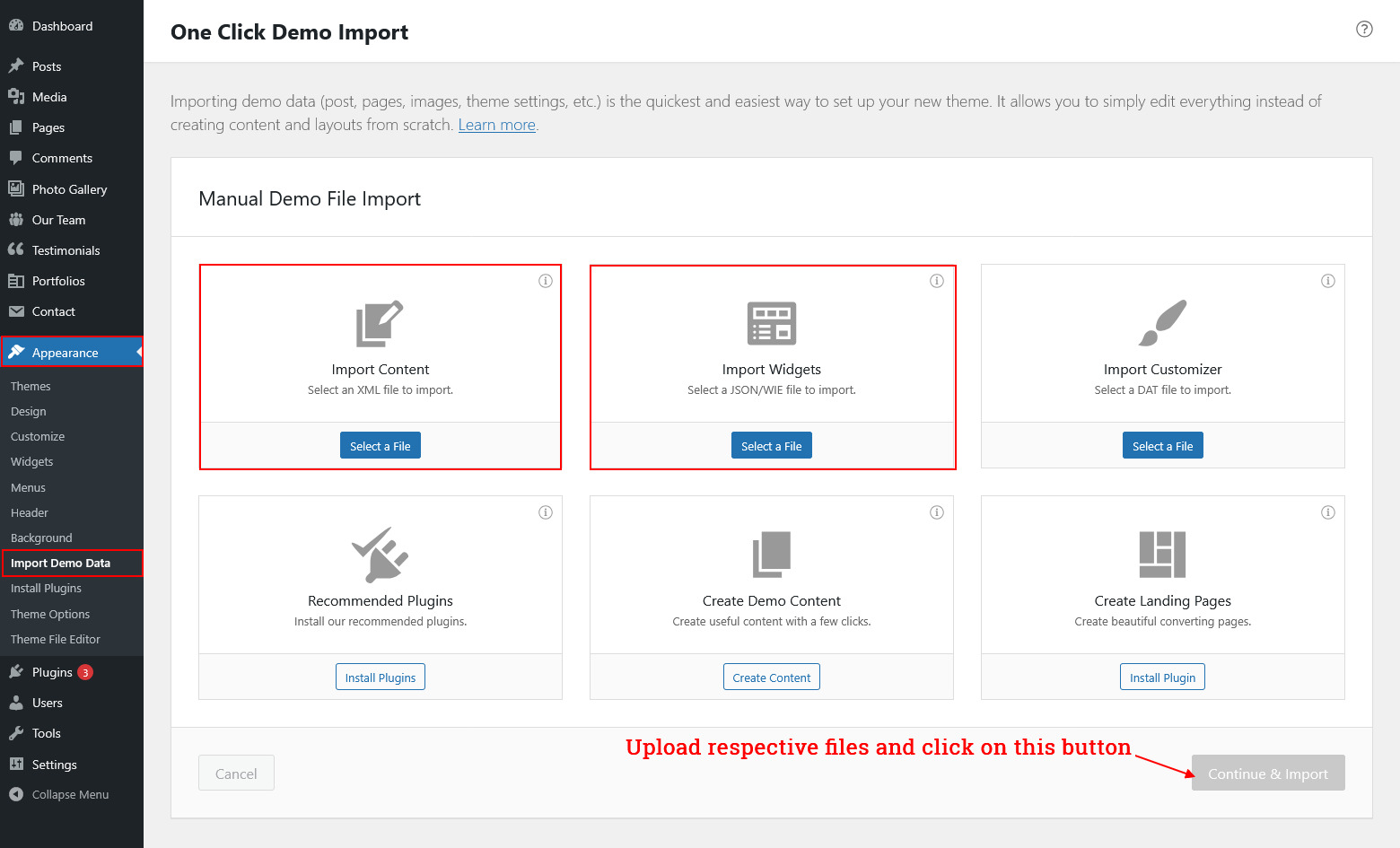
- Go to the Appearance Select import demo data option and browse xml file to Import Content and browse wie file to Import Widgets then click on Continue & import. See below screenshot.
How to set up homepage
Setup Header
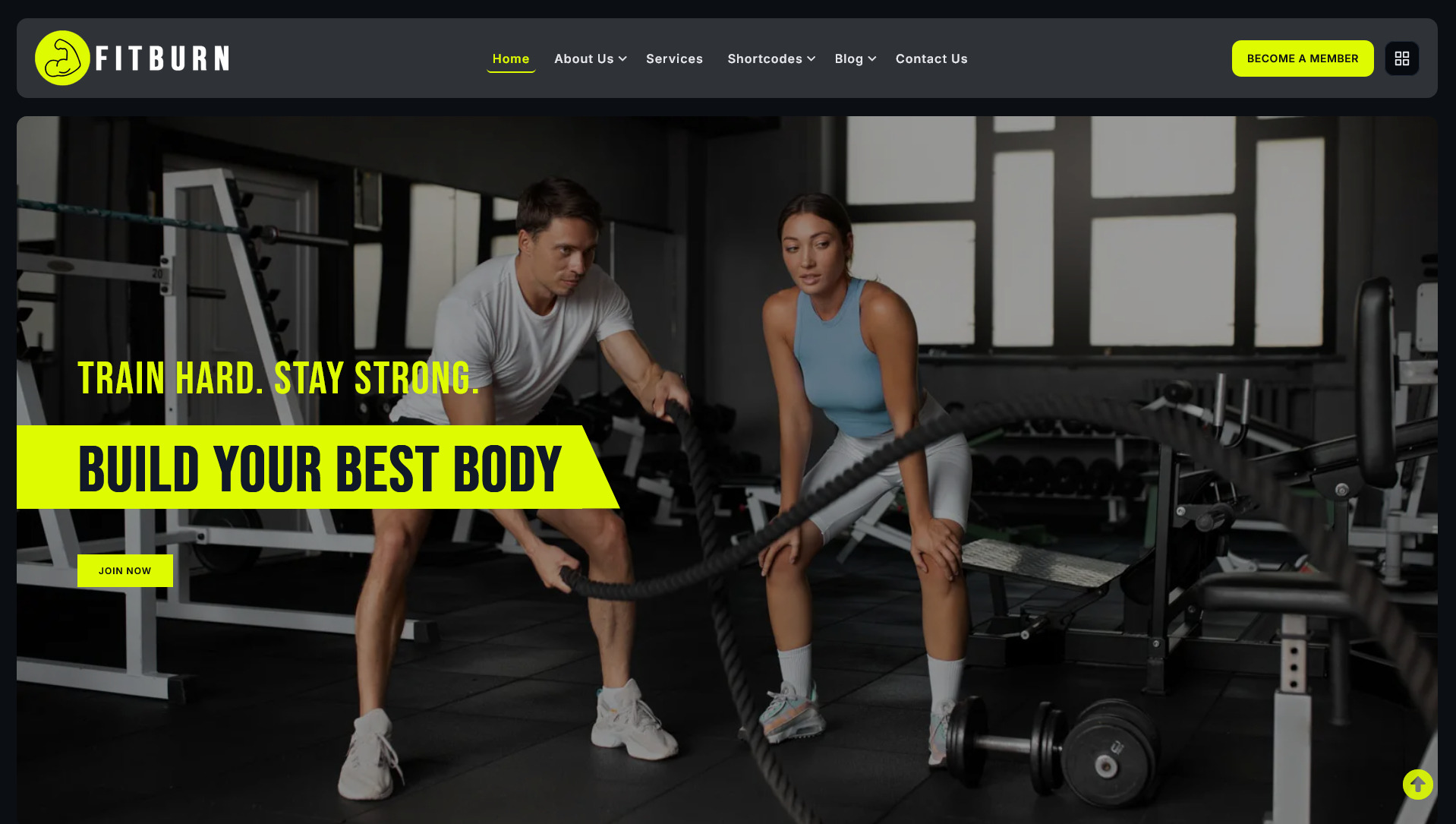
Follow these instructions to setup header.
- For Site Name/Logo: For changing site name go to Settings >> General >> Site Title OR if you want to uplaod logo for your site go to Appearance >> Theme Options >> Basic settings >> Logo. Please see the theme option tab in this documentation for more details.
- For Navigation: See the Navigation tab of this documentation.
- For Header Button: For header button go to Appearance >> Theme Options >> Basic Settings >> Header button.
- For Header Drawer: For header Drawer go to Appearance >> Theme Options >> Basic Settings >> Header Drawer Settings.
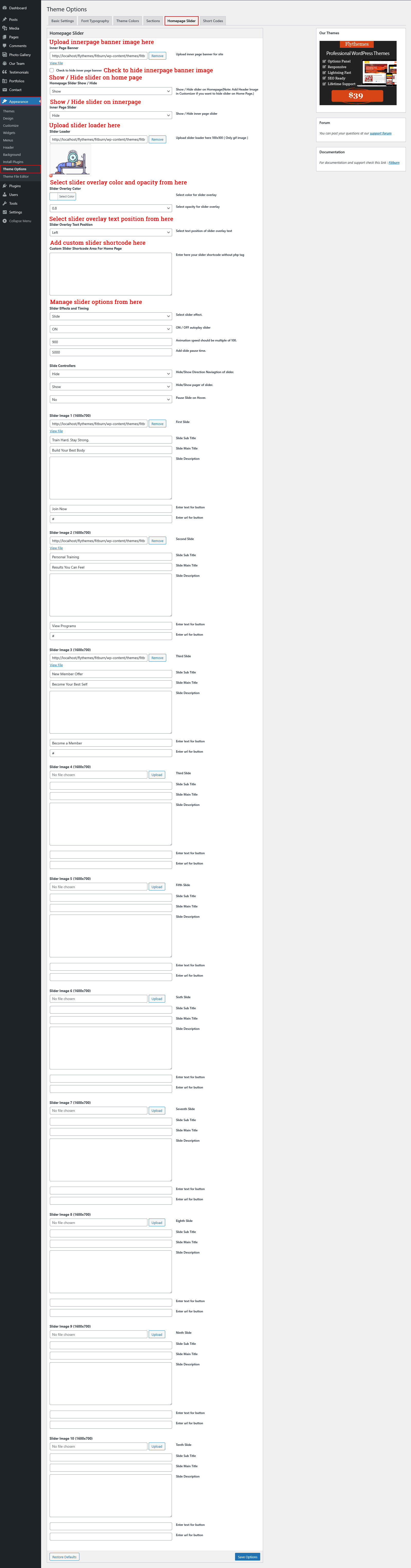
- For Slider: Go to Appearance >> Theme Options >> Homepage Slider >> Upload image, Add Title and Add Description.
-
Note: You can set header from different header layout option given by theme.
Goto Appearance >> Theme Options >> Basic Settings >> Header Layouts - Note: You can also add video instead of slider slides. Upload your video mp4 file in dashboard media, then goto Appearance >> Theme Options >> Homepage Slider >> Custom Slider Shortcode Area For Home Page. Copy code and paste it there <figure class="wp-block-video"><video autoplay="" loop="" muted="" preload="auto" src="" playsinline=""></video></figure>. Add video path in src="" option.
Marquee Section

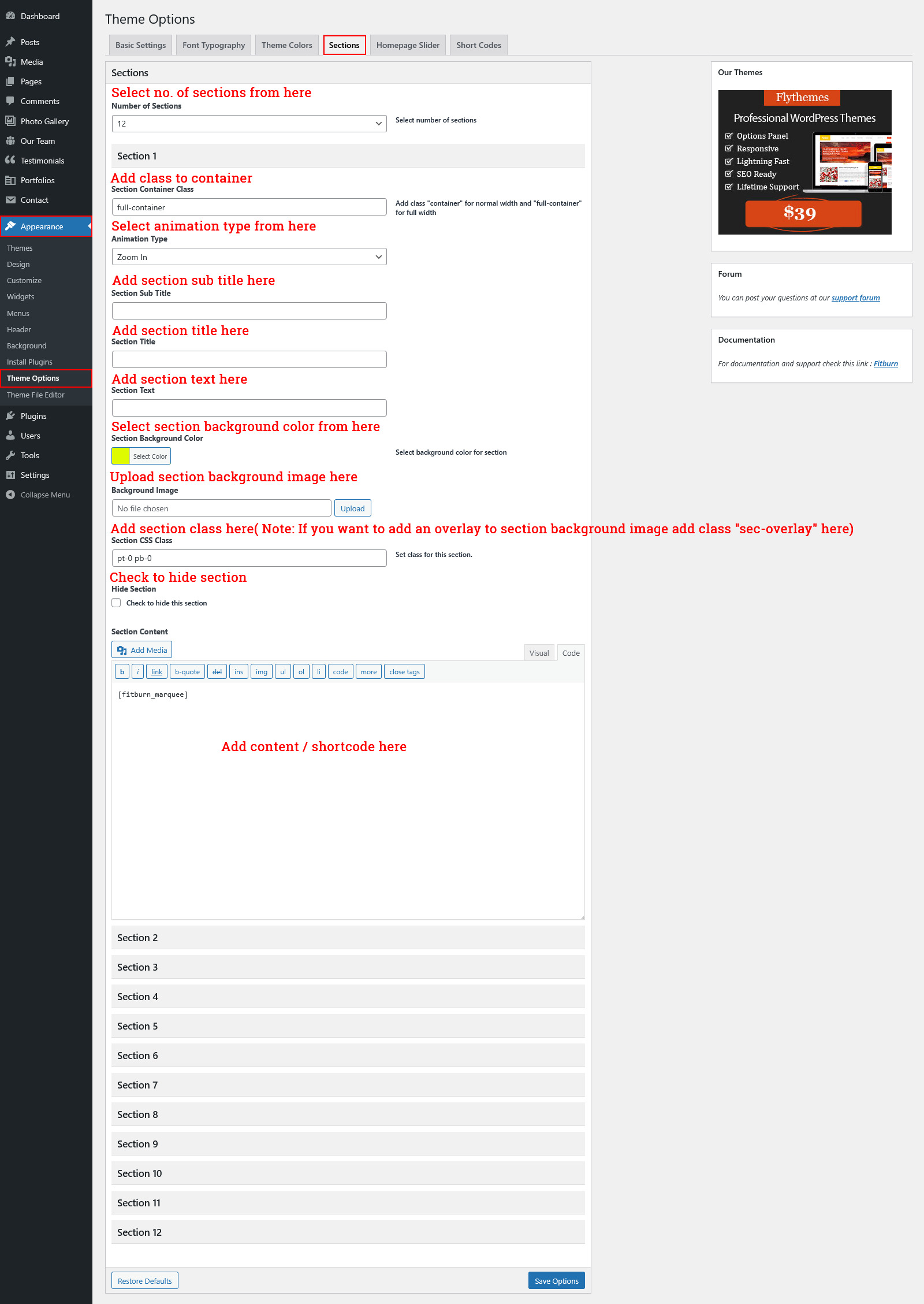
For setting up Marquee Section Go to >> Appearance >> Theme Options >> Sections >> Section 1.
Shortcode/Content for Marquee Section.
[fitburn_marquee text="FITBURN|PUSH YOUR LIMITS|TRAIN HARD|STAY STRONG|BUILD MUSCLE|LOSE FAT" direction="left" speed="24" text_color="#000000" class=""]
Once you added above shortcode in the sections content area, you'r done. (Section 1.)
Introduction Section
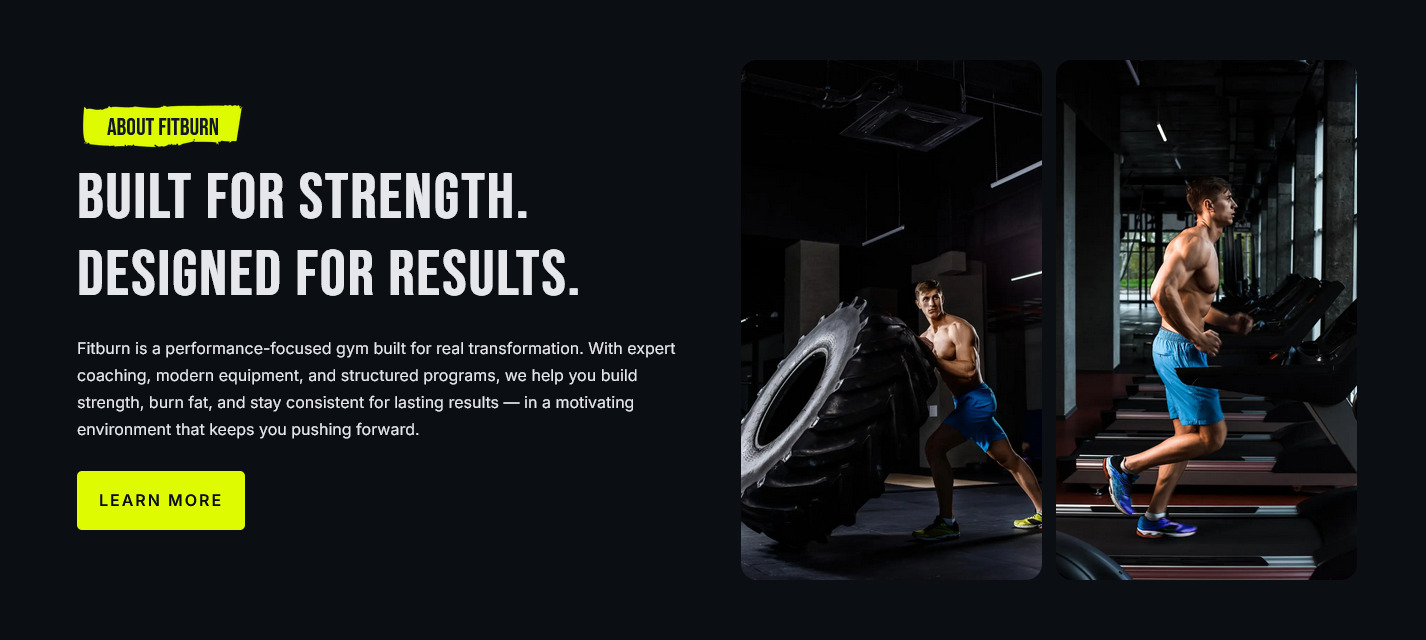
For setting up Introduction Section Go to >> Appearance >> Theme Options >> Sections >> Section 2.
Shortcode/Content for Introduction Section.
[fitburn_about image="http://flydemos.net/fitburn/wp-content/themes/fitburn-pro/images/about1.webp" image_secondary="http://flydemos.net/fitburn/wp-content/themes/fitburn-pro/images/about2.webp" image_position="right" sub_title="ABOUT FITBURN" title="Built For Strength. Designed For Results." btn_text="Learn More" btn_link="#"] Fitburn is a performance-focused gym built for real transformation. With expert coaching, modern equipment, and structured programs, we help you build strength, burn fat, and stay consistent for lasting results — in a motivating environment that keeps you pushing forward. [/fitburn_about]
Once you added above shortcode in the sections content area, you'r done. (Section 2.)
Our Programs Section
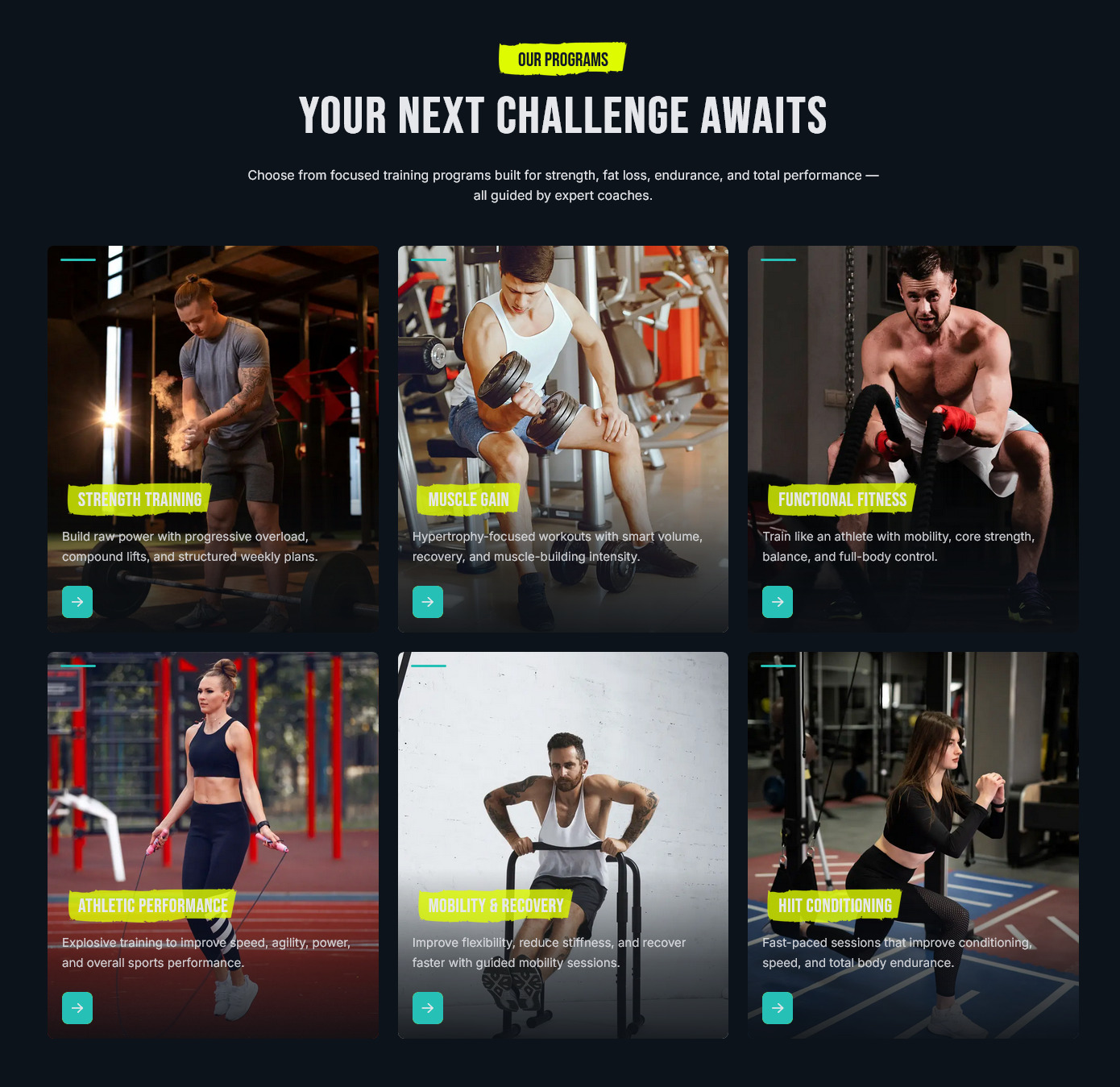
For setting up Our Programs Section Go to >> Appearance >> Theme Options >> Sections >> Section 3.
Shortcode/Content for Our Programs Section.
[fitburn_programs type="grid" column="3" tablet_column="2" style="cover"] [fitburn_program image="http://flydemos.net/fitburn/wp-content/themes/fitburn-pro/images/strength-training.webp" title="Strength Training" link="#" link_text="View Program"] Build raw power with progressive overload, compound lifts, and structured weekly plans. [/fitburn_program] [fitburn_program image="http://flydemos.net/fitburn/wp-content/themes/fitburn-pro/images/muscle-gain.webp" title="Muscle Gain" link="#" link_text="View Program"] Hypertrophy-focused workouts with smart volume, recovery, and muscle-building intensity. [/fitburn_program] [fitburn_program image="http://flydemos.net/fitburn/wp-content/themes/fitburn-pro/images/functional-fitness.webp" title="Functional Fitness" link="#" link_text="View Program"] Train like an athlete with mobility, core strength, balance, and full-body control. [/fitburn_program] [fitburn_program image="http://flydemos.net/fitburn/wp-content/themes/fitburn-pro/images/atheletic-performance.webp" title="Athletic Performance" link="#" link_text="View Program"] Explosive training to improve speed, agility, power, and overall sports performance. [/fitburn_program] [fitburn_program image="http://flydemos.net/fitburn/wp-content/themes/fitburn-pro/images/mobility-recovery.webp" title="Mobility & Recovery" link="#" link_text="View Program"] Improve flexibility, reduce stiffness, and recover faster with guided mobility sessions. [/fitburn_program] [fitburn_program image="http://flydemos.net/fitburn/wp-content/themes/fitburn-pro/images/hiit.webp" title="HIIT Conditioning" link="#" link_text="View Program"] Fast-paced sessions that improve conditioning, speed, and total body endurance. [/fitburn_program] [/fitburn_programs]
Once you added above shortcode in the sections content area, you'r done. (Section 3.)
Popup Video Section
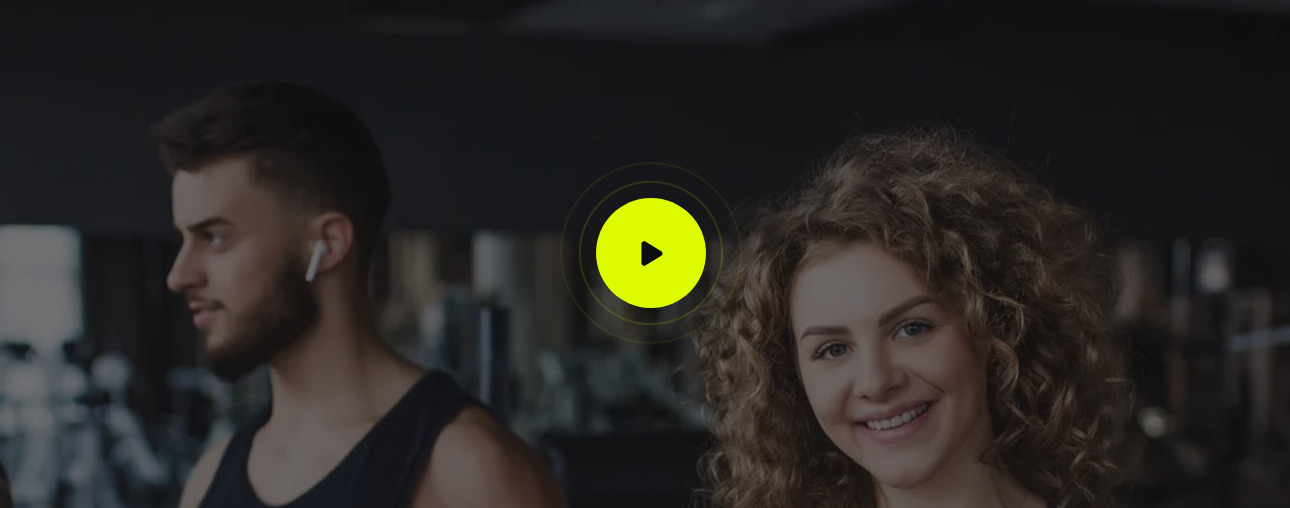
For setting up Popup Video Section Go to >> Appearance >> Theme Options >> Sections >> Section 4.
Shortcode/Content for Popup Video Section.
[fitburn_video_popup url="https://www.youtube.com/watch?v=NcvTj7OuJAU"]
Once you added above shortcode in the sections content area, you'r done. (Section 4.)
Why Choose Us Section
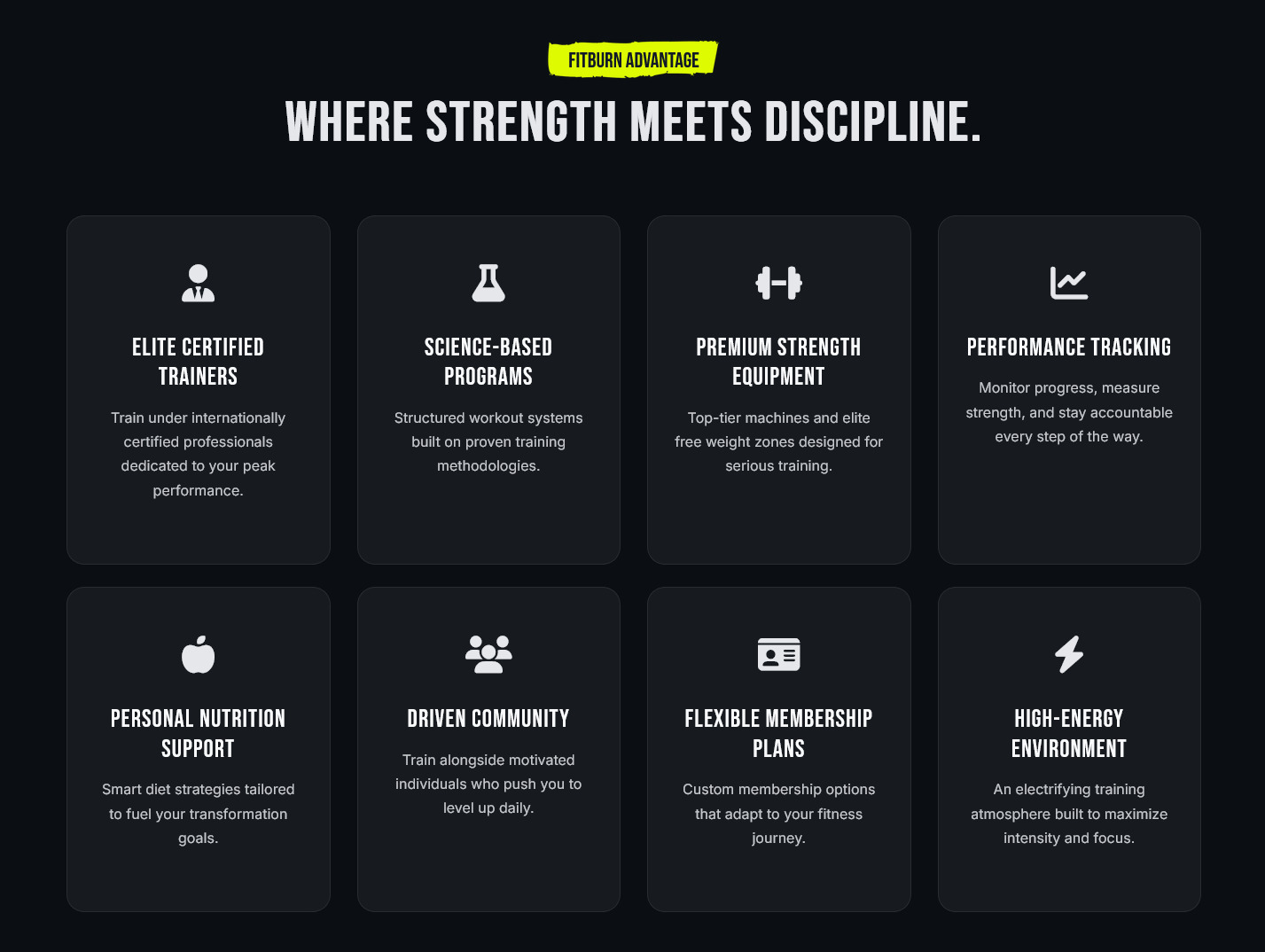
For setting up Why Choose Us Section Go to >> Appearance >> Theme Options >> Sections >> Section 5.
Shortcode/Content for Why Choose Us Section.
[row subcls="align-stretch gap-25"][column col="3" subcls="tab-col-6"][fitburn_why_item icon="fa-solid fa-user-tie" title="Elite Certified Trainers"] Train under internationally certified professionals dedicated to your peak performance. [/fitburn_why_item][/column] [column col="3" subcls="tab-col-6"][fitburn_why_item icon="fa-solid fa-flask" title="Science-Based Programs"] Structured workout systems built on proven training methodologies. [/fitburn_why_item][/column][column col="3" subcls="tab-col-6"] [fitburn_why_item icon="fa-solid fa-dumbbell" title="Premium Strength Equipment"] Top-tier machines and elite free weight zones designed for serious training. [/fitburn_why_item][/column] [column col="3" subcls="tab-col-6"][fitburn_why_item icon="fa-solid fa-chart-line" title="Performance Tracking"] Monitor progress, measure strength, and stay accountable every step of the way. [/fitburn_why_item][/column] [column col="3" subcls="tab-col-6"][fitburn_why_item icon="fa-solid fa-apple-whole" title="Personal Nutrition Support"] Smart diet strategies tailored to fuel your transformation goals. [/fitburn_why_item][/column] [column col="3" subcls="tab-col-6"][fitburn_why_item icon="fa-solid fa-users" title="Driven Community"] Train alongside motivated individuals who push you to level up daily. [/fitburn_why_item][/column] [column col="3" subcls="tab-col-6"][fitburn_why_item icon="fa-solid fa-id-card" title="Flexible Membership Plans"] Custom membership options that adapt to your fitness journey. [/fitburn_why_item][/column] [column col="3" subcls="tab-col-6"][fitburn_why_item icon="fa-solid fa-bolt" title="High-Energy Environment"] An electrifying training atmosphere built to maximize intensity and focus. [/fitburn_why_item][/column][/row]
Once you added above shortcode in the sections content area, you'r done. (Section 5.)
Testimonials Section
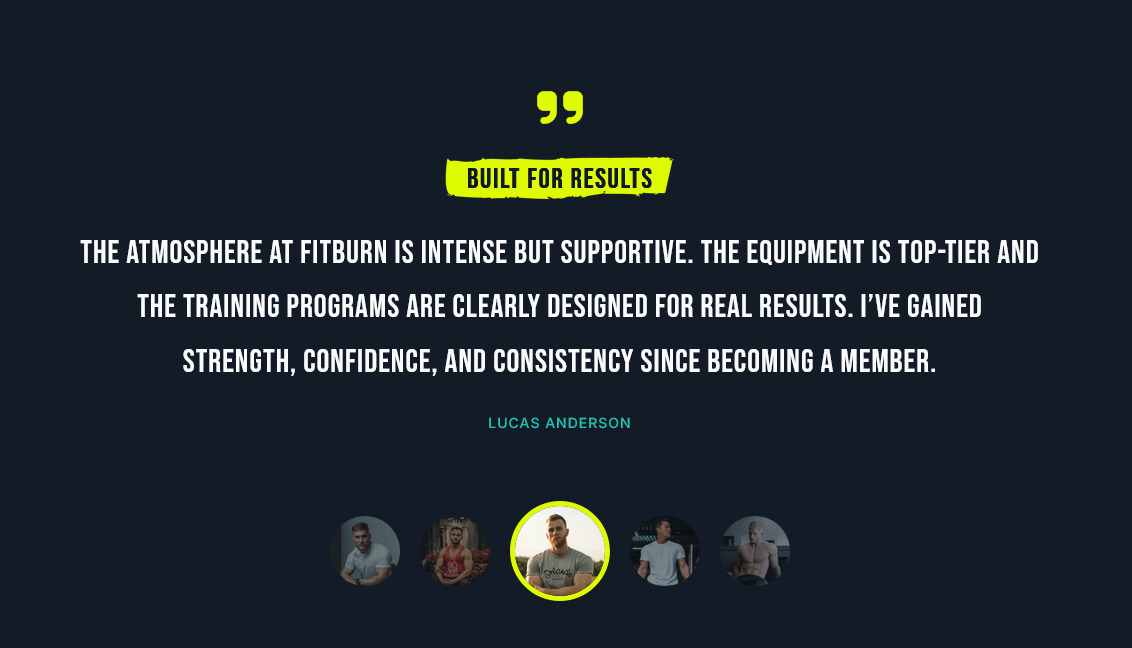
For setting up Testimonials Section section Go to >> Appearance >> Theme Options >> Sections >> Select Section 6.
For setting up Testimonials section first of all you need to add some posts by using Testimonials Post Type. Follow below instruction to add posts.
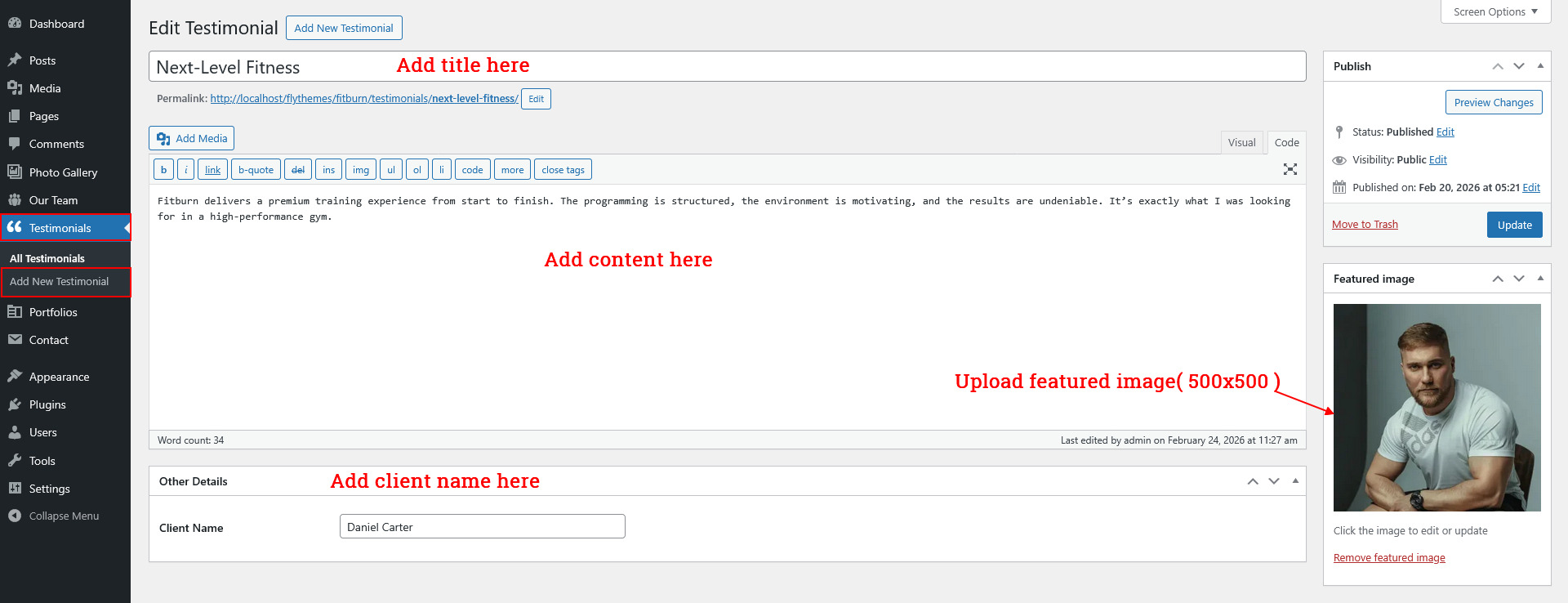
Once you added posts in the Testimonials posts type after that you just have to add post shortcode in the sections content area and you'r done. (Section 6.)
Testimonials Section Shortcode:
[testimonials]
Once you added above shortcode in the sections content area, you'r done. (Section 6.)
Pricing Section
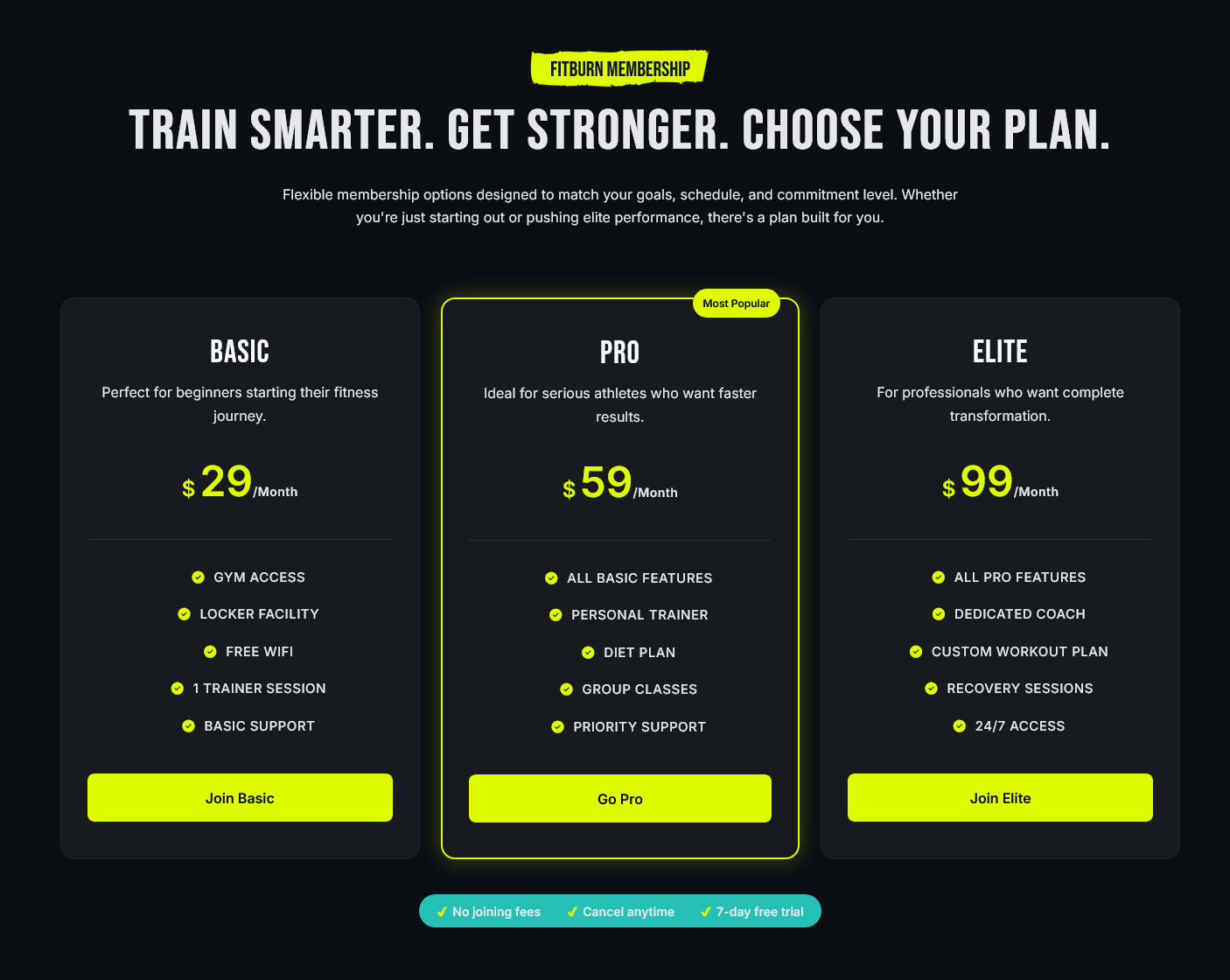
For setting up Pricing Section Go to >> Appearance >> Theme Options >> Sections >> Section 7.
Shortcode/Content for Pricing Section.
[fitburn_pricing column="3" currency="$" highlight="2" how_trust="yes" trust_items="No joining fees|Cancel anytime|7-day free trial" plan1_title="Basic" plan1_desc="Perfect for beginners starting their fitness journey." plan1_price="29" plan1_duration="/Month" plan1_features="Gym Access|Locker Facility|Free WiFi|1 Trainer Session|Basic Support" plan1_btn_text="Join Basic" plan1_btn_link="#" plan2_title="Pro" plan2_desc="Ideal for serious athletes who want faster results." plan2_price="59" plan2_duration="/Month" plan2_badge="Most Popular" plan2_features="All Basic Features|Personal Trainer|Diet Plan|Group Classes|Priority Support" plan2_btn_text="Go Pro" plan2_btn_link="#" plan3_title="Elite" plan3_desc="For professionals who want complete transformation." plan3_price="99" plan3_duration="/Month" plan3_features="All Pro Features|Dedicated Coach|Custom Workout Plan|Recovery Sessions|24/7 Access" plan3_btn_text="Join Elite" plan3_btn_link="#"]
Once you added above shortcode in the sections content area, you'r done. (Section 7.)
Our Team Section
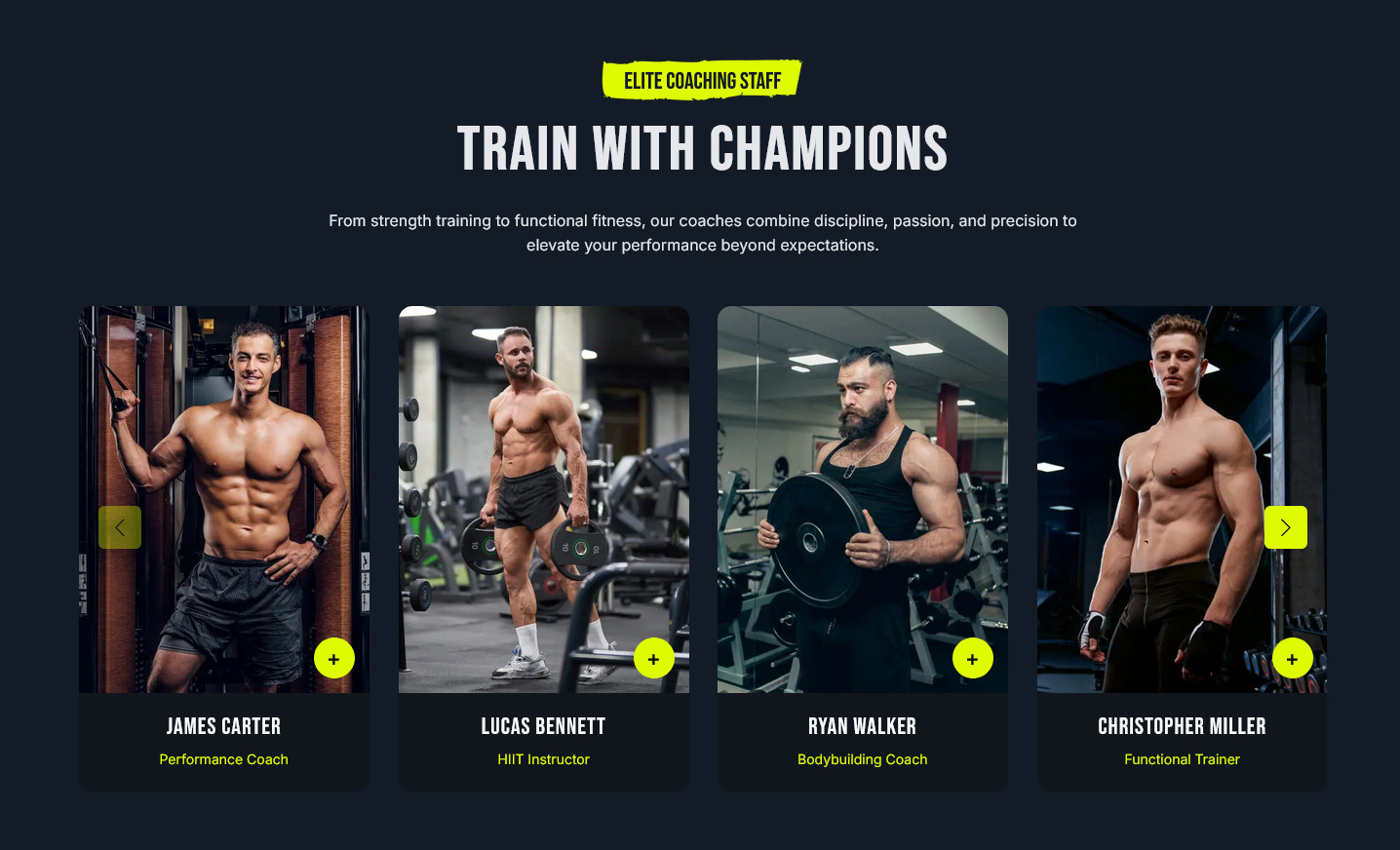
For setting up Our Team Section section Go to >> Appearance >> Theme Options >> Sections >> Select Section 8.
For setting up Our Team Section first of all you need to add some posts by using Our Team. Follow below instruction to add posts.
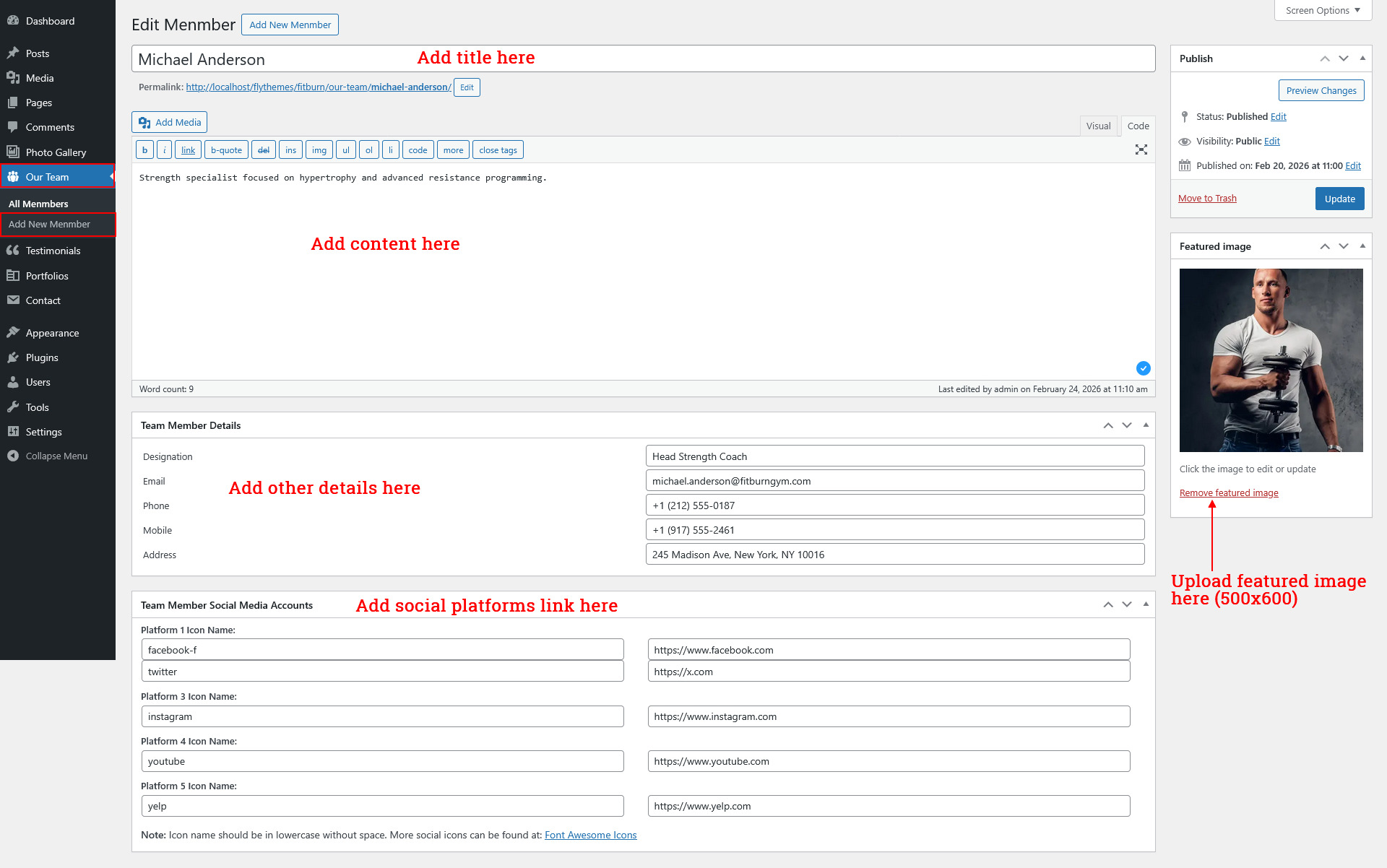
Once you added posts in the Posts type after that you just have to add post shortcode in the sections content area and you'r done. (Section 8.)
Our Team Section Shortcode:
[fitburn_team type="slider" show="-1" desktop_column="4" mobile_column="1"]Note:you can change "type" attribute from slider to grid. Use shortcode [fitburn_team show="No. of post you want to show" type="grid" column="4"]
Once you added above shortcode in the sections content area, you'r done. (Section 8.)
BMI FAQ Section
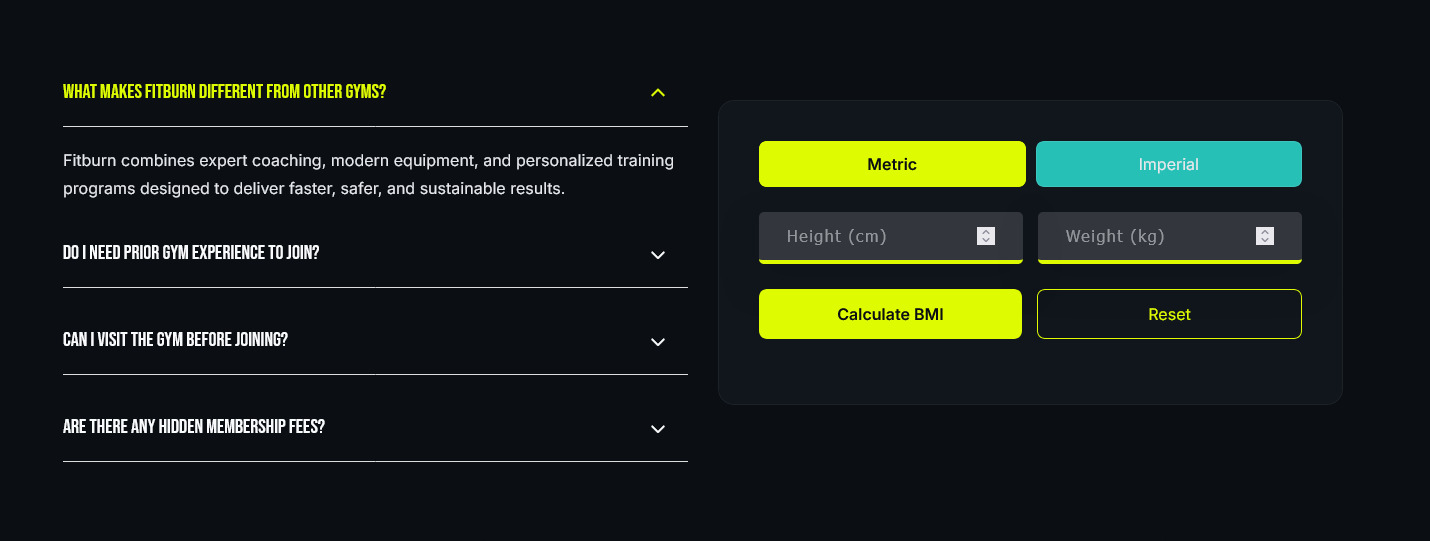
For setting up BMI FAQ Section Go to >> Appearance >> Theme Options >> Sections >> Section 9.
Shortcode/Content for BMI FAQ Section.
[row][column col="6" subcls="tab-col-12"][accordion][accordion_content title="What makes Fitburn different from other gyms?"] Fitburn combines expert coaching, modern equipment, and personalized training programs designed to deliver faster, safer, and sustainable results. [/accordion_content] [accordion_content title="Do I need prior gym experience to join?"] No prior experience is required. Our programs are designed for beginners, intermediate, and advanced members, with full trainer guidance at every step. [/accordion_content] [accordion_content title="Can I visit the gym before joining?"] Yes, we offer a free facility tour so you can explore our equipment, meet our trainers, and understand our training environment before enrolling. [/accordion_content] [accordion_content title="Are there any hidden membership fees?"] No. All pricing plans are transparent with clearly listed features. What you see is exactly what you pay. [/accordion_content][/accordion][/column][column col="6" subcls="tab-col-12"][fitburn_interactive type="bmi" underweight_msg="You need to gain muscle mass." normal_msg="You're in great shape!" overweight_msg="Time to burn fat." obese_msg="Let’s transform your body." underweight_link="https://flydemos.net/fitburn/muscle-gain" normal_link="https://flydemos.net/fitburn/maintenance" overweight_link="https://flydemos.net/fitburn/fat-loss" obese_link="https://flydemos.net/fitburn/transformation" underweight_btn="Start Muscle Gain" normal_btn="Maintain Physique" overweight_btn="Start Fat Loss" obese_btn="Begin Transformation"][/column][/row]
Once you added above shortcode in the sections content area, you'r done. (Section 9.)
Call to Action Section
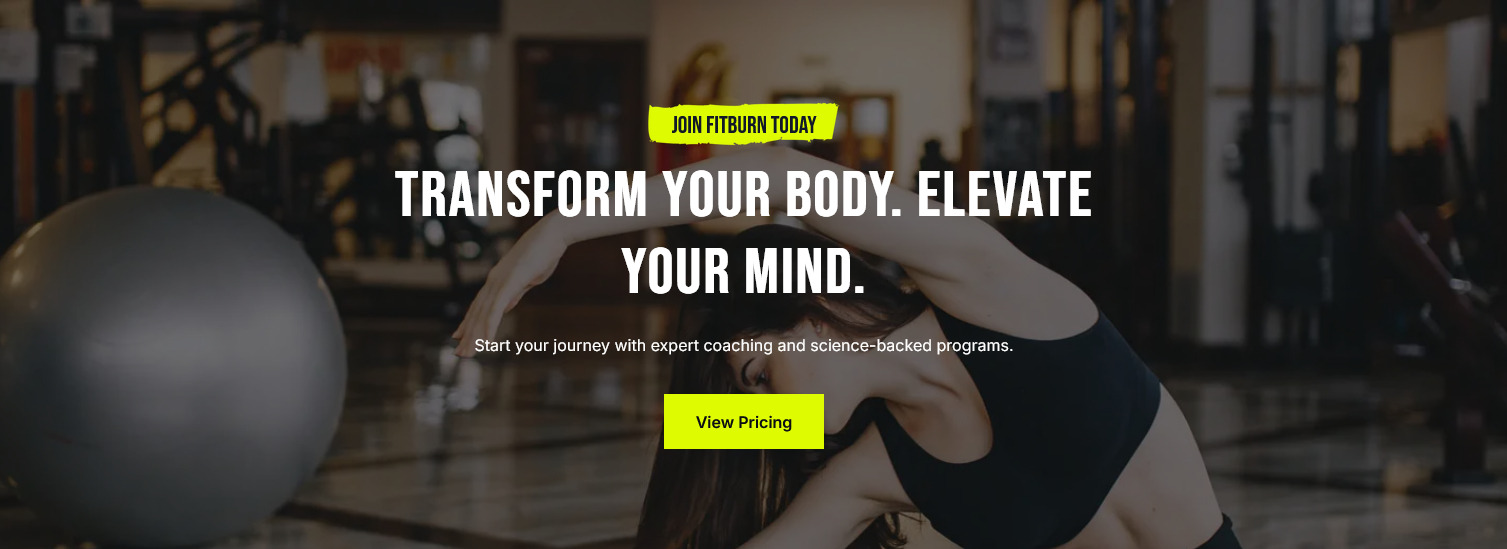
For setting up Call to Action Section Go to >> Appearance >> Theme Options >> Sections >> Section 10.
Shortcode/Content for Call to Action Section.
[fitburn_cta sub_title="Join Fitburn Today" title="Transform Your Body. Elevate Your Mind." description="Start your journey with expert coaching and science-backed programs." btn_text="View Pricing" btn_link="#pricing"]
Once you added above shortcode in the sections content area, you'r done. (Section 10.)
Latest News Section
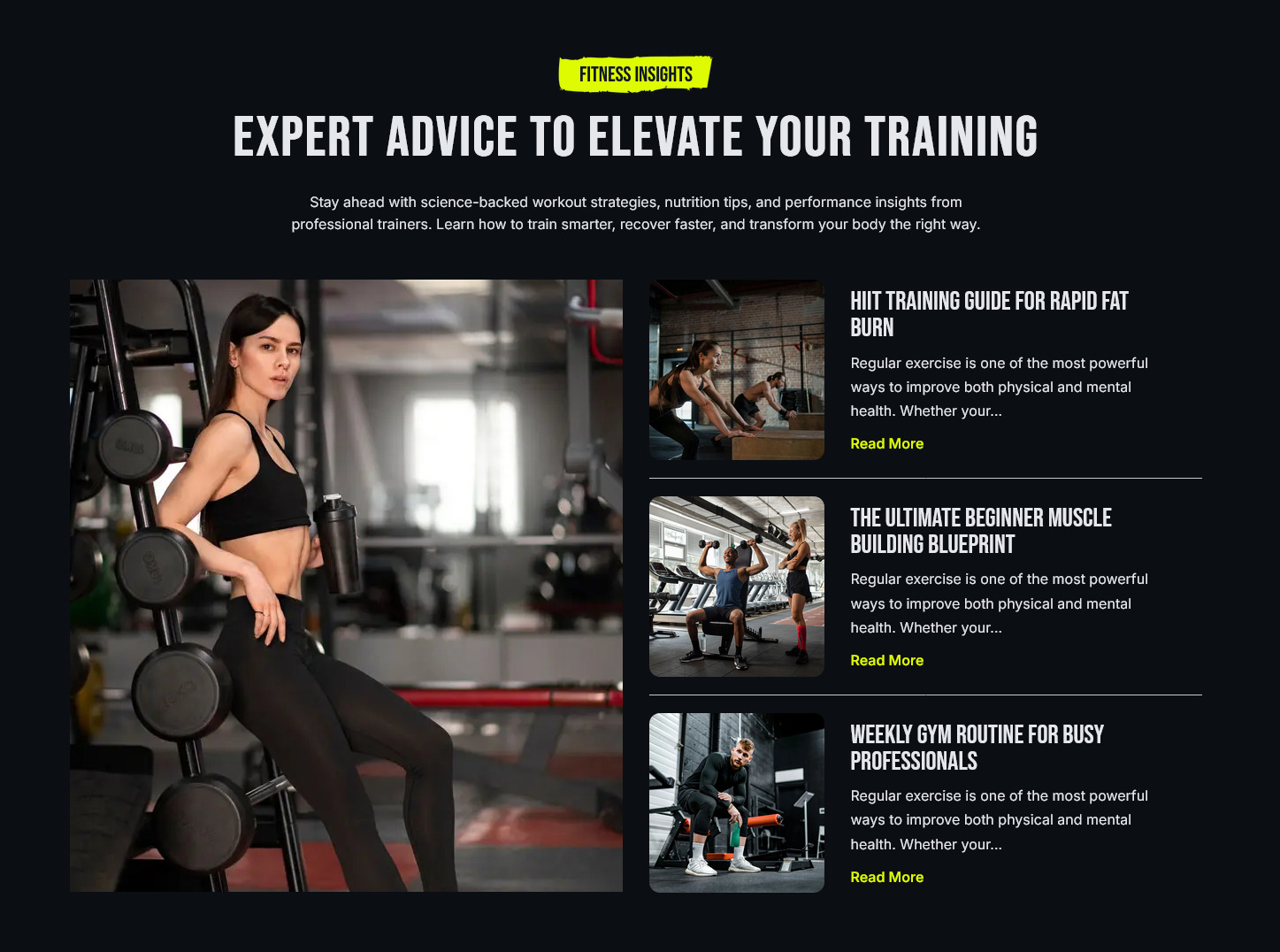
For setting up Latest News Section section Go to >> Appearance >> Theme Options >> Sections >> Select Section 11.
For setting up Latest News Section first of all you need to add some posts by using Posts. Follow below instruction to add posts.
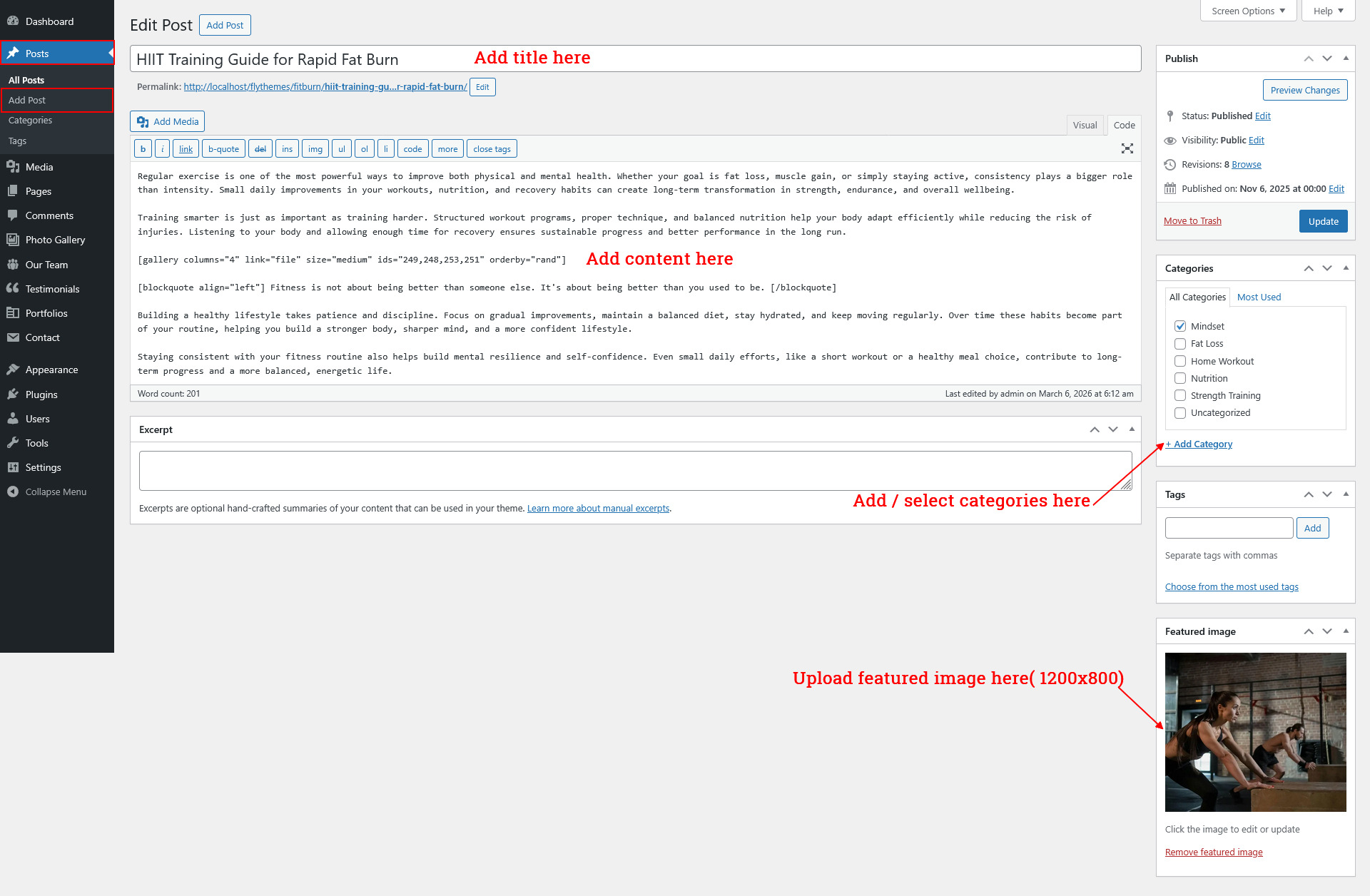
Once you added posts in the Posts type after that you just have to add post shortcode in the sections content area and you'r done. (Section 11.)
Latest News Section Shortcode:
[row][column col="6" subcls="tab-col-12"]<img src="http://flydemos.net/fitburn/wp-content/themes/fitburn-pro/images/latest-news.webp" alt="Latest News" class="img-responsive">[/column][column col="6" subcls="tab-col-12"][fitburn_blog type="list" show="3"][/column][/row]Note:you can change "type" attribute from list to grid or slider. Use shortcode [fitburn_blog show="No. of post you want to show" type="slider" comment="show" date="show" author="show" category="hide"]
Once you added above shortcode in the sections content area, you'r done. (Section 11.)
Instagram Section
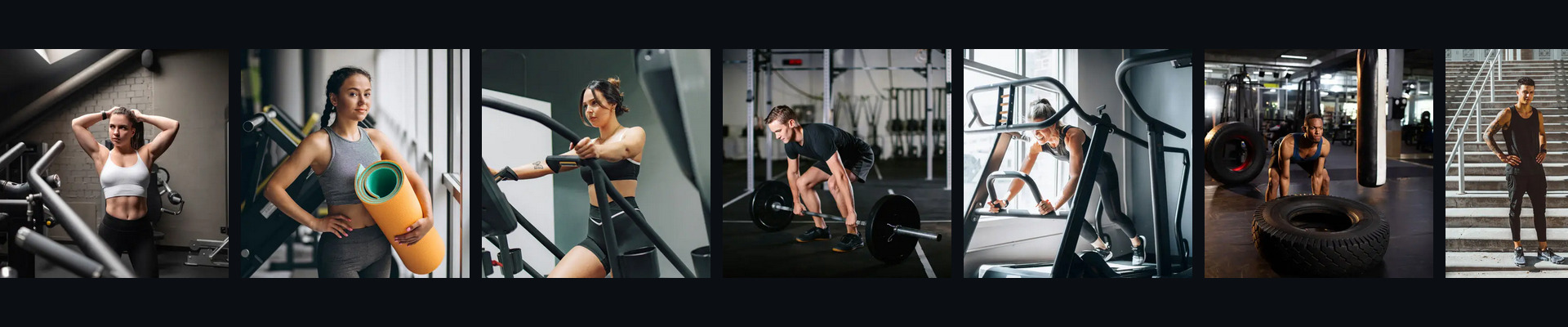
For setting up Instagram Section Go to >> Appearance >> Theme Options >> Sections >> Section 12.
Shortcode/Content for Instagram Section.
[fitburn_instagram type="marquee" ids="257,256,255,254,253,252,251,250,249,248" handle="fitburn" url="https://instagram.com/fitburn" speed="40"]
Once you added above shortcode in the sections content area, you'r done. (Section 12.)
Setup Footer
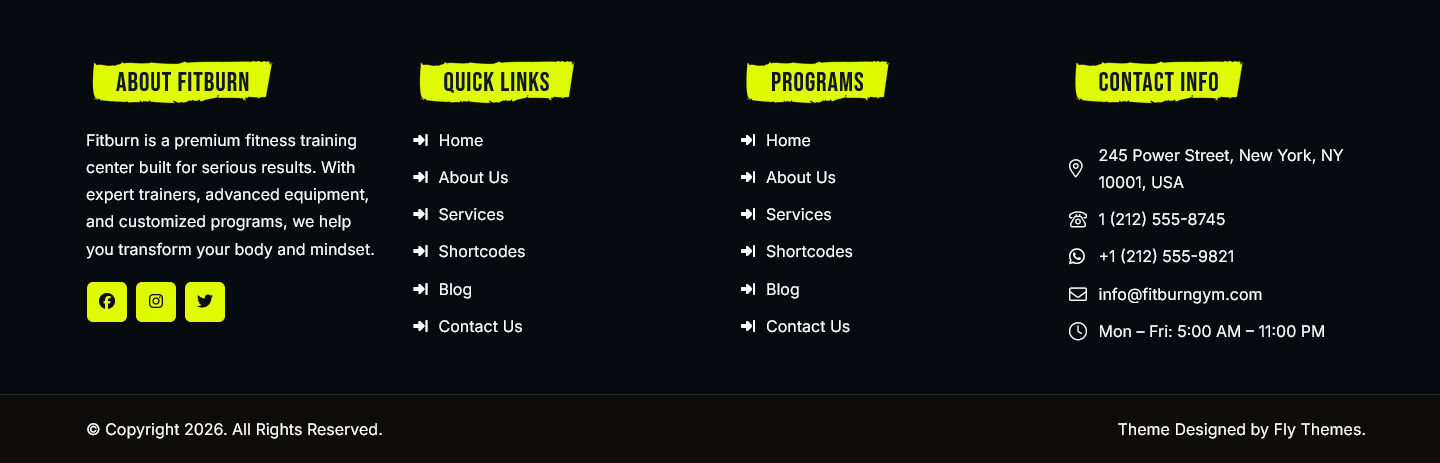
Note: You can set footer from different footer layout option given by theme.
Goto Appearance >> Theme Options >> Basic Settings >> Footer Layouts
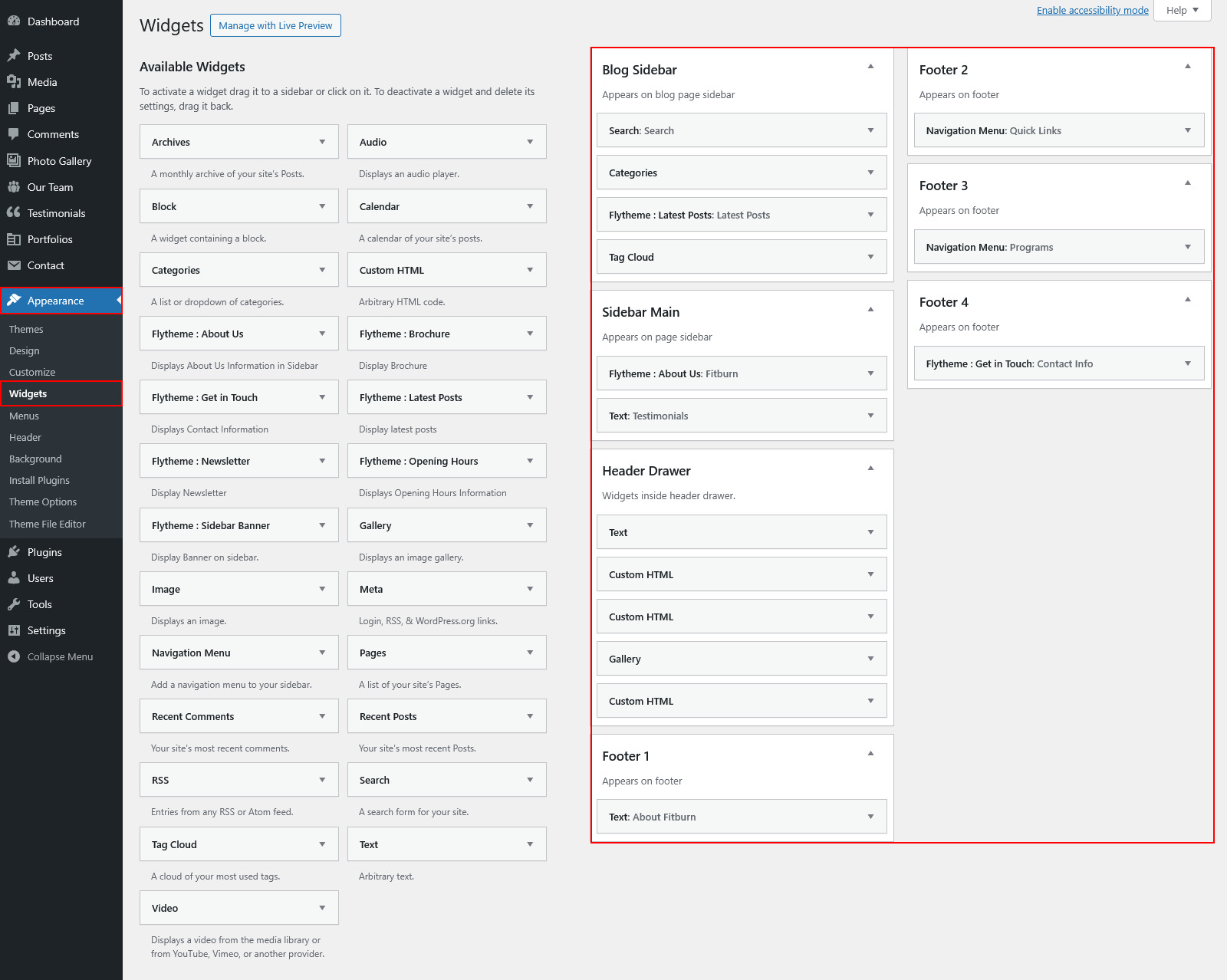
For Setting up Footer : Go to Appearance >> Widgets >> Add widgets to respective sidebars.
For Setting up copyright : Go to Appearance >> Theme Option >> Basic Settings >> Footer Copyright.
Setup Navigation
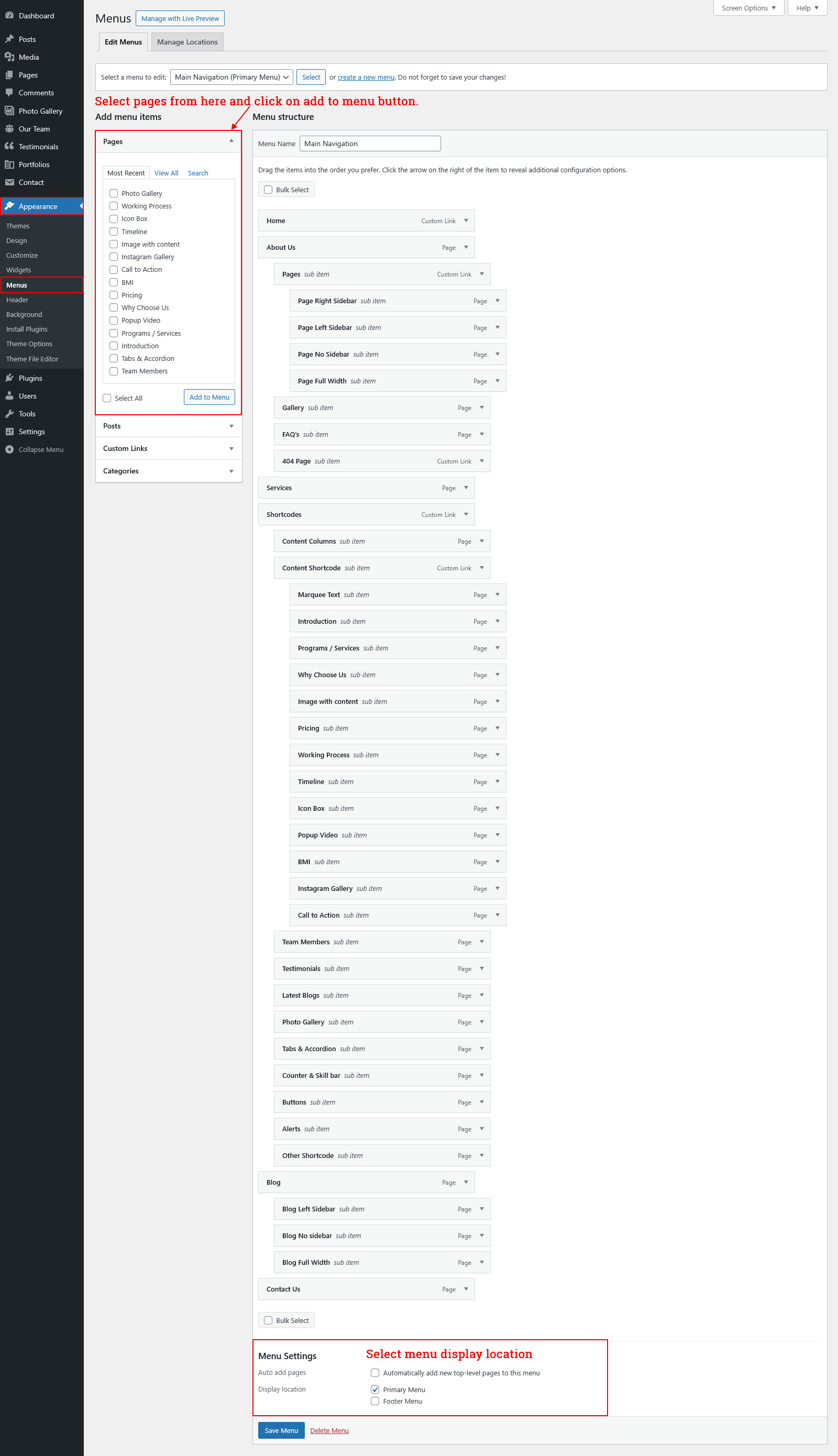
- First of all create pages from go to Pages >> Add new page.
- Go to Appearance >> Menu
- Click on Create a new menu link
- Give a name to your menu in Menu name and click save menu button
- Once you have create menu. You need to add pages by selecting with checkboxes. After adding menu list you can arrange it by drag and drop.
- Select menu theme location from the below checkboxes
See this screenshot for better understanding.
Page Templates and Sidebars
Page Templates
- Default Template (the default page template with a right sidebar position)
- Full Width Page (a page template with one column without a sidebar)
- Left Sidebar (a page template with left sidebar position)
- No Sidebar (a page template have space on left and right.)
- Blog (Full Width) (a blog templates with one column without sidebar)
- Blog (Left Sidebar) (a blog templates with left sidebar position)
- Blog (Right Sidebar) (a blog template with right sidebar position)
- Blog (No Sidebar) (a blog template with no sidebar position)
- Contact (Full Width) (a contact template with add google map position)
Posts, Categories and Post Formats
Adding category
Review the following article for more information on adding categories: http://codex.wordpress.org/Manage_Categories_SubPanel
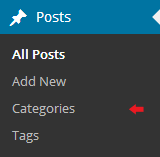
- Log into your WordPress Administration Panel (Dashboard).
- Click the Posts tab.
- With that done, click Categories for blog posts.
- Type in the name of your new category.
- After that, click the Add New Category button.
Creating a Blog post
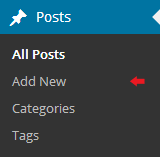
- Log into your WordPress Administration Panel (Dashboard).
- Click the Posts tab.
- Click the Add New tab.
- Type in your post content. For more information on adding posts, please check the following link http://codex.wordpress.org/Posts_Add_New_SubPanel.
Shortcodes
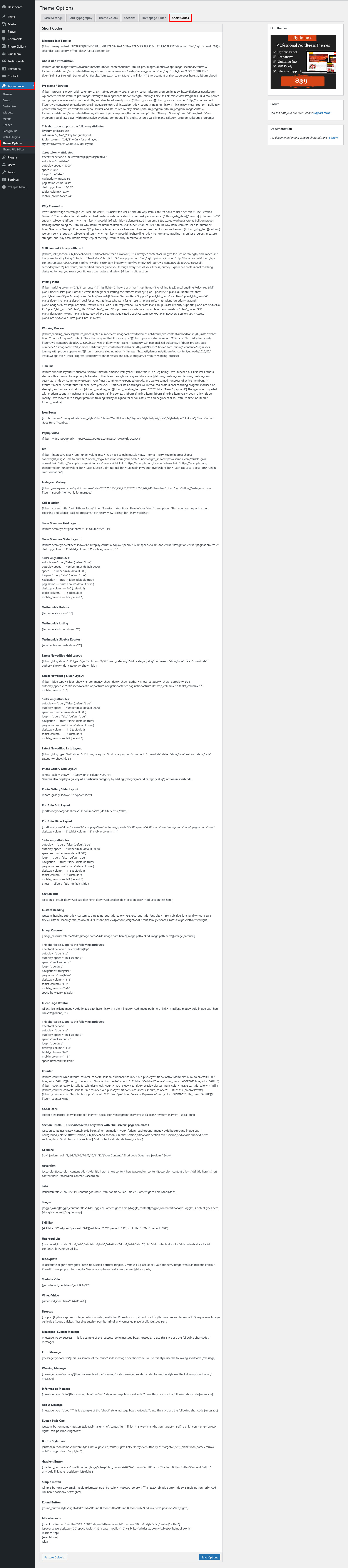
A shortcode is a powerful content building tool http://codex.wordpress.org/Shortcode. Shortcodes are easy to use. First of all, make sure that the editing mode is set to Visual.
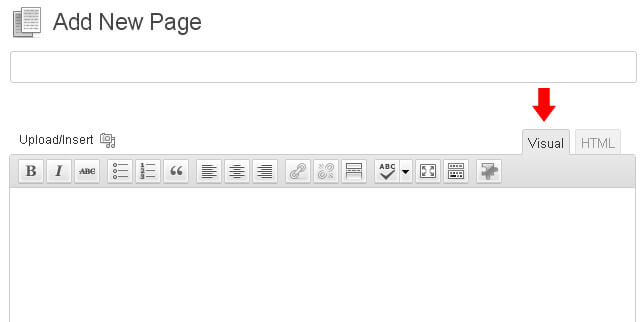
All available shortcodes are conditionally divided into these groups:
- Social icon - used for social icon output.
- One half, one third, one fourth, one fifth - used for display content on columns.
- Tabs - used for display tabs.
- Toggle content - used for display toggle.
- Accordion content - used for display accordion.
- Gradient Button - used for small, medium, large, xtra large gradient button.
- Simple Button - used for small, medium, large, xtra large simple button.
- Round Button - used for light, dark round button.
- Message Boxes - used for success, error, warning, info, about message boxes.
- Search - used to display search form.
- List style - used to display lists.
- Blogpost - used to display blog post.
Elements
One half
[row][column col="6"]Column 1 Content goes here...[/column]
[column col="6"]Column 2 Content goes here...[/column][/row]
Description: used to display column content. You can also use col="1/2/3/4/5/6/7/8/9/10/11/12" make sure you have put right parameter.
Tabs
[tabs]
[tab title="TAB TITLE 1"]Tab Content goes here...[/tab]
[/tabs]
Description: use to display tab content.
Toggle content
[toggle_content title="Toggle Title 1"]Toggle Content goes here...[/toggle_content]
Description: use to display toggle content.
Accordion Content
[accordion]
[accordion_content title="ACCORDION TITLE 1"]Accordion Content goes here...[/accordion_content]
[/accordion]
Description: use to display accordion content.
Gradient Button
[gradient_button size="small" bg_color="#000000" color="#ffffff" text="text here" title="title here" url="#" position="left"]
Description: use to display gradient button. you can use small, medium, large, xtra lareg sizes.
Simple Button
[simple_button size="small" bg_color="#000000" color="#ffffff" text="text here" title="title here" url="#" position="left"]
Description: use to display simple button. you can use small, medium, large, xtra lareg sizes.
Round Button
[round_button style="light" text="text here" title="title here" url="#" position="left"]
Description: use to display round button. you can use light or dark style.
Horizontal rule

[hr]
Description: used to display a horizontal line.
Succes Message Box

[message type="success"]This is a sample of the 'success' style message box shortcode. To use this style use the following shortcode[/message]
Description: use to display success message box. you can also use error, warning, info, about types.
Search
[searchform]
Description: use to display search form.
List Style
[unordered_list style="list-1"]<li>List style 1</li>[/unordered_list]
Custom Widgets
Theme Options
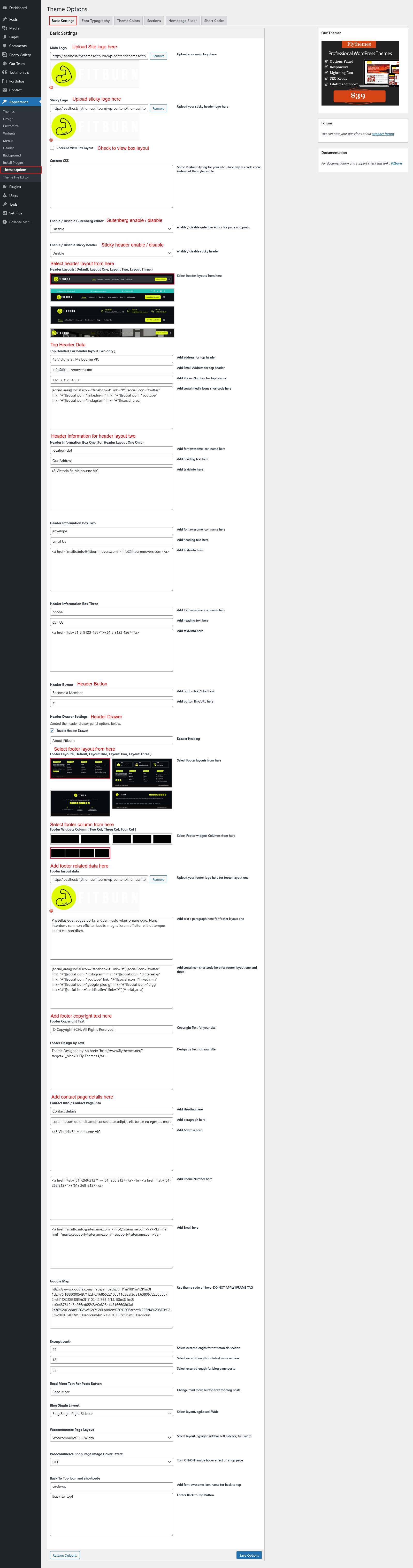
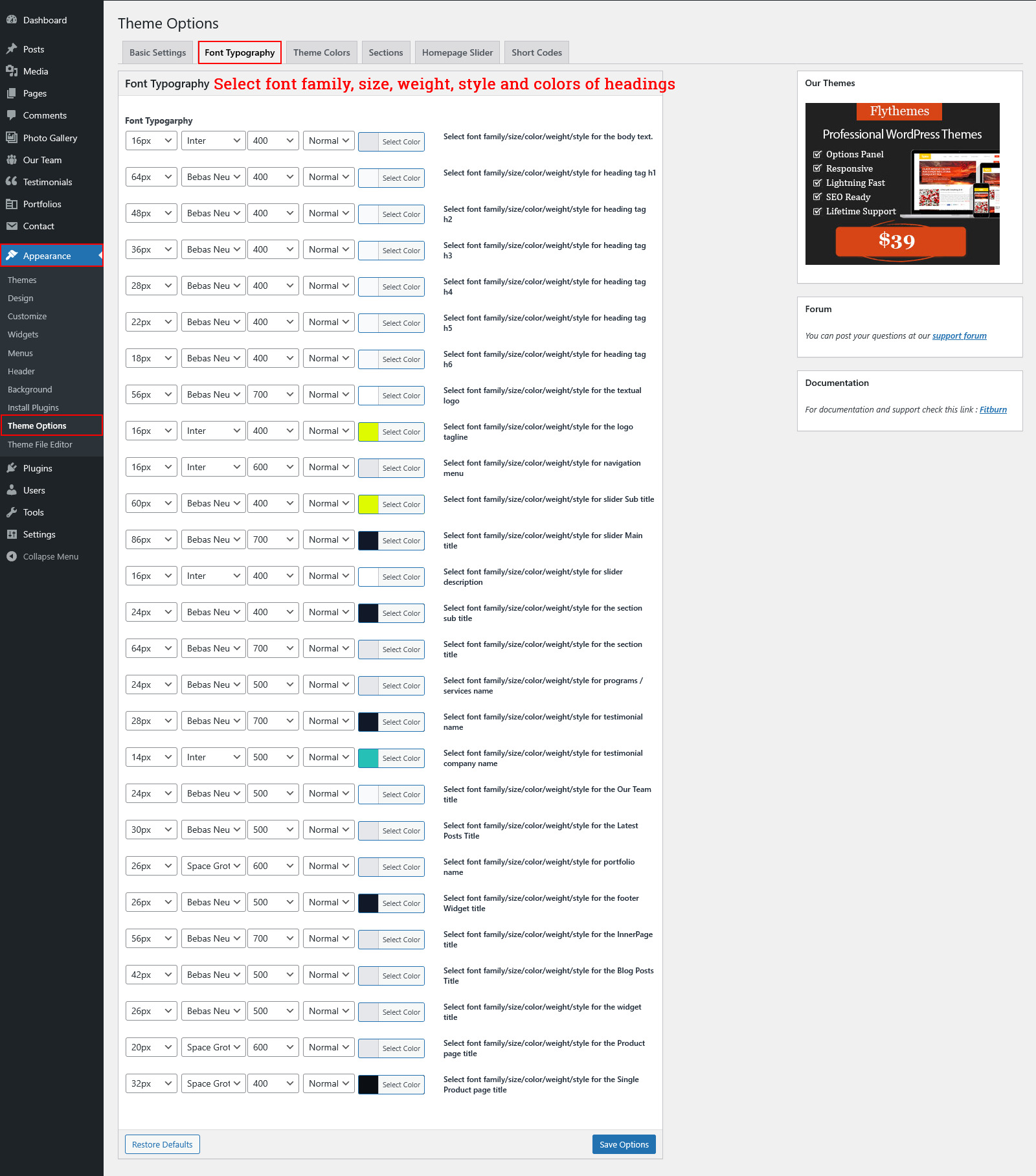
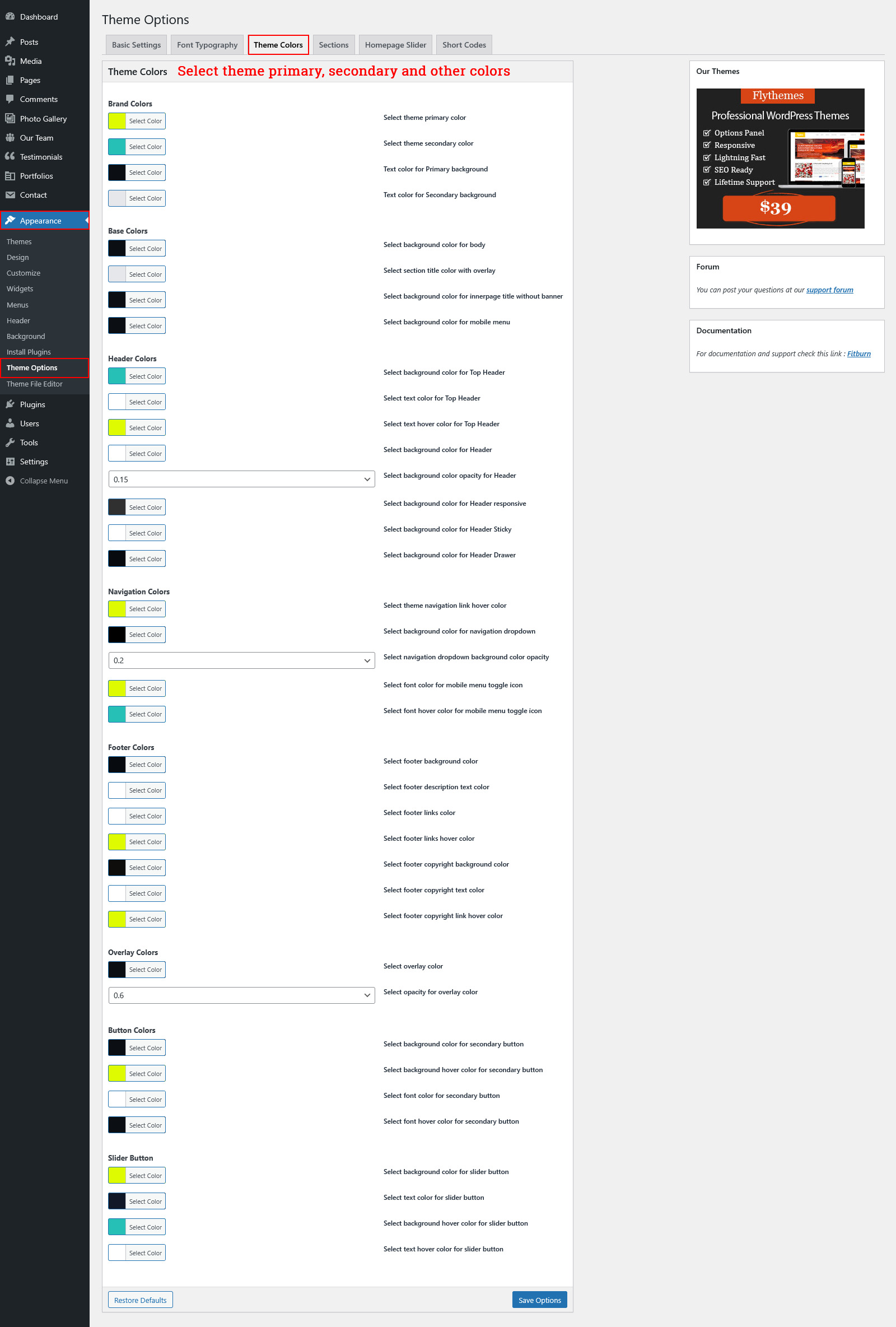
The following theme contains the Settings option. These settings allow you to change the theme’s color palette, order of items, turn items on/off and do lots of other things. In order to use these settings, please go to Appearance → Theme Options.
Basic Settings
Font Typography
Sections
Slider Settings
Shortcode
Contact form Plugin
The following instructions are for setup Contact Form Plugin
Follow below instruction to use Contact Form Plugin.
Plugin Installation
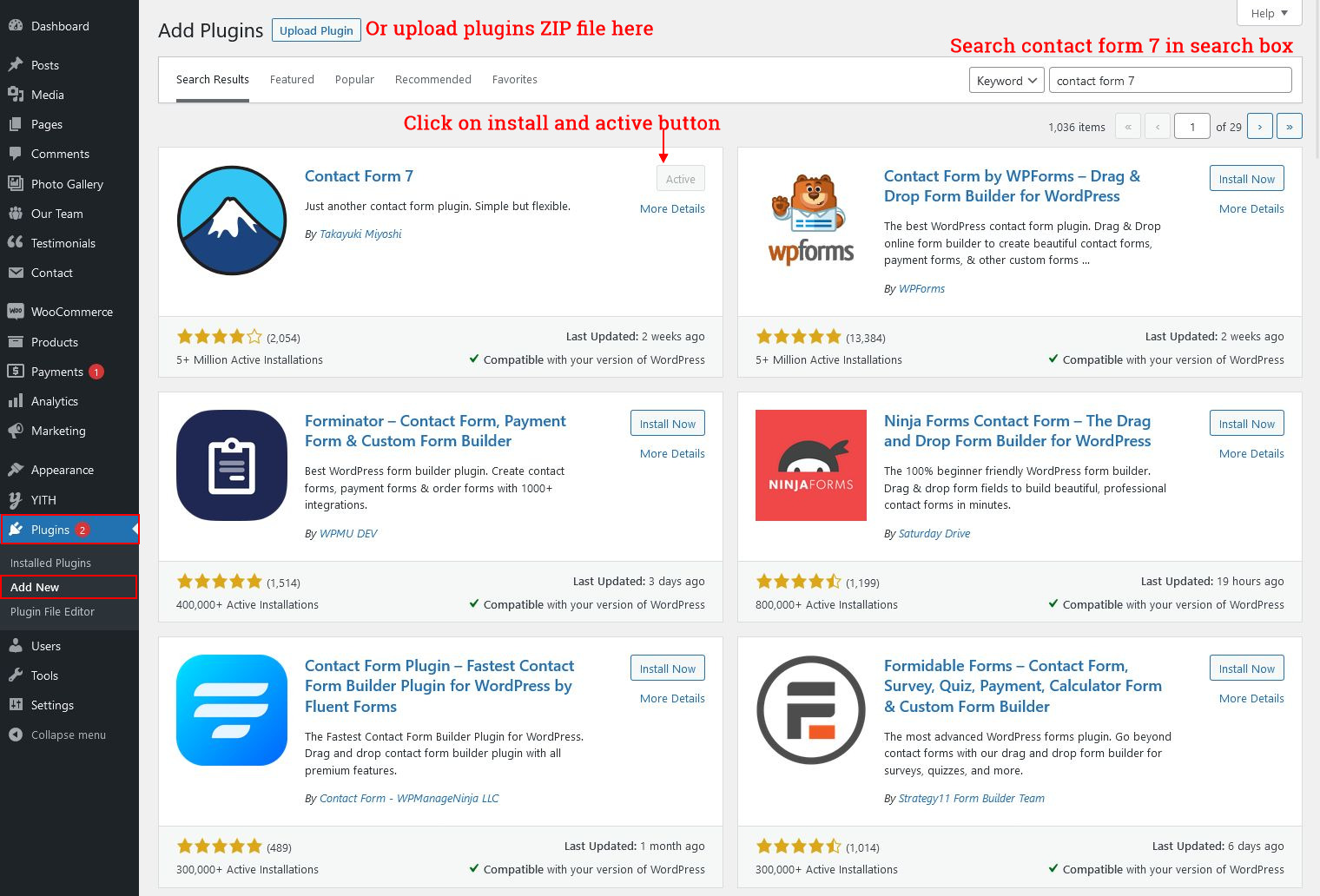
- Go to Plugins >> Add New search for plugin Contact Form 7 and install it in your wordpress dashboard.
- After that you'll see Contact menu menu in left sidebar menu list.
Follow below instructions...
Contact Form Plugin Use
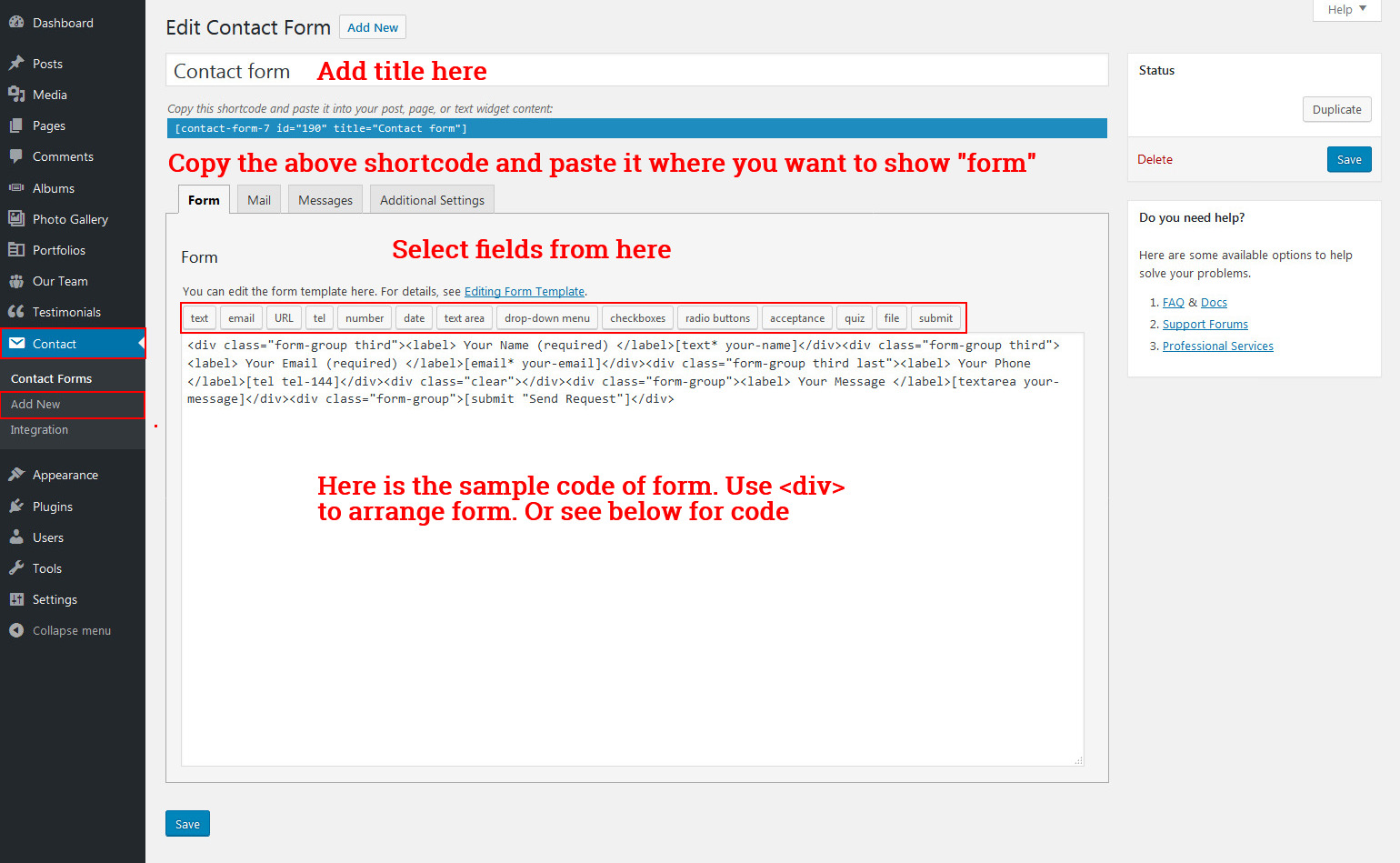
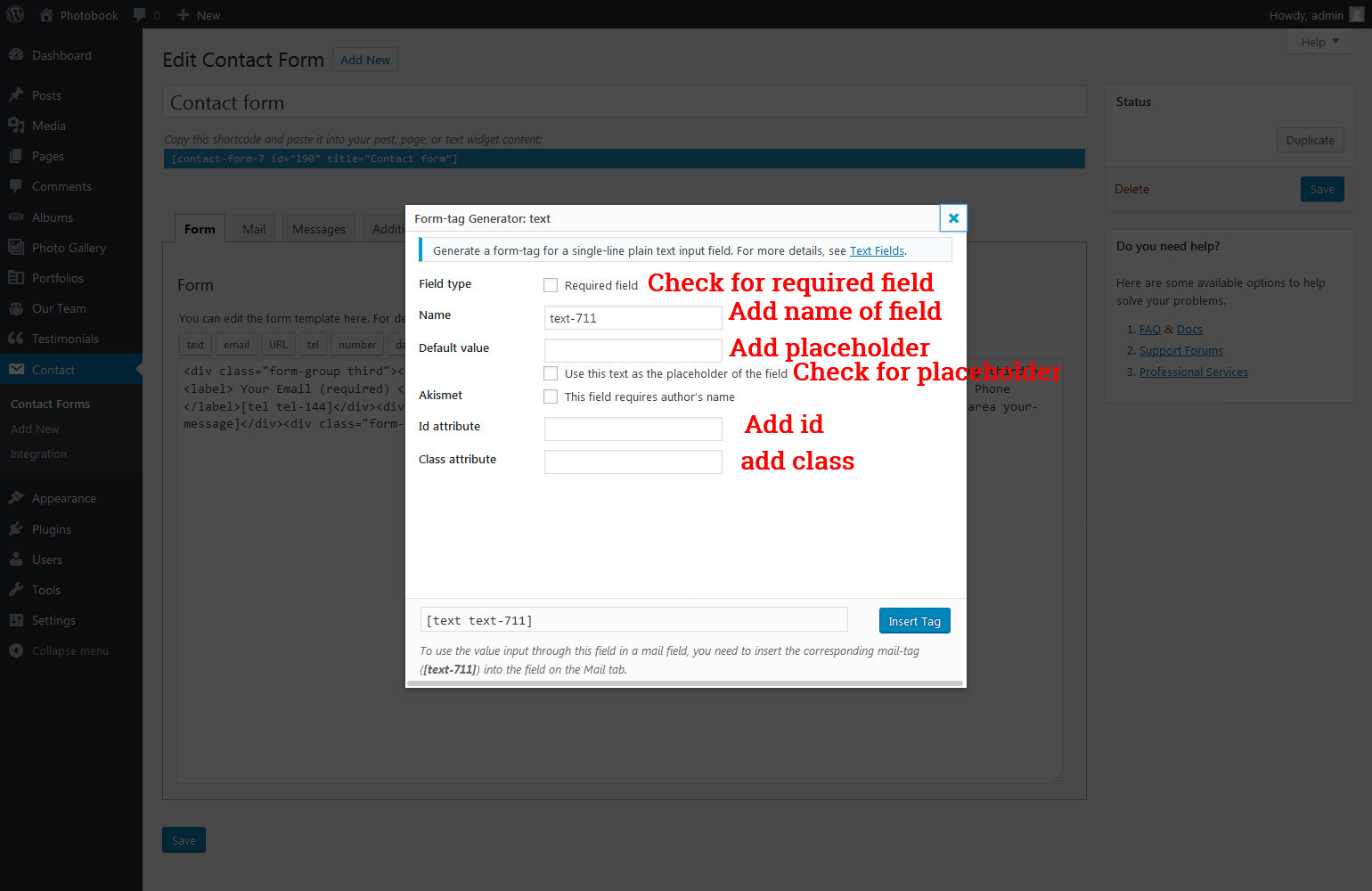
Get Code for Newsletter Form
<div class="front-newsletter">[email* email-267 placeholder "Email Address"][submit "Subscribe"]</div>
Get Code for Contact page form
<div class="form-group half"><label>Your Name (required)</label> [text* your-name]</div><div class="form-group half last"><label> Your Email (required) </label>[email* your-email] </div><div class="clear"></div><div class="form-group half"><label> Phone </label>[tel tel-910]</div><div class="form-group half last"><label> Your Message </label>[textarea your-message 10x1]</div><div class="clear"></div><div class="form-group">[submit "Send"]</div>
Inner Pages
For setting up innerpages first create pages with proper page template. We provide four basic option of page template i.e. page with right sidebar, page with left sidebar, page with no sidebar, page full width.
See below image for creating page and selecting page template.
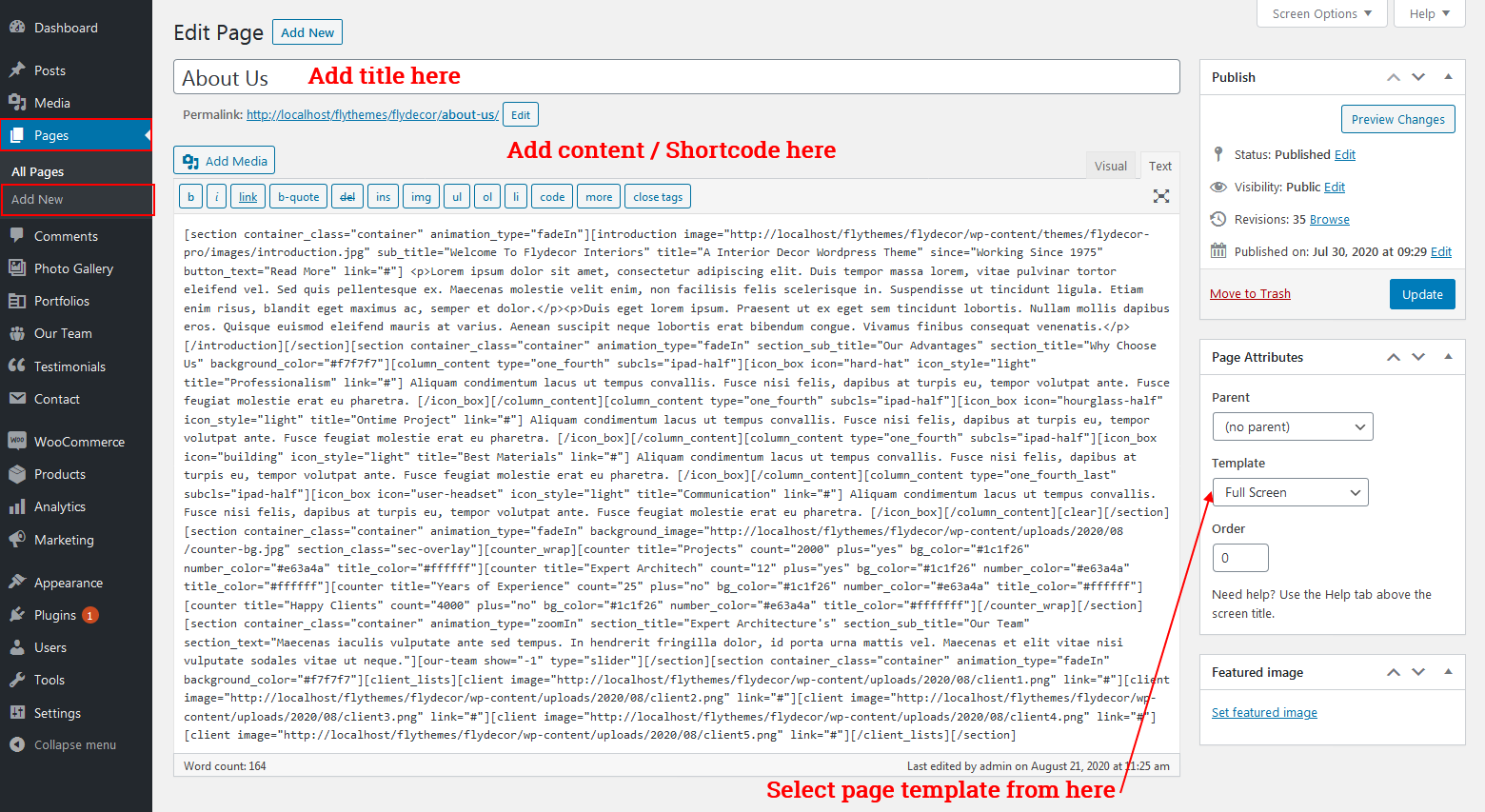
We also provoide full screen page template which support [section][/section] shortcode. So whenever you want to use [section] shortcode use page template "Full-Screen".
For setting up blog page select page template "Blog, Blog Left Sidbar, Blog No Sidebar, Blog Full Width".
For setting up contact page select page template "Contact us".