Introduction
Thank you for purchasing a WordPress Theme. This documentation consists of several parts and shows you the entire process of setting up and administering a WordPress Website from scratch.
What is WordPress CMS?
WordPress is a free and open source blogging tool and a content management system (CMS) based on PHP and MySQL. It enables you to build Websites and powerful on-line applications and requires almost no technical skills or knowledge to manage. Many aspects, including its ease of use and extensibility, have made WordPress the most popular Web site software available. Learn More
What is a WordPress template
A WordPress template is a skin for a website built with the WordPress CMS platform. In other words, you can easily change your WordPress Web site appearance by installing a new template in a few easy steps. With all its simplicity, a WordPress template is provided with all the necessary source files and you are free to edit or extend it the way you need.
Help and Support
- mail us: support@flythemes.net
Files structure
The template package you have downloaded consists of several folders. Let's see what each folder contains:
- documentation - contains documentation files.
- documentation.html - the main documentation file. You are right here :)
- screenshots - contains template screenshots. Not for production.
- theme - contains WordPress theme files.
- theme####.zip - this folder content all the necessary files for the theme.
- sample_data - contains files that can make your WordPress website look like our live demo.
- sample_data.xml - contains all template sample data (posts, pages, categories, etc.).
- various images and other media files
- manuall_install - contains files that can make your WordPress website look like our live demo.
- uploads - contains theme images.
- theme#####.sql - database backup file (contains theme content).
- license.txt - contains license details.
- readme.txt - contain information about theme images path and font use and usage scritps.
Template installation
Template installation is very easy process. The installation process includes only two simple steps: theme installation and sample data installation.
All installation steps can be done within WordPress interface. It makes process comfortable and fast.
Step 1. Theme installation
- Go to the menu Appearance > Themes and click the Add New Theme button.
- Click the Upload link.
- Click the Browse button and navigate to the unzipped template package on your computer.
- Look for a file called shiftly-pro.zip Click on it to select, then click OK.
- Click the Install Now button and wait until the installation is complete.
- Click the Activate link to change the current layout of the site to the theme your purchased.
- Go to Appearance >> Theme Options >> Click on Restore Default button.
- Ensure Your homepage displays setting is "Your Latest Posts". Settings >> Reading.
- Install all the required plugins that theme needs.
Congratulations, your theme have been successfully installed!
Step 2. Sample Data Installation
To make your WordPress website look like our live demo, please follow the instructions below.
- Go to the Appearance Select import demo data option and browse xml file to Import Content and browse wie file to Import Widgets then click on Continue & import. See below screenshot.
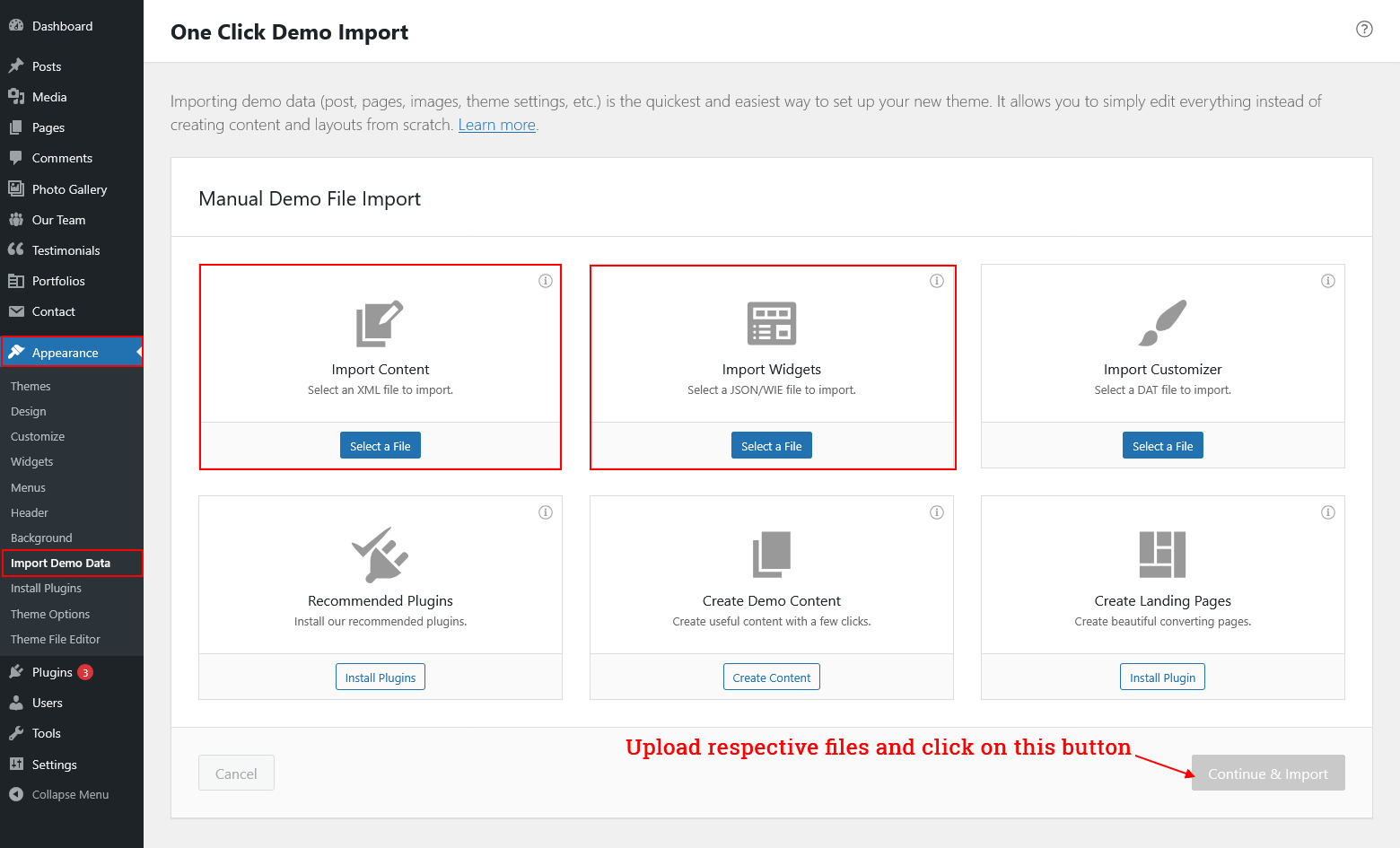
How to set up homepage
Setup Header

Follow these instructions to setup header.
- For Site Name/Logo: For changing site name go to Settings >> General >> Site Title OR if you want to uplaod logo for your site go to Appearance >> Theme Options >> Basic settings >> Logo. Please see the theme option tab in this documentation for more details.
- For Header Information: For header information go to Appearance >> Theme Options >> Basic Settings >> Header Information Box.
- For Navigation: See the Navigation tab of this documentation.
- For Header Button: For header button go to Appearance >> Theme Options >> Basic Settings >> Header button.
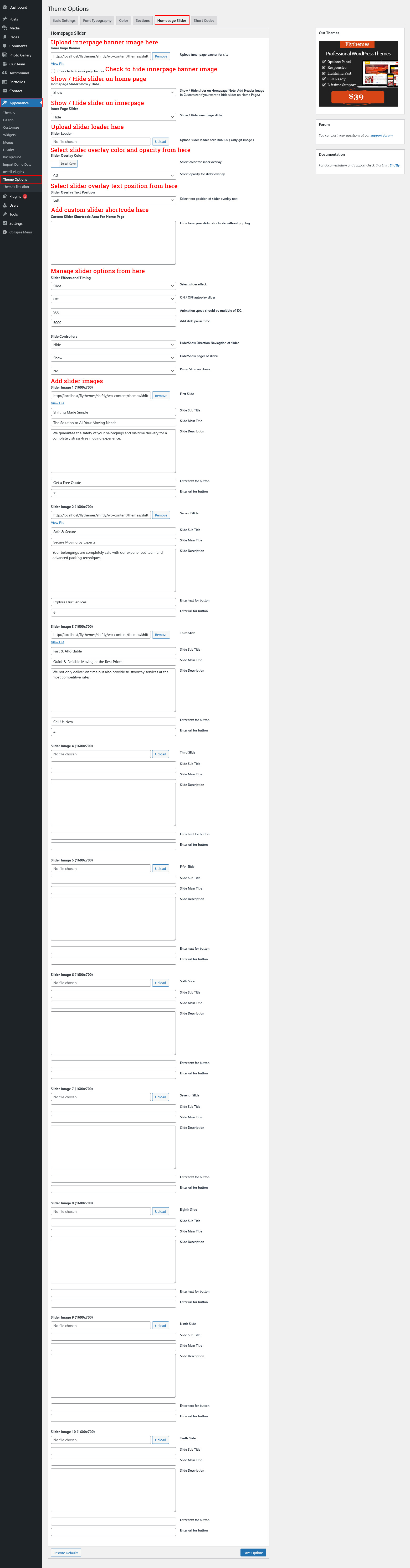
- For Slider: Go to Appearance >> Theme Options >> Homepage Slider >> Upload image, Add Title and Add Description.
-
Note: You can set header from different header layout option given by theme.
Goto Appearance >> Theme Options >> Basic Settings >> Header Layouts - Note: You can also add video instead of slider slides. Upload your video mp4 file in dashboard media, then goto Appearance >> Theme Options >> Homepage Slider >> Custom Slider Shortcode Area For Home Page. Copy code and paste it there <figure class="wp-block-video"><video autoplay="" loop="" muted="" preload="auto" src="" playsinline=""></video></figure>. Add video path in src="" option.
Why Choose Us Section
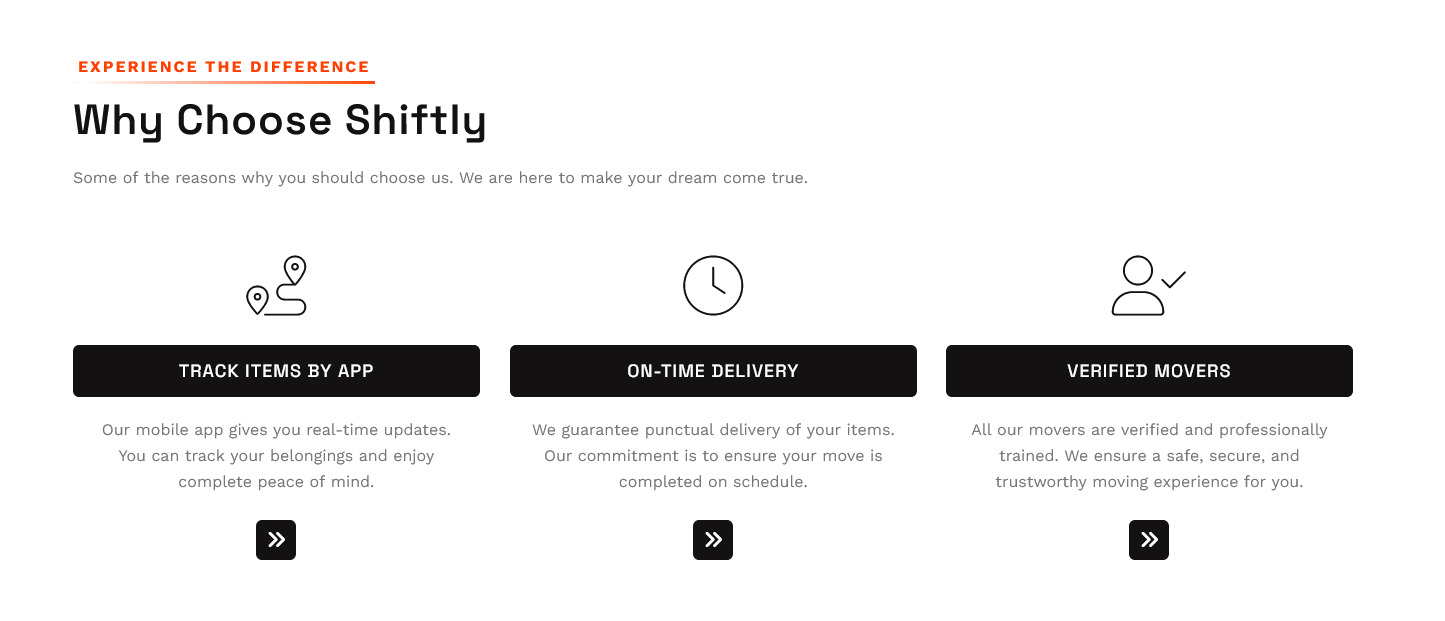
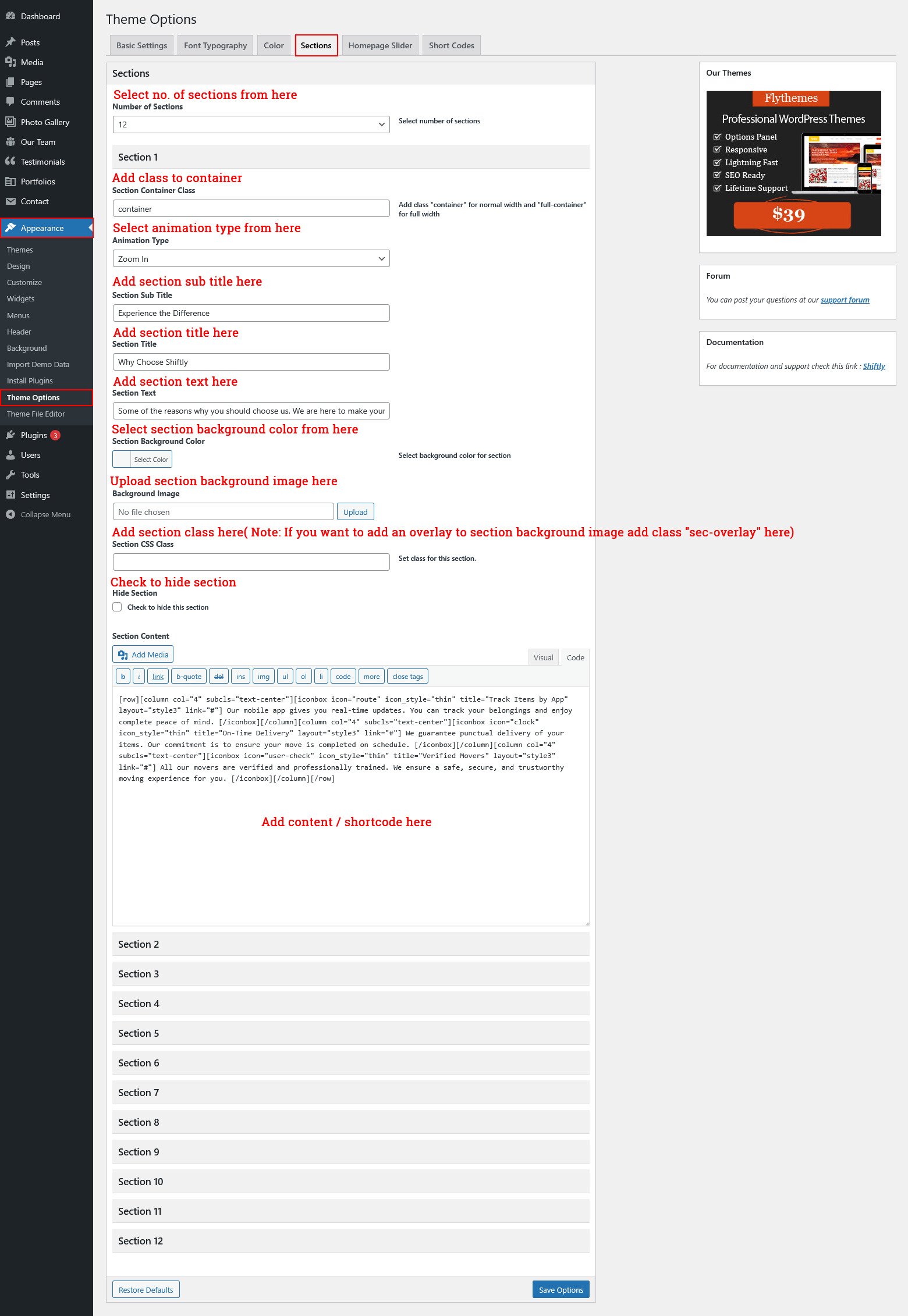
For setting up Why Choose Us Section Go to >> Appearance >> Theme Options >> Sections >> Section 1.
Shortcode/Content for Why Choose Us Section.
[row][column col="4" subcls="text-center"][iconbox icon="route" icon_style="thin" title="Track Items by App" layout="style3" link="#"] Our mobile app gives you real-time updates. You can track your belongings and enjoy complete peace of mind. [/iconbox][/column][column col="4" subcls="text-center"][iconbox icon="clock" icon_style="thin" title="On-Time Delivery" layout="style3" link="#"] We guarantee punctual delivery of your items. Our commitment is to ensure your move is completed on schedule. [/iconbox][/column][column col="4" subcls="text-center"][iconbox icon="user-check" icon_style="thin" title="Verified Movers" layout="style3" link="#"] All our movers are verified and professionally trained. We ensure a safe, secure, and trustworthy moving experience for you. [/iconbox][/column][/row]
Once you added above shortcode in the sections content area, you'r done. (Section 1.)
Introduction Section
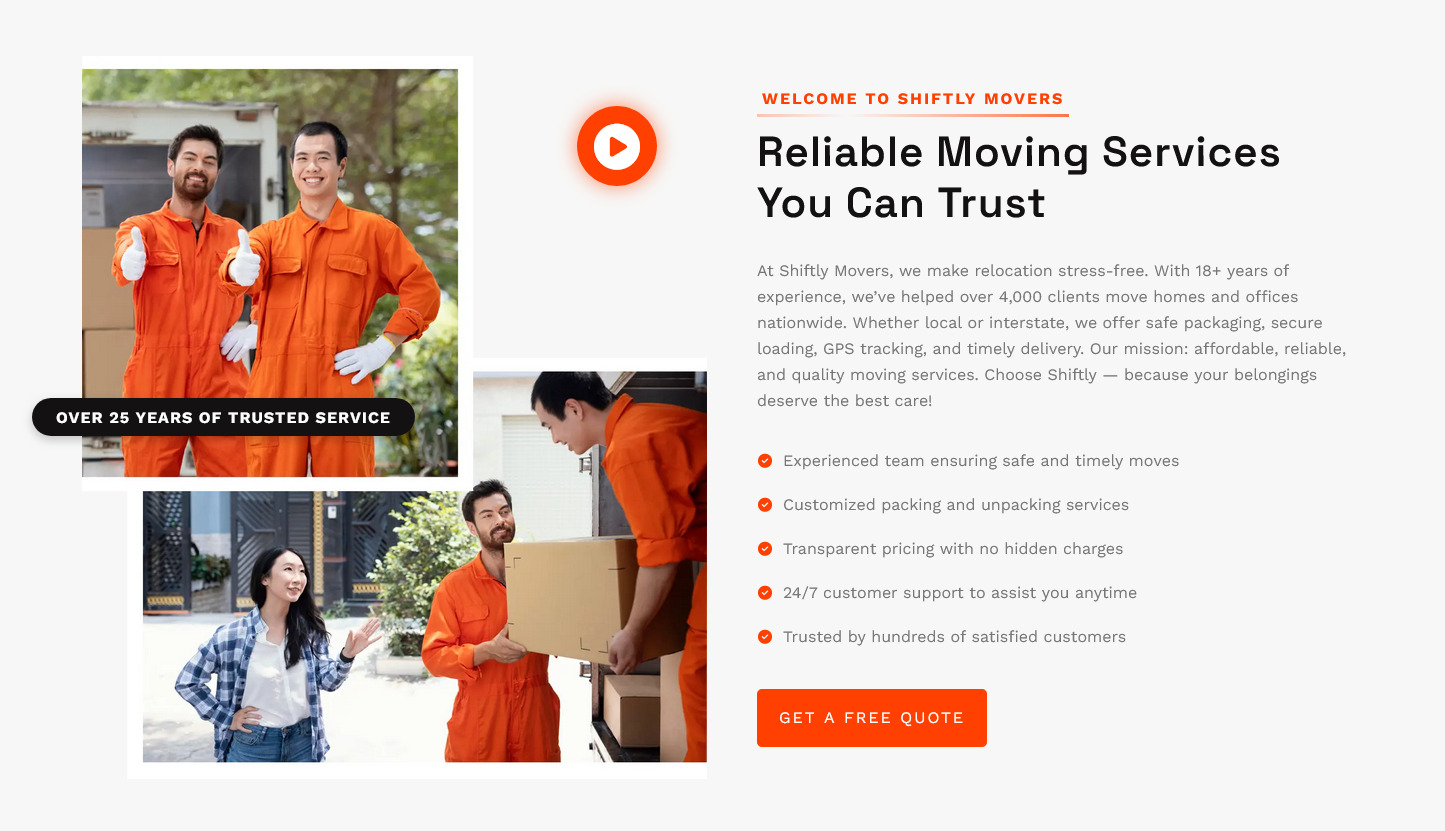
For setting up Introduction Section Go to >> Appearance >> Theme Options >> Sections >> Section 2.
Shortcode/Content for Introduction Section.
[introduction sub_title='Welcome To Shiftly Movers' title='Reliable Moving Services You Can Trust' image='https://flydemos.net/shiftly/wp-content/themes/shiftly-pro/images/intro.webp' btn_text='Get a Free Quote' btn_link='#' image_position='left' video_link='https://www.youtube.com/watch?v=dQw4w9WgXcQ' since='Over 25 Years of Trusted Service'] At Shiftly Movers, we make relocation stress-free. With 18+ years of experience, we’ve helped over 4,000 clients move homes and offices nationwide. Whether local or interstate, we offer safe packaging, secure loading, GPS tracking, and timely delivery. Our mission: affordable, reliable, and quality moving services. Choose Shiftly — because your belongings deserve the best care! [unordered_list style='list-1']<li>Experienced team ensuring safe and timely moves<li>Customized packing and unpacking services</li><li>Transparent pricing with no hidden charges</li><li>24/7 customer support to assist you anytime</li><li>Trusted by hundreds of satisfied customers</li>[/unordered_list][/introduction]
Once you added above shortcode in the sections content area, you'r done. (Section 2.)
Text Scroller Section

For setting up Text Scroller Section Go to >> Appearance >> Theme Options >> Sections >> Section 3.
Shortcode/Content for Text Scroller Section.
[mc_marquee_wrapper speed='10s' direction='right' color='#131112' opacity='0.6'][mc_marquee_text text='Safe'][mc_marquee_text text='Reliable'][mc_marquee_text text='Fast'][mc_marquee_text text='Affordable'][mc_marquee_text text='Trusted'][/mc_marquee_wrapper]
Once you added above shortcode in the sections content area, you'r done. (Section 3.)
Moving Services Section
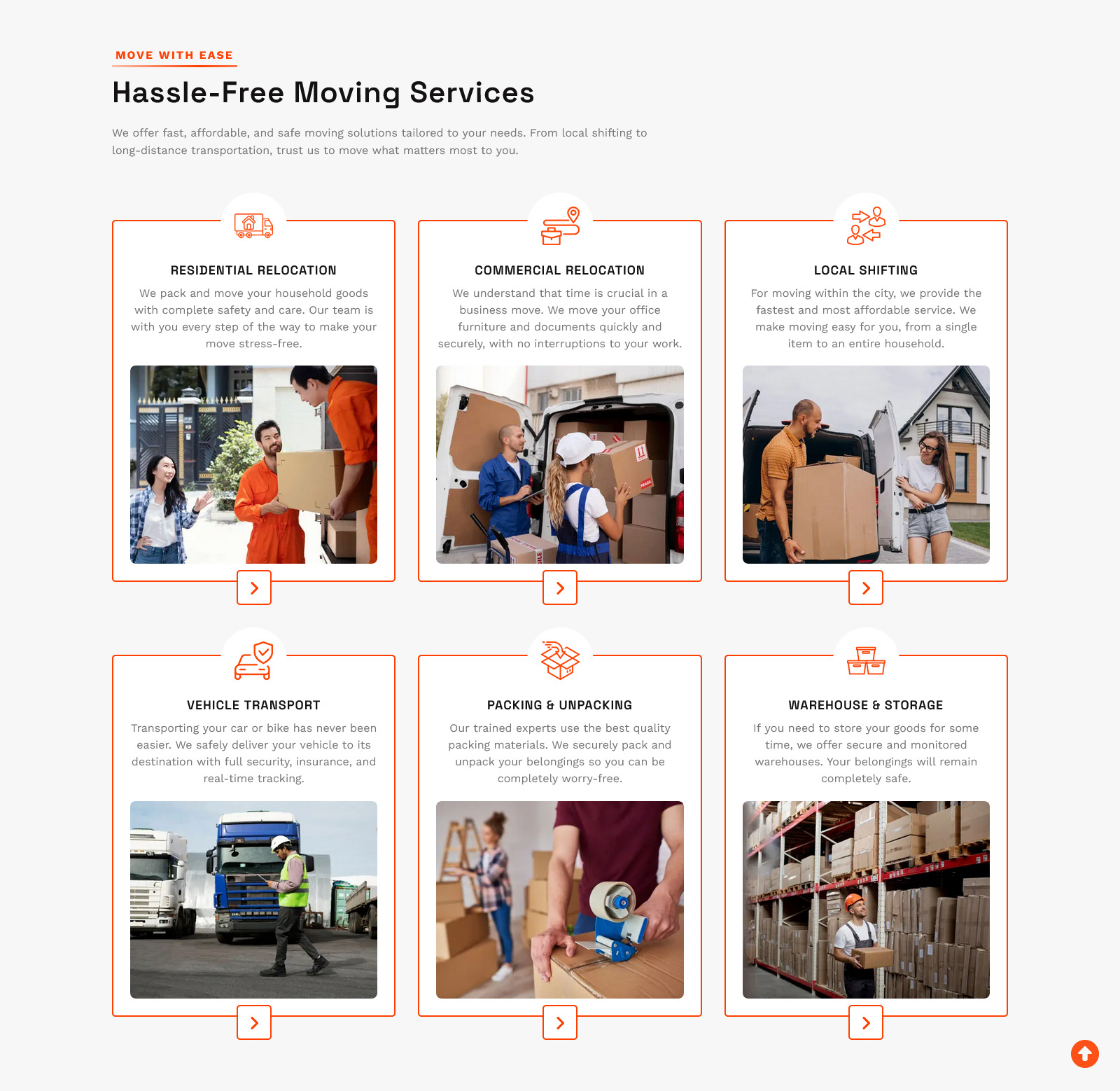
For setting up Moving Services Section Go to >> Appearance >> Theme Options >> Sections >> Section 4.
Shortcode/Content for Moving Services Section.
[services_lists layout="grid" columns="3"][service_box icon_path="https://flydemos.net/shiftly/wp-content/themes/shiftly-pro/images/ser_icon_1.png" img_path="https://flydemos.net/shiftly/wp-content/themes/shiftly-pro/images/res-relocate.webp" title="Residential Relocation" link="#"] We pack and move your household goods with complete safety and care. Our team is with you every step of the way to make your move stress-free. [/service_box] [service_box icon_path="https://flydemos.net/shiftly/wp-content/themes/shiftly-pro/images/ser_icon_2.png" img_path="https://flydemos.net/shiftly/wp-content/themes/shiftly-pro/images/com-relocate.webp" title="Commercial Relocation" link="#"] We understand that time is crucial in a business move. We move your office furniture and documents quickly and securely, with no interruptions to your work. [/service_box] [service_box icon_path="https://flydemos.net/shiftly/wp-content/themes/shiftly-pro/images/ser_icon_3.png" img_path="https://flydemos.net/shiftly/wp-content/themes/shiftly-pro/images/local-shift.webp" title="Local Shifting" link="#"] For moving within the city, we provide the fastest and most affordable service. We make moving easy for you, from a single item to an entire household. [/service_box] [service_box icon_path="https://flydemos.net/shiftly/wp-content/themes/shiftly-pro/images/ser_icon_4.png" img_path="https://flydemos.net/shiftly/wp-content/themes/shiftly-pro/images/vehicle-transport.webp" title="Vehicle Transport" link="#"] Transporting your car or bike has never been easier. We safely deliver your vehicle to its destination with full security, insurance, and real-time tracking. [/service_box] [service_box icon_path="https://flydemos.net/shiftly/wp-content/themes/shiftly-pro/images/ser_icon_5.png" img_path="https://flydemos.net/shiftly/wp-content/themes/shiftly-pro/images/packing-unpacking.webp" title="Packing & Unpacking" link="#"] Our trained experts use the best quality packing materials. We securely pack and unpack your belongings so you can be completely worry-free. [/service_box] [service_box icon_path="https://flydemos.net/shiftly/wp-content/themes/shiftly-pro/images/ser_icon_6.png" img_path="https://flydemos.net/shiftly/wp-content/themes/shiftly-pro/images/ware-storage.webp" title="Warehouse & Storage" link="#"] If you need to store your goods for some time, we offer secure and monitored warehouses. Your belongings will remain completely safe. [/service_box][/services_lists]
Once you added above shortcode in the sections content area, you'r done. (Section 4.)
You can display grid or slider layout.
[services_lists layout="carousel" effect="slide|fade|cube|coverflow|flip|cards|creative" autoplay="true/false" autoplay_speed="3000" speed="600" loop="true/false" navigation="true/false" pagination="true/false" desktop_column="2/3/4" tablet_column="2/3/4" mobile_column="2/3/4"]Columns options only for grid layout.
[service_box icon_path="https://flydemos.net/shiftly/wp-content/themes/shiftly-pro/images/ser_icon_1.png" img_path="https://flydemos.net/shiftly/wp-content/themes/shiftly-pro/images/res-relocate.webp" title="Residential Relocation" link="#"] We pack and move your household goods with complete safety and care. Our team is with you every step of the way to make your move stress-free. [/service_box]
[/services_lists].
Popup Video Section
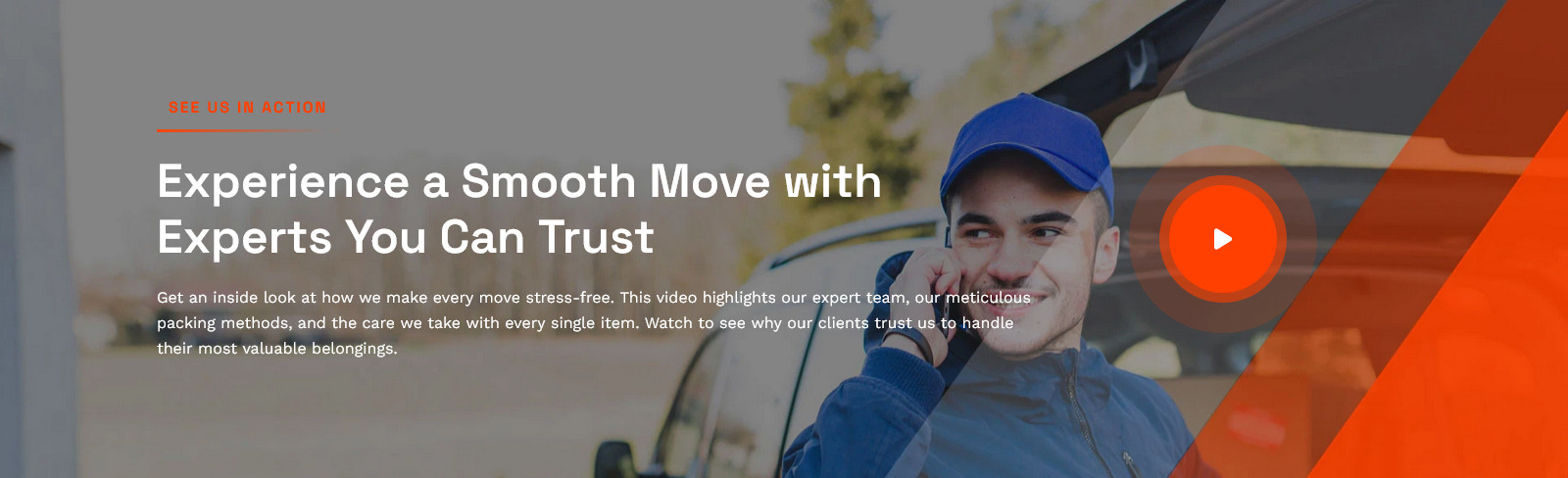
For setting up Popup Video Section Go to >> Appearance >> Theme Options >> Sections >> Section 5.
Shortcode/Content for Popup Video Section.
[popup_video sub_title="See Us in Action" title="Experience a Smooth Move with Experts You Can Trust" description="Get an inside look at how we make every move stress-free. This video highlights our expert team, our meticulous packing methods, and the care we take with every single item. Watch to see why our clients trust us to handle their most valuable belongings." video_link="https://vimeo.com/661858709" sub_title_color="#ff4000" title_color="#ffffff" description_color="#ffffff"]
Once you added above shortcode in the sections content area, you'r done. (Section 5.)
Testimonials Section
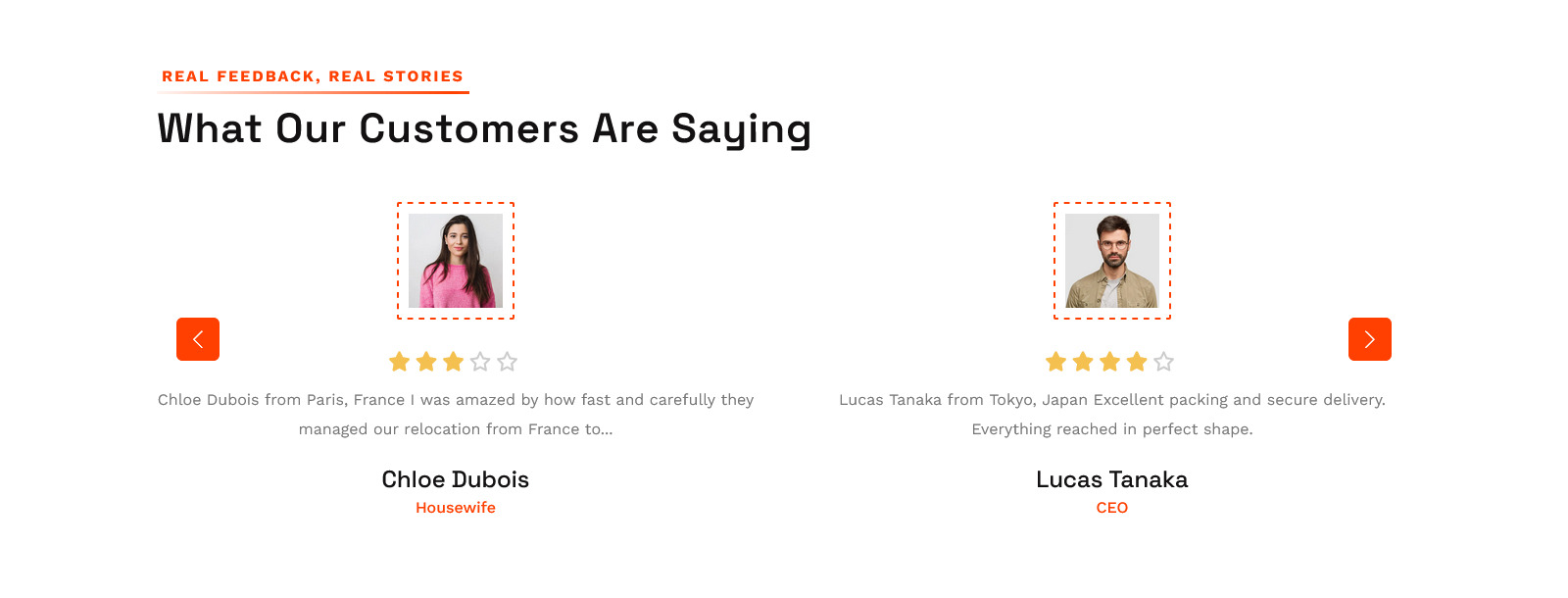
For setting up Testimonials Section section Go to >> Appearance >> Theme Options >> Sections >> Select Section 6.
For setting up Testimonials section first of all you need to add some posts by using Testimonials Post Type. Follow below instruction to add posts.
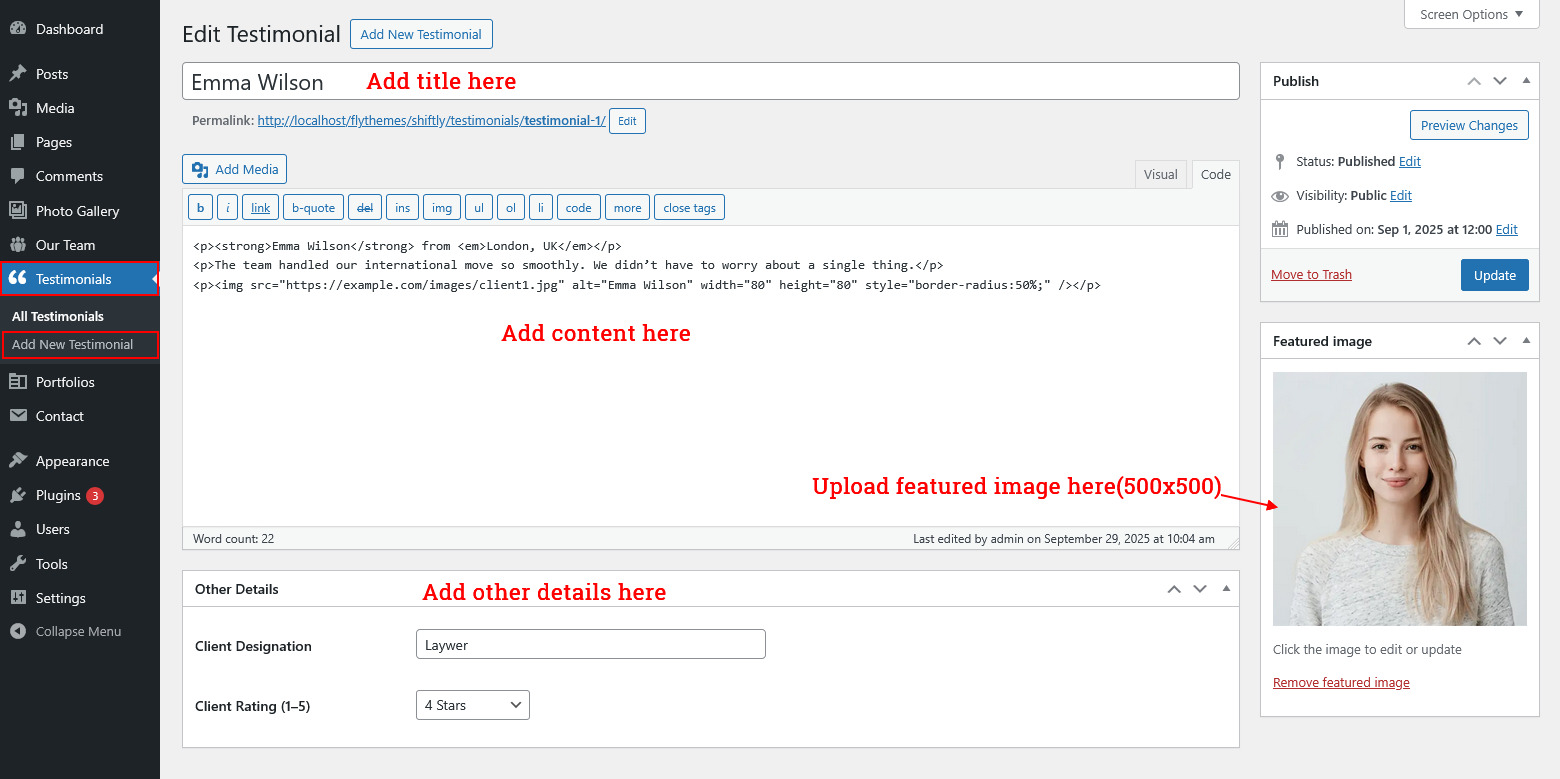
Once you added posts in the Testimonials posts type after that you just have to add post shortcode in the sections content area and you'r done. (Section 6.)
Testimonials Section Shortcode:
[testimonials]
Once you added above shortcode in the sections content area, you'r done. (Section 6.)
Text Scroller Section
For setting up Text Scroller Section Go to >> Appearance >> Theme Options >> Sections >> Section 7.
Shortcode/Content for Text Scroller Section.
[mc_marquee_wrapper speed='10s' direction='right' color='#131112' opacity='0.6'][mc_marquee_text text='Safe'][mc_marquee_text text='Reliable'][mc_marquee_text text='Fast'][mc_marquee_text text='Affordable'][mc_marquee_text text='Trusted'][/mc_marquee_wrapper]
Once you added above shortcode in the sections content area, you'r done. (Section 7.)
Faq's Quote Section
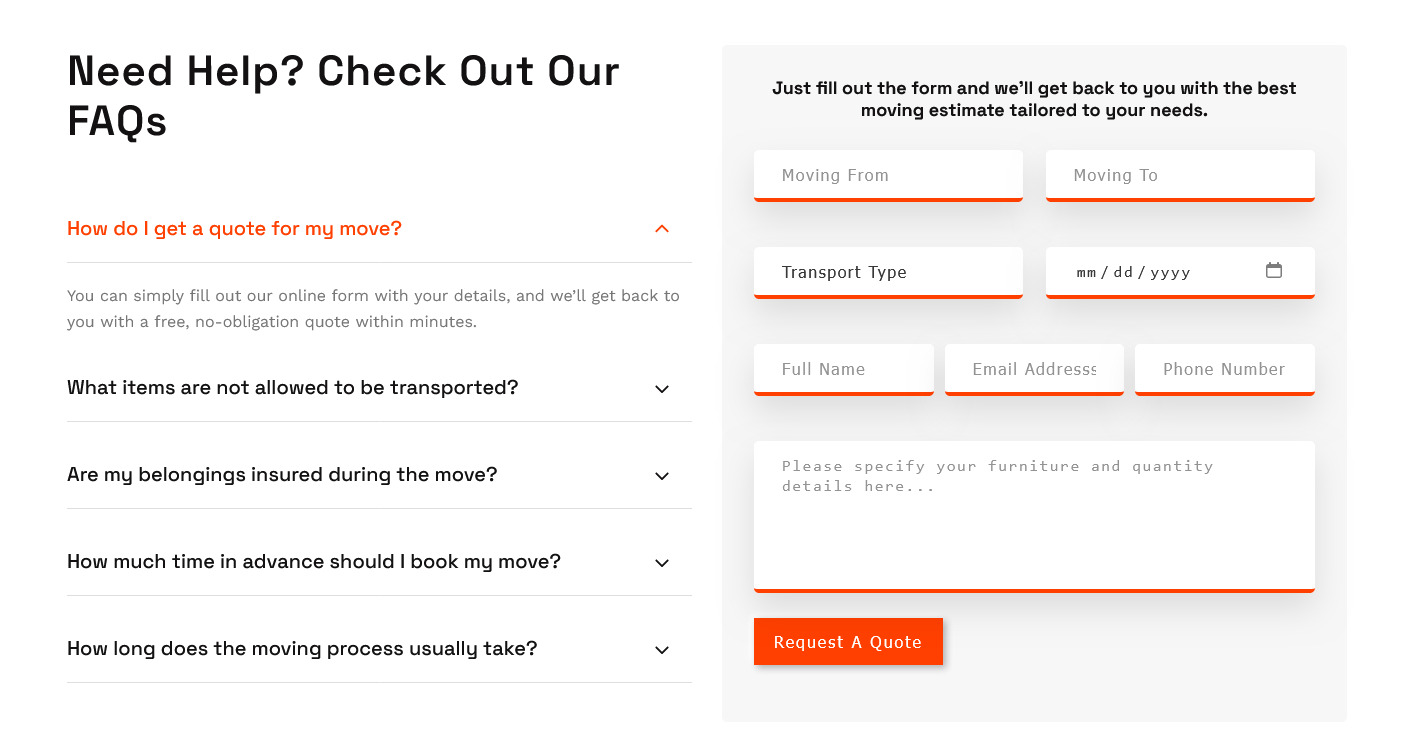
For setting up Faq's Quote Section Go to >> Appearance >> Theme Options >> Sections >> Section 8.
Shortcode/Content for Faq's Quote Section.
[row][column col="6" subcls="tab-col-12"][section_title title="Need Help? Check Out Our FAQs"][accordion][accordion_content title="How do I get a quote for my move?"] You can simply fill out our online form with your details, and we'll get back to you with a free, no-obligation quote within minutes. [/accordion_content][accordion_content title="What items are not allowed to be transported?"] We do not transport hazardous materials, perishable food, pets, or valuable items like jewelry and important documents. [/accordion_content][accordion_content title="Are my belongings insured during the move?"] Yes, we offer basic insurance coverage. Additional comprehensive insurance options are also available upon request. [/accordion_content][accordion_content title="How much time in advance should I book my move?"] Ideally, you should book your move at least 7–10 days in advance, especially during weekends or month-end when demand is high. [/accordion_content][accordion_content title="How long does the moving process usually take?"] The time depends on the size and distance of the move. A local move typically takes a few hours, while long-distance moves can take 1–3 days. [/accordion_content][/accordion] [/column][column col="6" subcls="tab-col-12"]<div class="quote-form"><h5 style="text-align:center; margin-bottom: 30px;">Just fill out the form and we'll get back to you with the best moving estimate tailored to your needs.</h5>[contact-form-7 id="62d47b9" title="Quote"]</div>[/column][/row]
Once you added above shortcode in the sections content area, you'r done. (Section 8.)
Latest Relocations Section
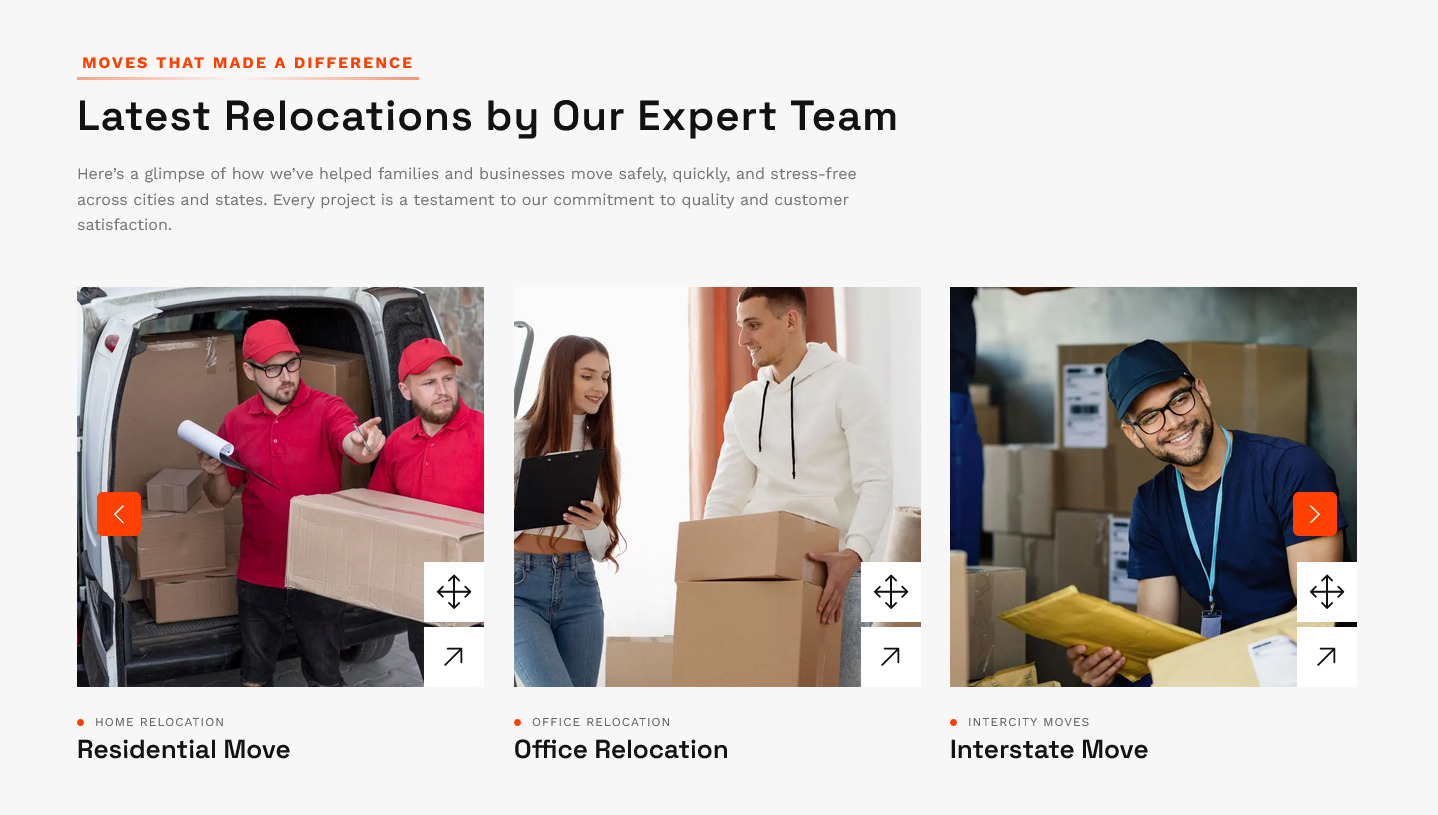
For setting up Latest Relocations Section section Go to >> Appearance >> Theme Options >> Sections >> Select Section 9.
For setting up Latest Relocations section first of all you need to add some posts by using Portfolios Post Type. Follow below instruction to add posts.
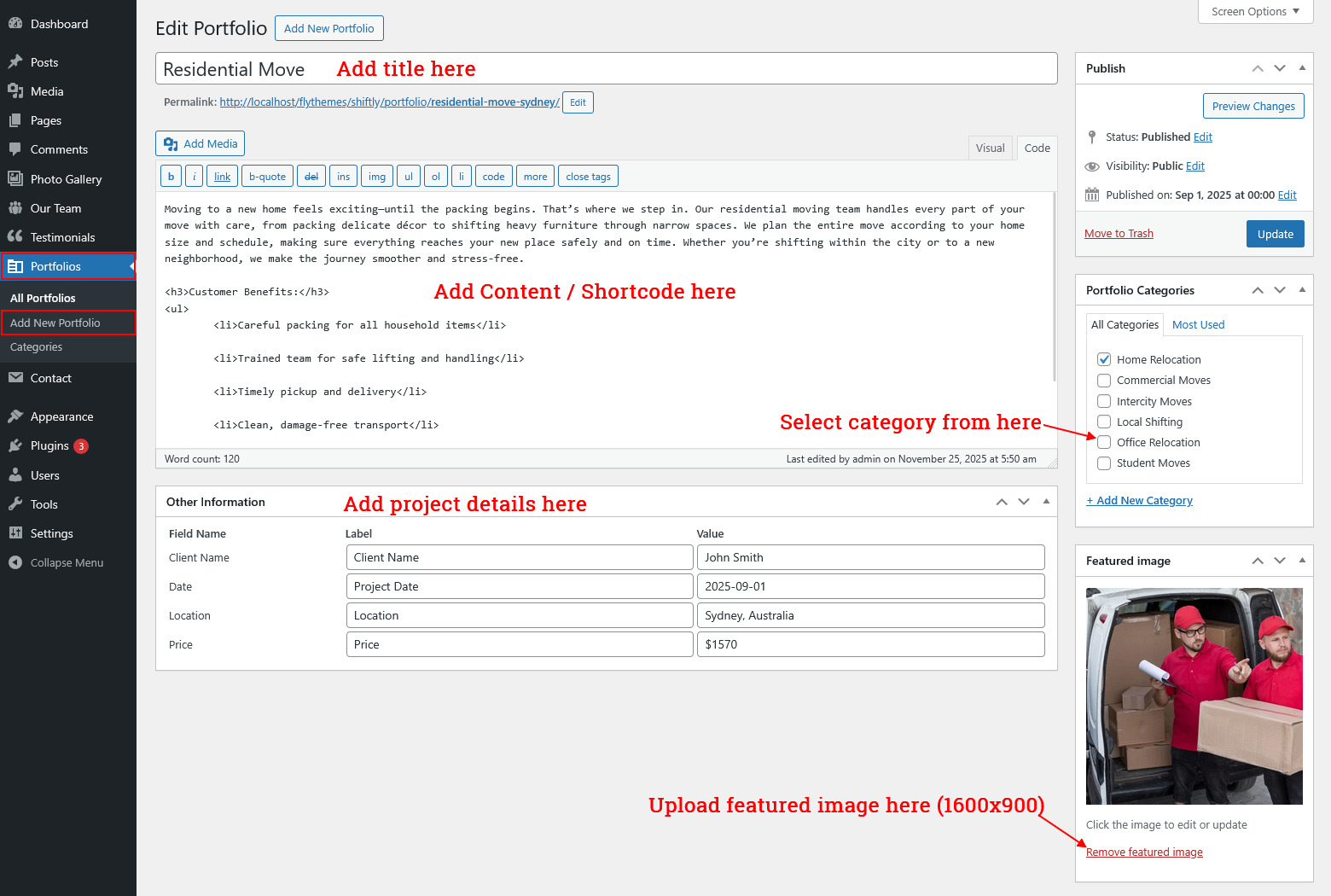
Once you added posts in the Portfolios posts type after that you just have to add post shortcode in the sections content area and you'r done. (Section 9.)
Latest Relocations Section Shortcode:
[portfolio show="-1" type="slider"]
Once you added above shortcode in the sections content area, you'r done. (Section 9.)
Moving Process Section
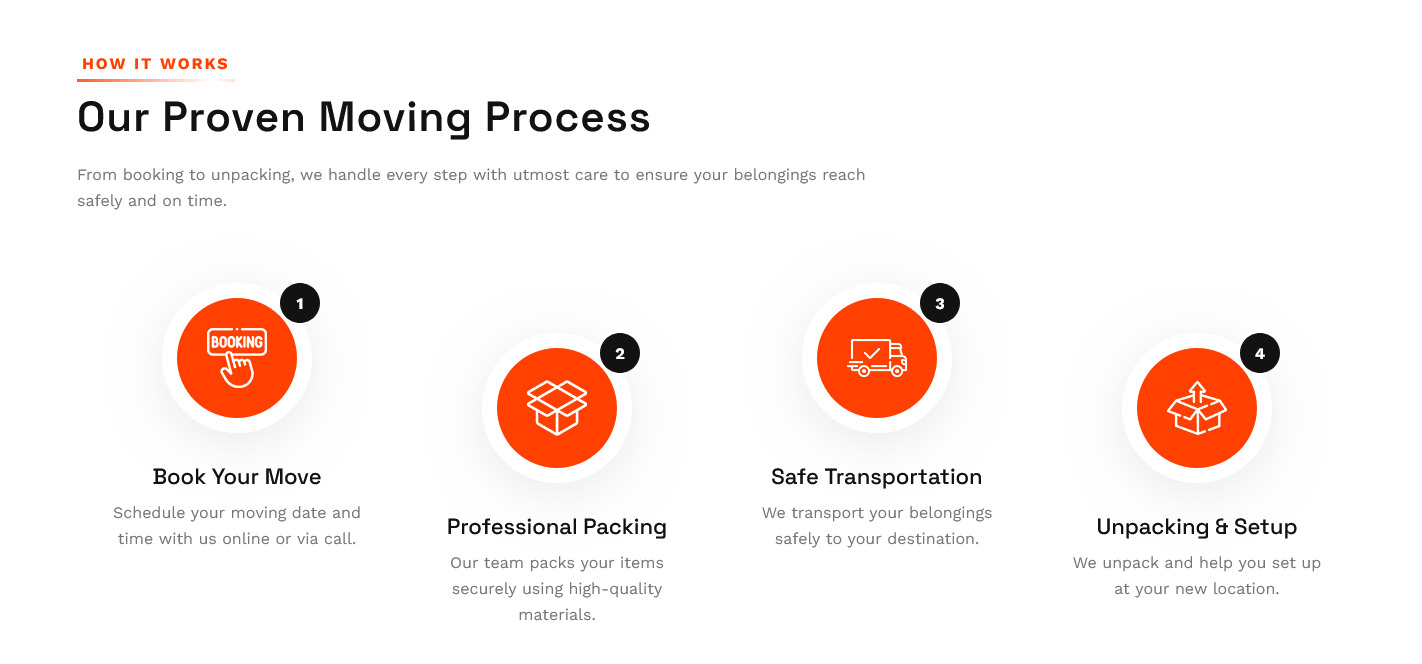
For setting up Moving Process Section Go to >> Appearance >> Theme Options >> Sections >> Section 10.
Shortcode/Content for Moving Process Section.
[working_process][step number="1" icon="https://flydemos.net/shiftly/wp-content/themes/shiftly-pro/images/wp-icon1.png" title="Book Your Move" content="Schedule your moving date and time with us online or via call."][step number="2" icon="https://flydemos.net/shiftly/wp-content/themes/shiftly-pro/images/wp-icon2.png" title="Professional Packing" content="Our team packs your items securely using high-quality materials."][step number="3" icon="https://flydemos.net/shiftly/wp-content/themes/shiftly-pro/images/wp-icon3.png" title="Safe Transportation" content="We transport your belongings safely to your destination."][step number="4" icon="https://flydemos.net/shiftly/wp-content/themes/shiftly-pro/images/wp-icon4.png" title="Unpacking & Setup" content="We unpack and help you set up at your new location."][/working_process]
Once you added above shortcode in the sections content area, you'r done. (Section 10.)
Latest News Section
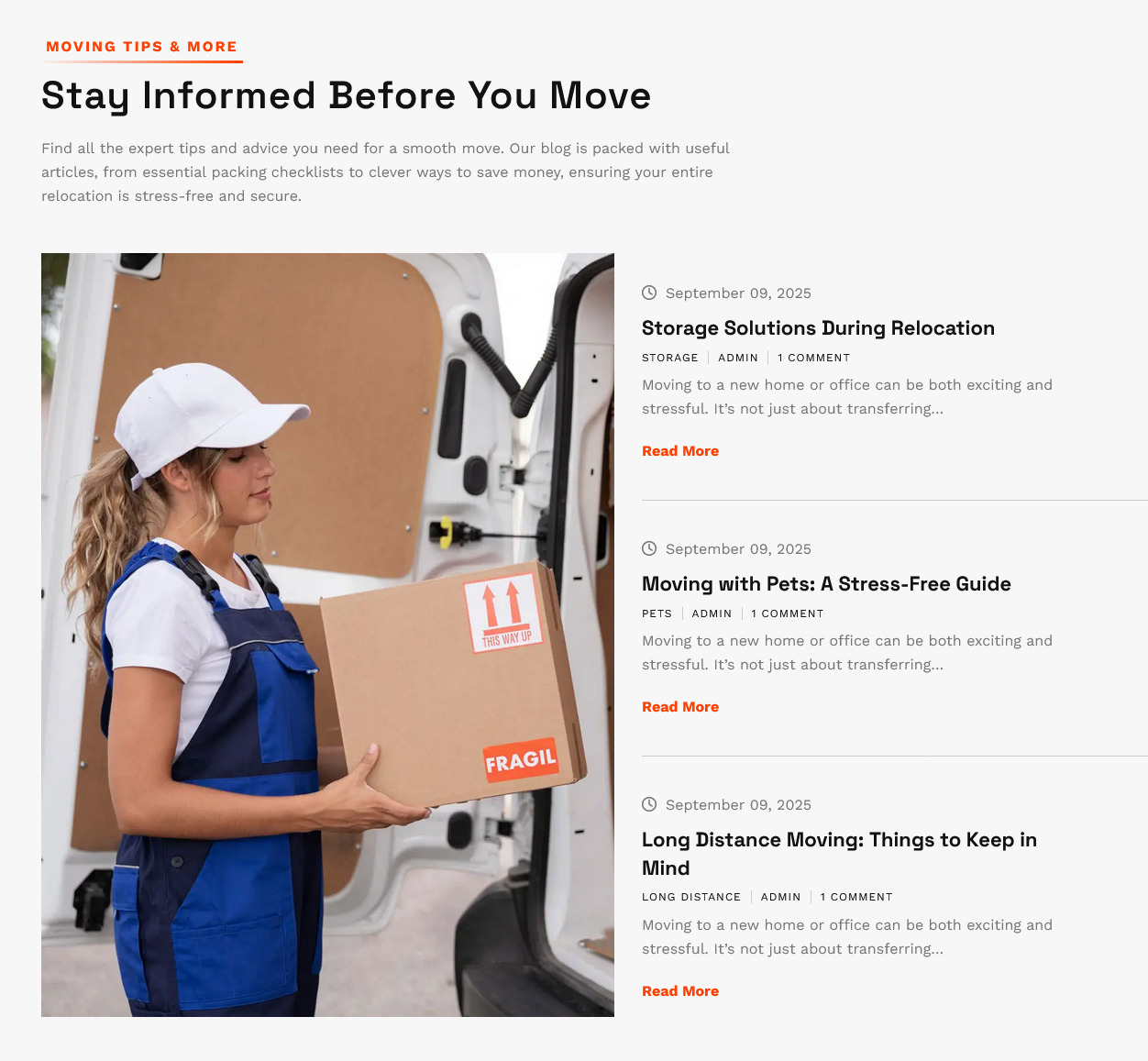
For setting up Latest News Section section Go to >> Appearance >> Theme Options >> Sections >> Select Section 11.
For setting up Latest News Section first of all you need to add some posts by using Posts. Follow below instruction to add posts.
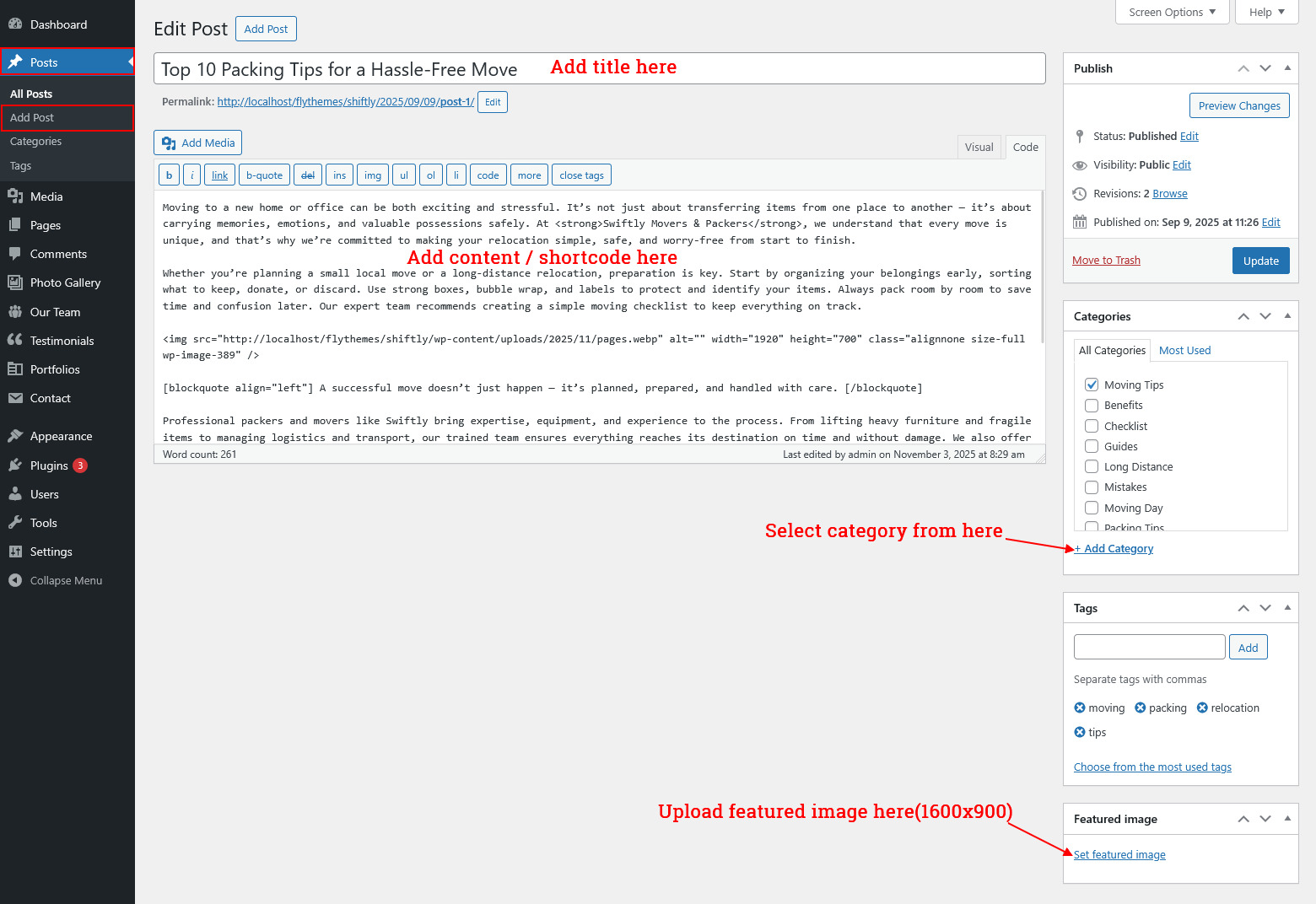
Once you added posts in the Posts type after that you just have to add post shortcode in the sections content area and you'r done. (Section 11.)
Latest News Section Shortcode:
[latest-news show="3" type="grid" column="3" comment="show" date="show" author="show" category="show"]Note:you can change "type" attribute from grid to slider. Use shortcode [latest-news show="No. of post you want to show" type="slider" comment="show" date="show" author="show" category="hide"]
Once you added above shortcode in the sections content area, you'r done. (Section 11.)
Our Partners Section

For setting up Our Partners Section Go to >> Appearance >> Theme Options >> Sections >> Section 12.
Shortcode/Content for Our Partners Section.
[client_lists][client image="https://flydemos.net/shiftly/wp-content/themes/shiftly-pro/images/client1.webp" link="#"][client image="https://flydemos.net/shiftly/wp-content/themes/shiftly-pro/images/client2.webp" link="#"][client image="https://flydemos.net/shiftly/wp-content/themes/shiftly-pro/images/client3.webp" link="#"][client image="https://flydemos.net/shiftly/wp-content/themes/shiftly-pro/images/client4.webp" link="#"][client image="https://flydemos.net/shiftly/wp-content/themes/shiftly-pro/images/client5.webp" link="#"][client image="https://flydemos.net/shiftly/wp-content/themes/shiftly-pro/images/client6.webp" link="#"][/client_lists]
Once you added above shortcode in the sections content area, you'r done. (Section 12.)
Setup Footer
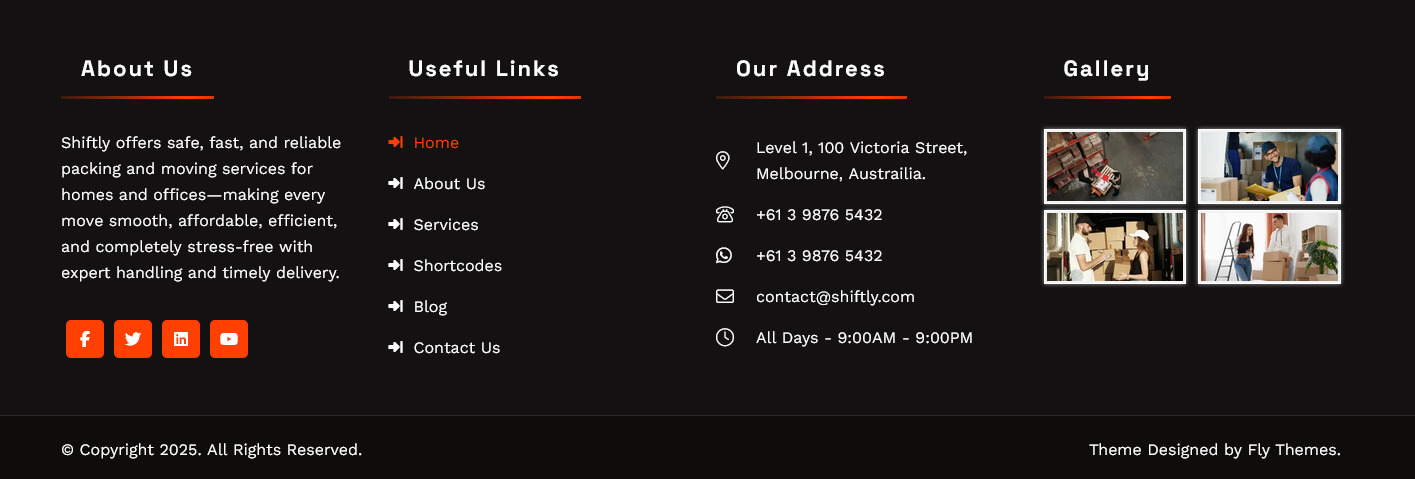
Note: You can set footer from different footer layout option given by theme.
Goto Appearance >> Theme Options >> Basic Settings >> Footer Layouts
For Setting up Footer : Go to Appearance >> Widgets >> Add widgets to respective sidebars.
For Setting up copyright : Go to Appearance >> Theme Option >> Basic Settings >> Footer Copyright.
Setup Navigation
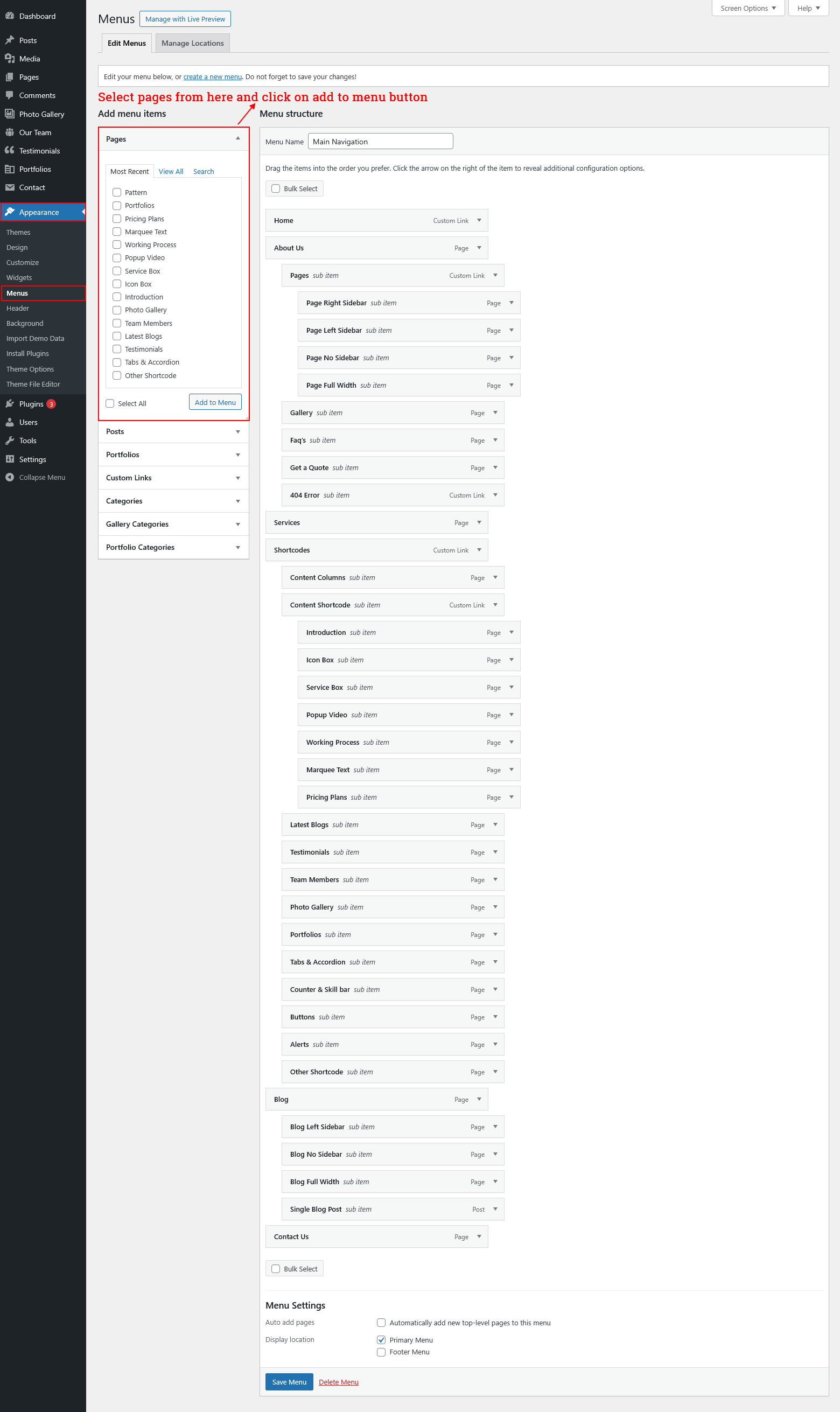
- First of all create pages from go to Pages >> Add new page.
- Go to Appearance >> Menu
- Click on Create a new menu link
- Give a name to your menu in Menu name and click save menu button
- Once you have create menu. You need to add pages by selecting with checkboxes. After adding menu list you can arrange it by drag and drop.
- Select menu theme location from the below checkboxes
See this screenshot for better understanding.
Page Templates and Sidebars
Page Templates
- Default Template (the default page template with a right sidebar position)
- Full Width Page (a page template with one column without a sidebar)
- Left Sidebar (a page template with left sidebar position)
- No Sidebar (a page template have space on left and right.)
- Blog (Full Width) (a blog templates with one column without sidebar)
- Blog (Left Sidebar) (a blog templates with left sidebar position)
- Blog (Right Sidebar) (a blog template with right sidebar position)
- Blog (No Sidebar) (a blog template with no sidebar position)
- Contact (Full Width) (a contact template with add google map position)
Posts, Categories and Post Formats
Adding category
Review the following article for more information on adding categories: http://codex.wordpress.org/Manage_Categories_SubPanel
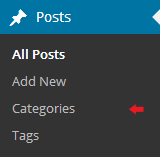
- Log into your WordPress Administration Panel (Dashboard).
- Click the Posts tab.
- With that done, click Categories for blog posts.
- Type in the name of your new category.
- After that, click the Add New Category button.
Creating a Blog post
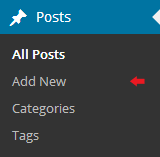
- Log into your WordPress Administration Panel (Dashboard).
- Click the Posts tab.
- Click the Add New tab.
- Type in your post content. For more information on adding posts, please check the following link http://codex.wordpress.org/Posts_Add_New_SubPanel.
Shortcodes
A shortcode is a powerful content building tool http://codex.wordpress.org/Shortcode. Shortcodes are easy to use. First of all, make sure that the editing mode is set to Visual.
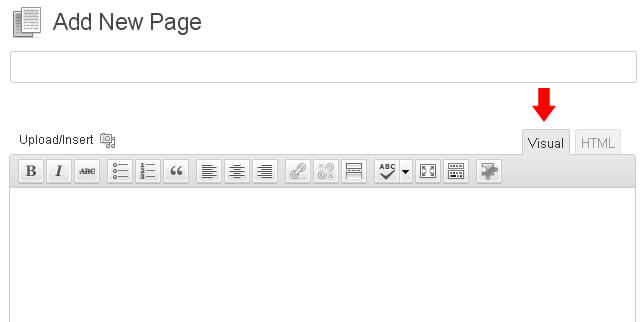
All available shortcodes are conditionally divided into these groups:
- Social icon - used for social icon output.
- One half, one third, one fourth, one fifth - used for display content on columns.
- Tabs - used for display tabs.
- Toggle content - used for display toggle.
- Accordion content - used for display accordion.
- Gradient Button - used for small, medium, large, xtra large gradient button.
- Simple Button - used for small, medium, large, xtra large simple button.
- Round Button - used for light, dark round button.
- Message Boxes - used for success, error, warning, info, about message boxes.
- Search - used to display search form.
- List style - used to display lists.
- Blogpost - used to display blog post.
Elements
One half
[row][column col="6"]Column 1 Content goes here...[/column]
[column col="6"]Column 2 Content goes here...[/column][/row]
Description: used to display column content. You can also use col="1/2/3/4/5/6/7/8/9/10/11/12" make sure you have put right parameter.
Tabs
[tabs]
[tab title="TAB TITLE 1"]Tab Content goes here...[/tab]
[/tabs]
Description: use to display tab content.
Toggle content
[toggle_content title="Toggle Title 1"]Toggle Content goes here...[/toggle_content]
Description: use to display toggle content.
Accordion Content
[accordion]
[accordion_content title="ACCORDION TITLE 1"]Accordion Content goes here...[/accordion_content]
[/accordion]
Description: use to display accordion content.
Gradient Button
[gradient_button size="small" bg_color="#000000" color="#ffffff" text="text here" title="title here" url="#" position="left"]
Description: use to display gradient button. you can use small, medium, large, xtra lareg sizes.
Simple Button
[simple_button size="small" bg_color="#000000" color="#ffffff" text="text here" title="title here" url="#" position="left"]
Description: use to display simple button. you can use small, medium, large, xtra lareg sizes.
Round Button
[round_button style="light" text="text here" title="title here" url="#" position="left"]
Description: use to display round button. you can use light or dark style.
Horizontal rule

[hr]
Description: used to display a horizontal line.
Succes Message Box

[message type="success"]This is a sample of the 'success' style message box shortcode. To use this style use the following shortcode[/message]
Description: use to display success message box. you can also use error, warning, info, about types.
Search
[searchform]
Description: use to display search form.
List Style
[unordered_list style="list-1"]<li>List style 1</li>[/unordered_list]
Custom Widgets
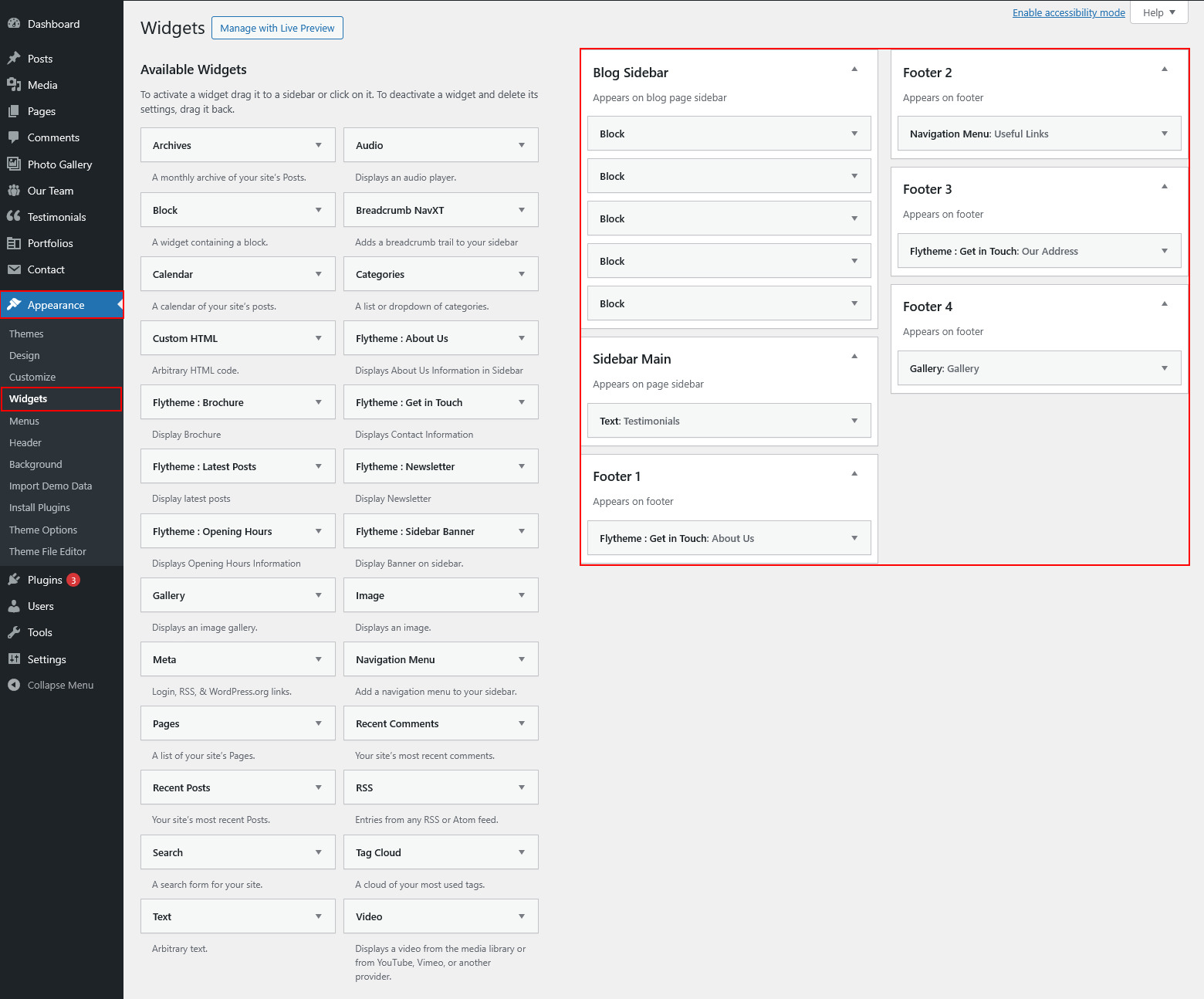
Theme Options
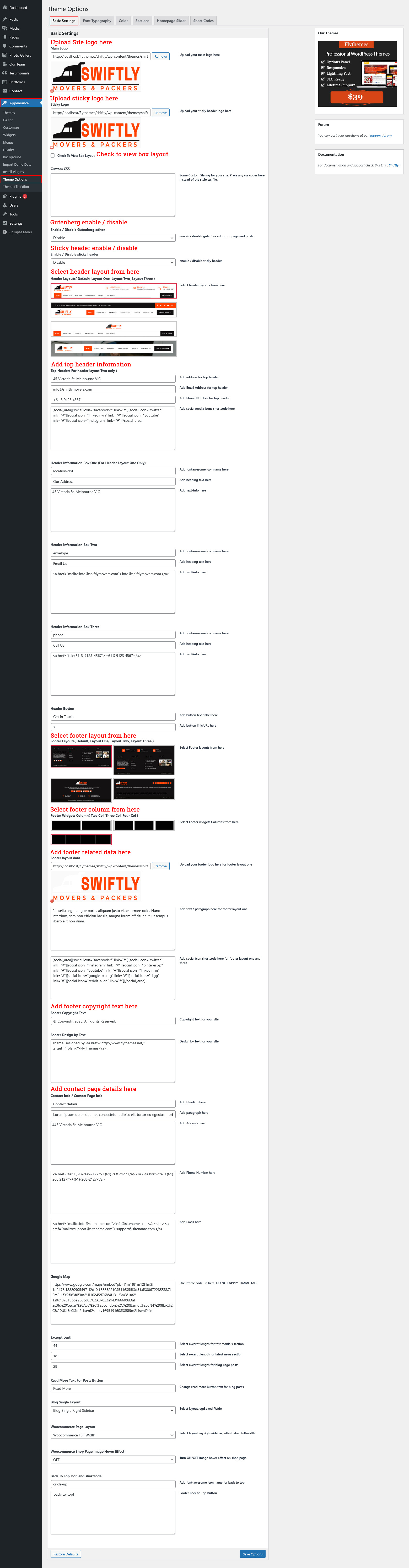
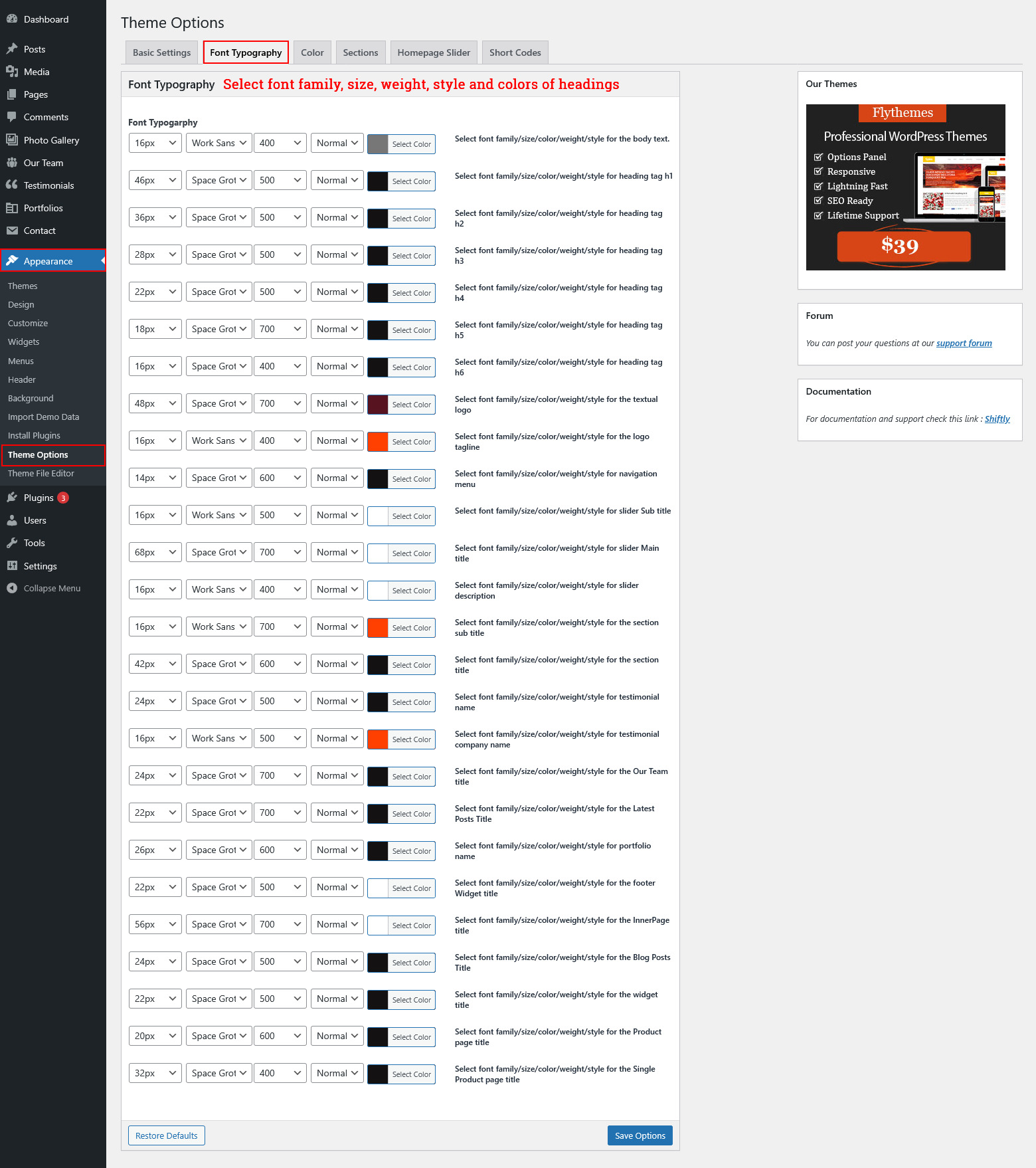
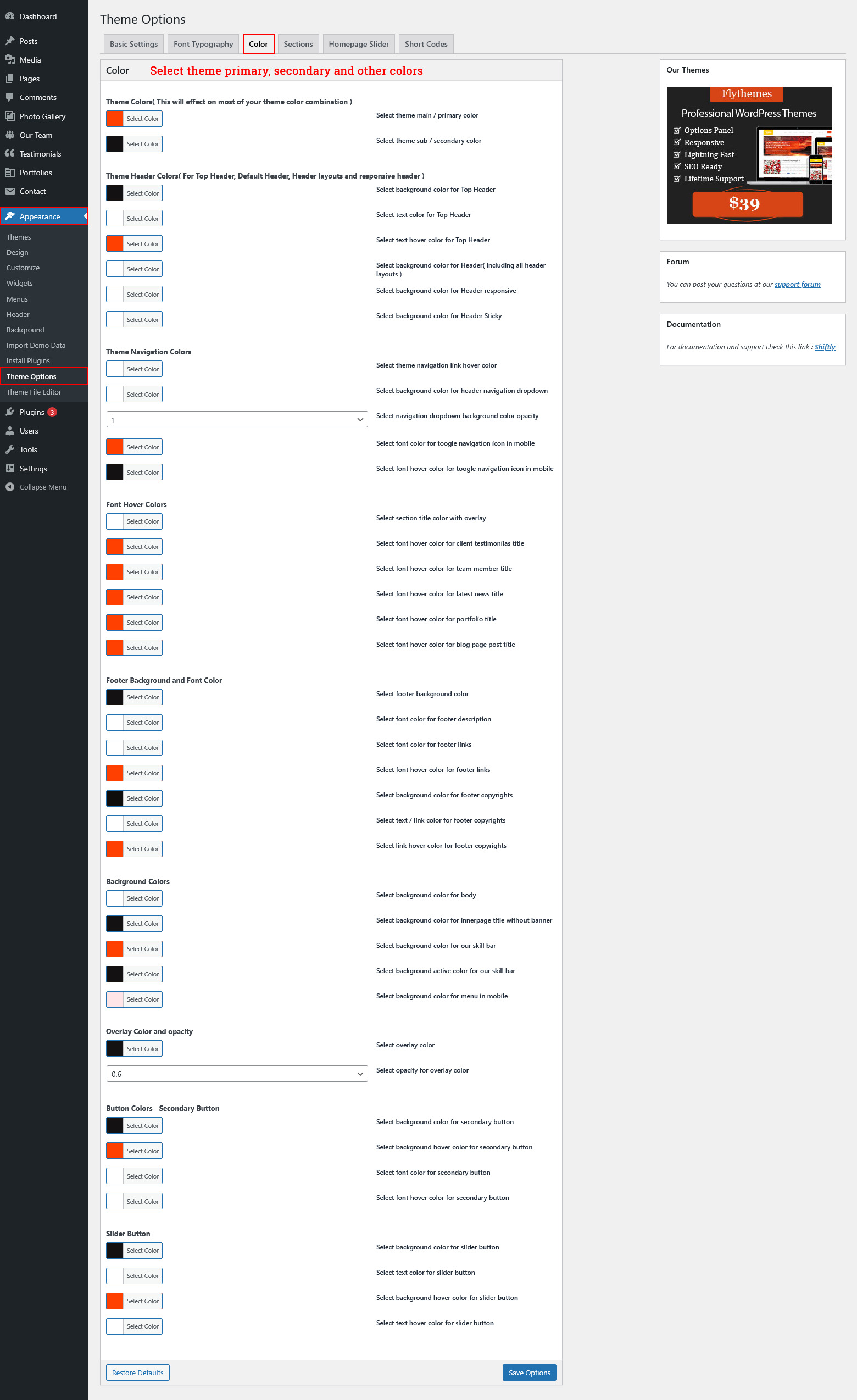
The following theme contains the Settings option. These settings allow you to change the theme’s color palette, order of items, turn items on/off and do lots of other things. In order to use these settings, please go to Appearance → Theme Options.
Basic Settings
Font Typography
Sections
Slider Settings
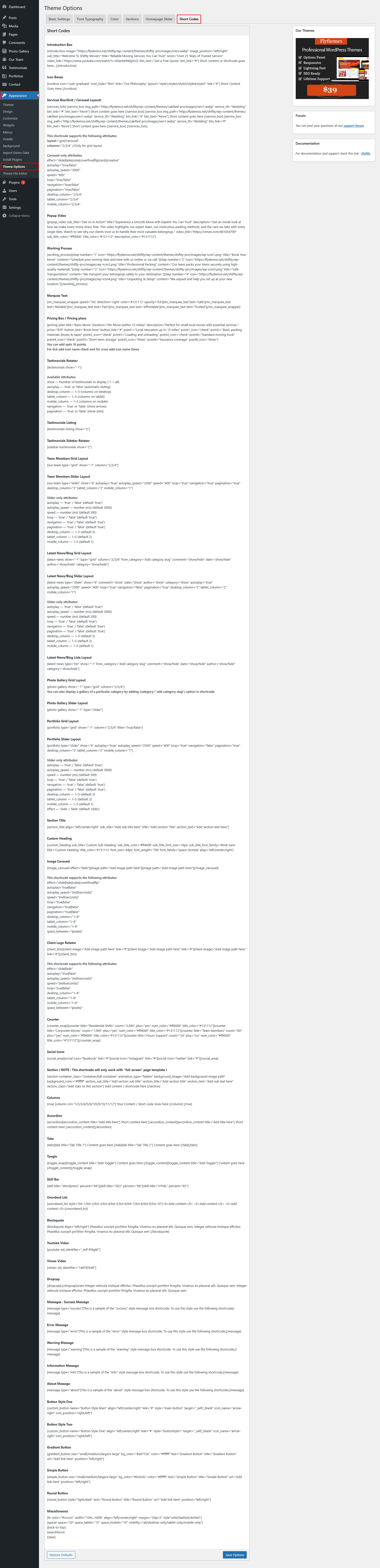
Shortcode
Contact form Plugin
The following instructions are for setup Contact Form Plugin
Follow below instruction to use Contact Form Plugin.
Plugin Installation
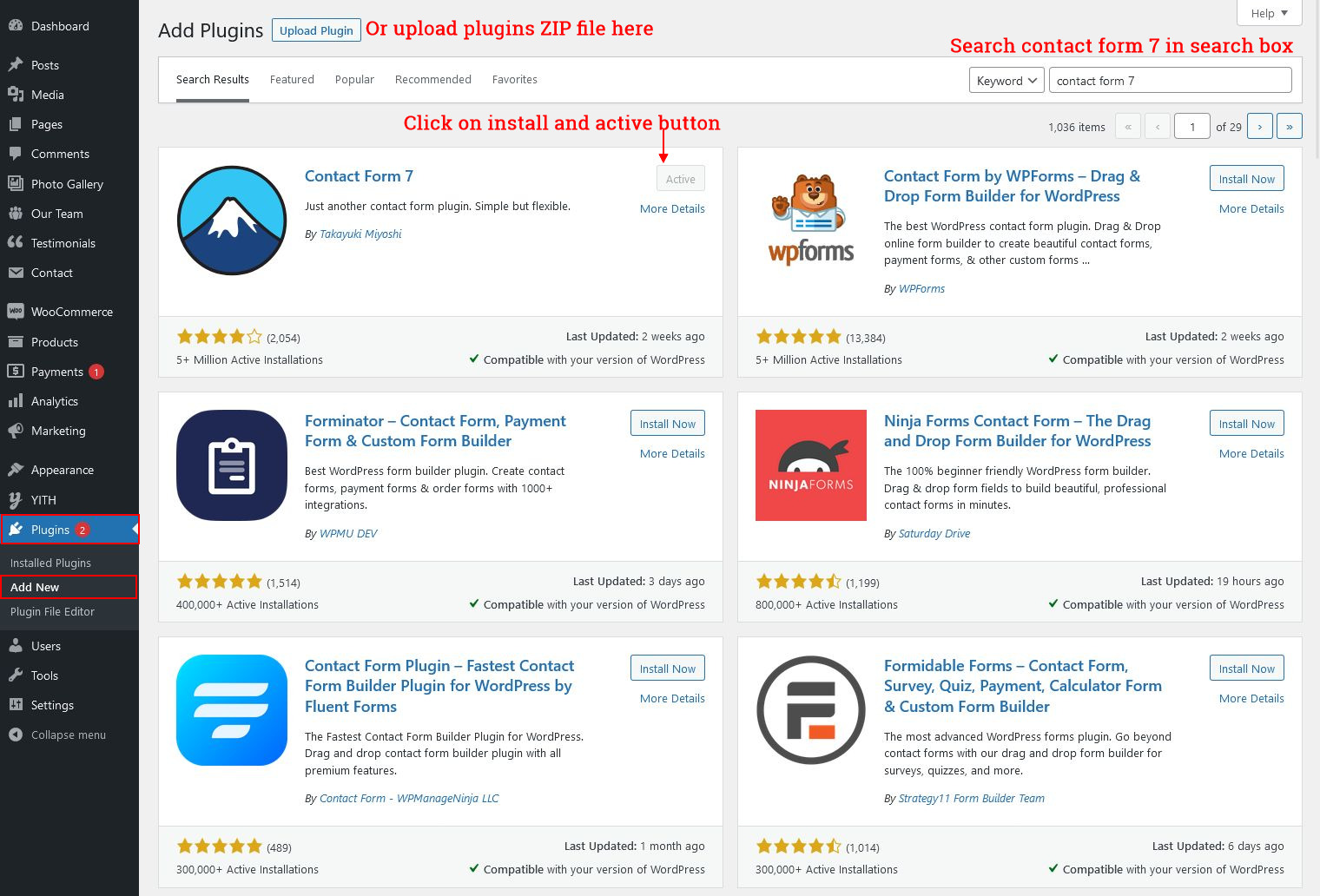
- Go to Plugins >> Add New search for plugin Contact Form 7 and install it in your wordpress dashboard.
- After that you'll see Contact menu menu in left sidebar menu list.
Follow below instructions...
Contact Form Plugin Use
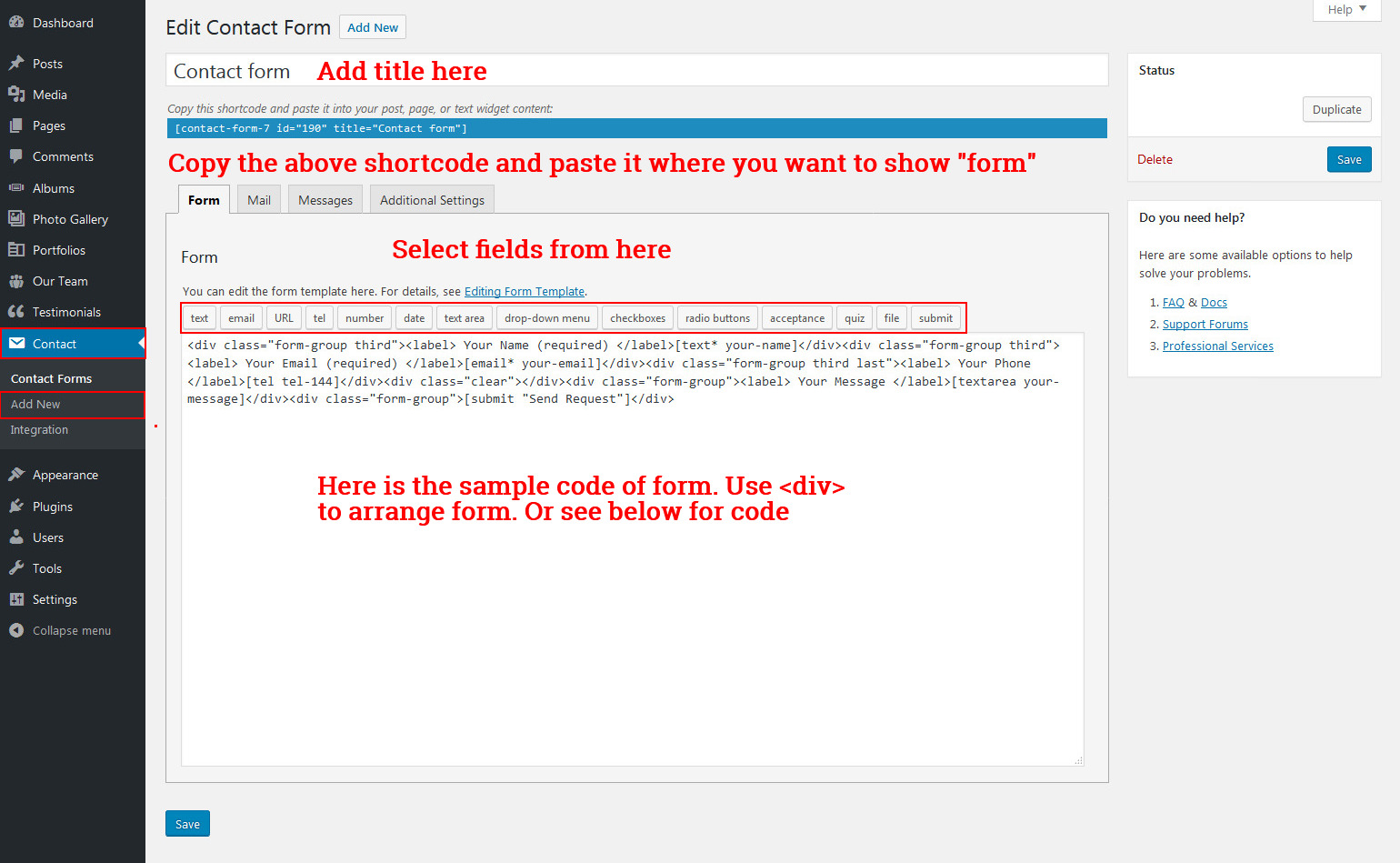
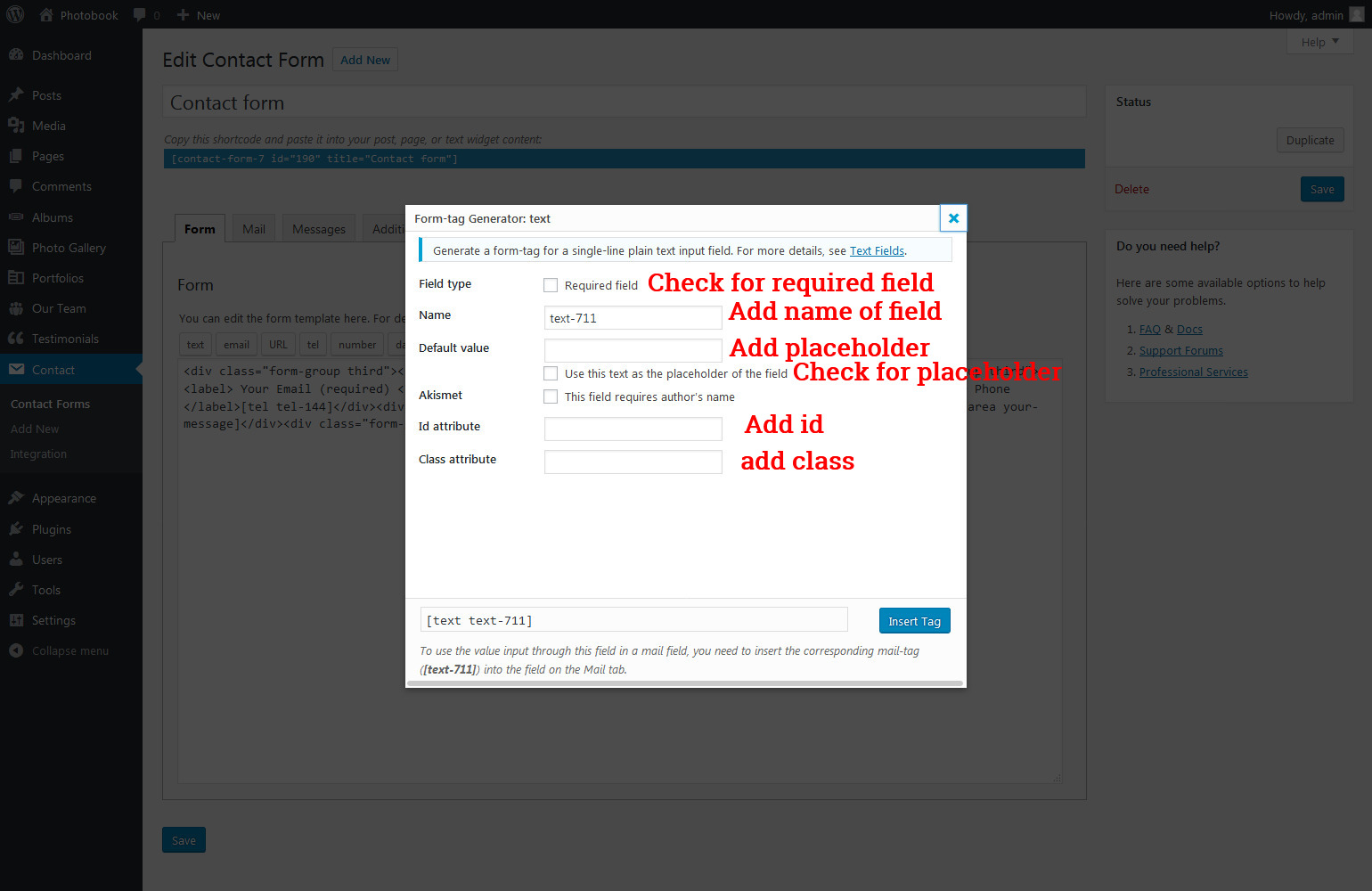
Get Code for Newsletter Form
<div class="front-newsletter">[email* email-267 placeholder "Email Address"][submit "Subscribe"]</div>
Get Code for Contact page form
<div class="form-group half"><label>Your Name (required)</label> [text* your-name]</div><div class="form-group half last"><label> Your Email (required) </label>[email* your-email] </div><div class="clear"></div><div class="form-group half"><label> Phone </label>[tel tel-910]</div><div class="form-group half last"><label> Your Message </label>[textarea your-message 10x1]</div><div class="clear"></div><div class="form-group">[submit "Send"]</div>
Get Code for Customize Cacke form
<div class="form-group half input-with-icon"><div class="form-wrap"><i class="fa-solid fa-cake-candles candles"></i>[select select-494 first_as_label "Choose A Cake" "Chocoholic Cake" "Fresh Cream Pineapple Cake" "Blueberry Cheesecake" "Fresh Mango Cream Cake"]<i class="fa-solid fa-angle-down adown"></i></div></div> <div class="form-group half last input-with-icon"><div class="form-wrap"><i class="fa-solid fa-cake-candles candles"></i>[select select-642 first_as_label "Choose A Flavor" "Chocolate" "Vanilla" "Pineapple"]<i class="fa-solid fa-angle-down adown"></i></div></div><div class="clear"></div> <div class="form-group half input-with-icon"><div class="form-wrap"><i class="fa-solid fa-cake-candles candles"></i>[select select-495 first_as_label "Choose A Icing" "Chocolate" "Butter" "Custard"]<i class="fa-solid fa-angle-down adown"></i></div></div> <div class="form-group half last input-with-icon"><div class="form-wrap"><i class="fa-solid fa-cake-candles candles"></i>[select select-643 first_as_label "Choose A Filling" "Chocolate" "Vanilla" "Pineapple"]<i class="fa-solid fa-angle-down adown"></i></div></div><div class="clear"></div> <div class="form-group half input-with-icon"><div class="form-wrap"><i class="fa-solid fa-cake-candles candles"></i>[select select-496 first_as_label "Cake Design" "Round" "Square" "Heart"]<i class="fa-solid fa-angle-down adown"></i></div></div> <div class="form-group half last input-with-icon"><div class="form-wrap"><i class="fa-solid fa-cake-candles candles"></i>[select select-644 first_as_label "Cake Layers" "One tier" "Two tier" "Three tier"]<i class="fa-solid fa-angle-down adown"></i></div></div><div class="clear"></div> <div class="form-group input-with-icon"><div class="form-wrap"><i class="fa-solid fa-cake-candles candles"></i>[file file-529 filetypes:audio/*|video/*|image/* limit:1mb]</div></div> <div class="form-group input-with-icon textareaa"><div class="form-wrap"><i class="fa-solid fa-envelope envelope-t"></i>[textarea textarea-388 placeholder "Your Request"]</div></div> <div class="form-group half input-with-icon"><div class="form-wrap"><i class="fa-solid fa-user user"></i>[text text-395 placeholder "Your Name"]</div></div> <div class="form-group half last input-with-icon"><div class="form-wrap"><i class="fa-solid fa-envelope envelope"></i>[email email-476 placeholder "Your Email"]</div></div><div class="clear"></div> <div class="form-group half input-with-icon"><div class="form-wrap"><i class="fa-solid fa-phone phone"></i>[tel tel-77 placeholder "Phone Number"]</div></div> <div class="form-group half last input-with-icon"><div class="form-wrap"><i class="fa-solid fa-location-dot map"></i>[text text-603 placeholder "Location"]</div></div><div class="clear"></div> <div class="form-group half input-with-icon"><div class="form-wrap"><i class="fa-solid fa-clock clock"></i>[text text-948 placeholder "Time"]</div></div> <div class="form-group half last input-with-icon"><div class="form-wrap"><i class="fa-solid fa-calendar-days"></i>[date date-110]</div></div><div class="clear"></div> <div class="form-group input-with-icon"><div class="form-wrap"><i class="fa-solid fa-cake-candles candles-s"></i>[submit "Bake My Cake"]</div></div></div>
Inner Pages
For setting up innerpages first create pages with proper page template. We provide four basic option of page template i.e. page with right sidebar, page with left sidebar, page with no sidebar, page full width.
See below image for creating page and selecting page template.
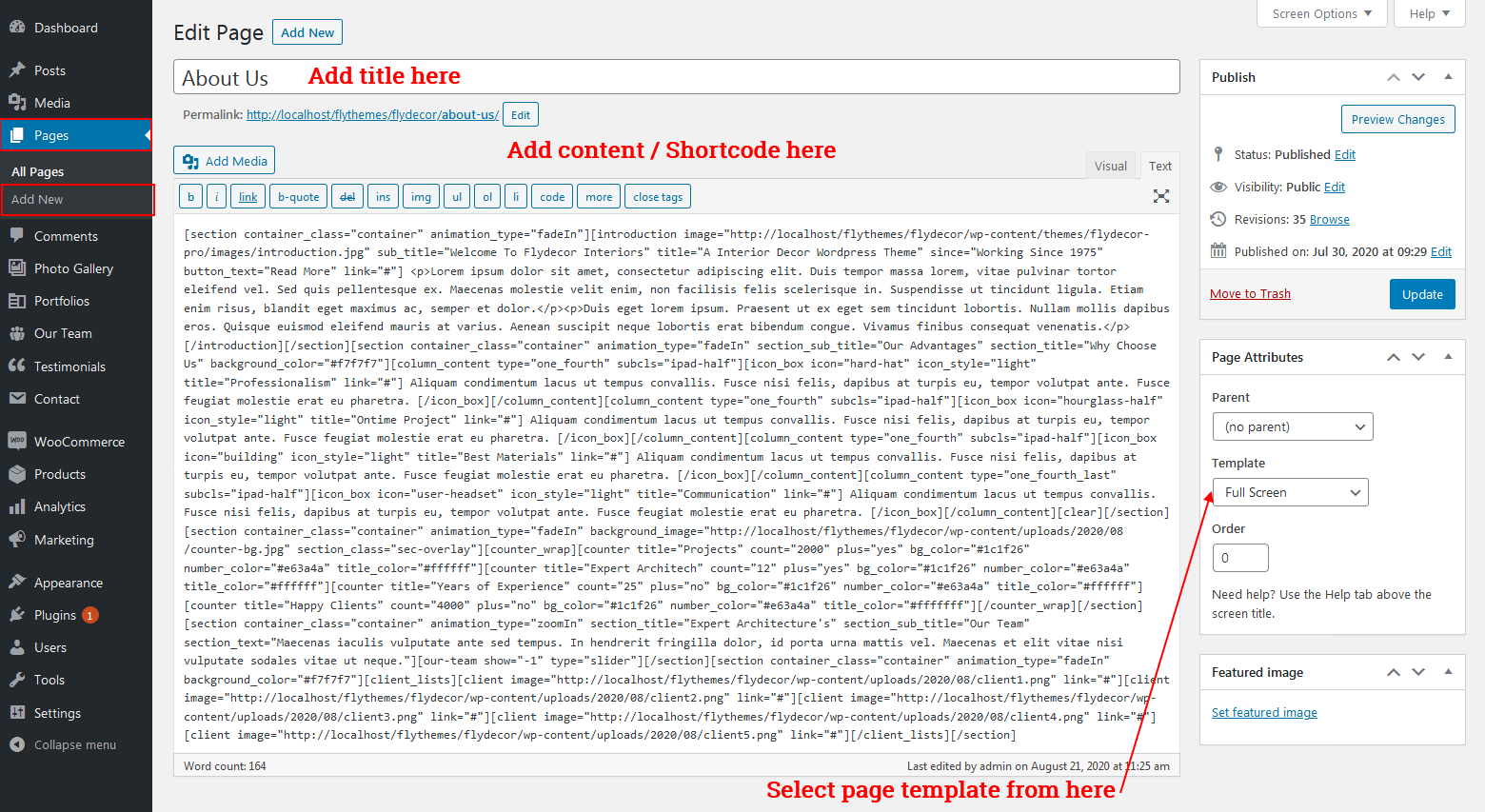
We also provoide full screen page template which support [section][/section] shortcode. So whenever you want to use [section] shortcode use page template "Full-Screen".
For setting up blog page select page template "Blog, Blog Left Sidbar, Blog No Sidebar, Blog Full Width".
For setting up contact page select page template "Contact us".